How TestOptim works: explore, generate, run, fix
TestOptim tests your web app in five steps you start yourself. It explores your app, writes test cases, runs them, reports bugs and re-checks fixes.
In this article
TestOptim tests your web app without you writing any test code. You give it a URL, and it works through the same five steps every time.
The five steps
- Add a project. A project is one web app, identified by its URL. See Create your first project.
- Explore. An AI agent opens your app in a browser, signs in if you gave it credentials, clicks around, and records what it finds as the project's knowledge base: its pages, user flows and data entities. See Explore your app.
- Generate test cases. From the knowledge base, TestOptim writes test cases in plain language, such as "Add a new todo with a valid title". You can review, edit or exclude any of them. See Generate test cases.
- Run tests. The agent works through your test cases in a real browser, records a video of each run, and reports anything that doesn't behave as expected. See Run your tests.
- Fix and verify. Bugs show up as issues. When your team fixes one, mark it fixed and TestOptim re-checks it on the live app. See Review issues found by TestOptim and Mark an issue fixed and let TestOptim verify the fix.
Exploration also reports issues on its own, so you can see bugs before you run a single test case.
Where everything lives
Open a project and use the sidebar. Each item matches a step above.
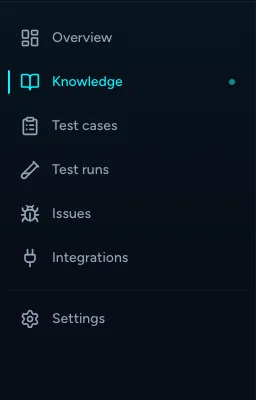
- Overview summarizes the project.
- Knowledge is where you start an exploration and review what it found.
- Test cases is where you generate, edit and run test cases.
- Test runs lists every run and its results.
- Issues lists the bugs found by exploration and test runs.
- Integrations connects Slack, Jira and GitHub.
- Settings holds the project name, credentials and recording options.
What happens automatically, and what doesn't
Nothing chains by itself. Creating a project does not start an exploration, finishing an exploration does not generate test cases, and generating test cases does not run them. You start each step.
You can start steps from:
- the buttons in the app;
- the API, a CI pipeline or an AI assistant, using an API key;
- Slack slash commands, if you connect Slack;
- a push to GitHub, which starts an exploration only. See Re-explore automatically on every GitHub push.
There is no schedule. TestOptim does not run your tests on a timer.
Note
A project runs one AI job at a time. If an exploration, test generation or test run is already in progress, wait for it to finish before starting another.
What counts against your plan
Your plan sets monthly limits on pages explored and test executions, plus a limit on the number of projects. Exploring uses pages, and each test case you run uses one test execution. See Track your usage and buy top-up packs.
Related
Keep reading
- Getting startedQuick start: find your first bugsGo from a new account to a list of real bugs in five steps. Create a project, explore your app, generate test cases, run a few tests and review the issues.
- Troubleshooting"Already in progress for this project" errorTestOptim runs one job per project at a time. See what "already in progress for this project" means, which jobs block each other, and how to proceed.
- Exploration & knowledgeExplore your app to build the knowledge baseStart an AI exploration of your web app in TestOptim, follow its progress live and stop it if needed. The result is your knowledge base.
- IssuesReview issues found by TestOptimSee where TestOptim issues come from, what severity and status mean, and how to filter, search and open an issue to read the steps to reproduce.