Review issues found by TestOptim
See where TestOptim issues come from, what severity and status mean, and how to filter, search and open an issue to read the steps to reproduce.
In this article
To review the bugs TestOptim found, open your project and click Issues. Every bug it reports lands there, and you can filter, search and open each one to read what the AI agent saw.
Where issues come from
Issues are filed automatically. You do not have to create them.
- Exploration files an issue when the agent notices a problem while it maps your app, such as a form that accepts empty input or a navigation link that leads to a 404 page.
- Test runs file an issue when a test case fails because the app behaved differently from the expected result.
- Slack can add more with its "File an issue" action. See Connect Slack and use /testoptim commands.
Note
Exploration and test runs do not behave the same way when they find a bug you already know about. Exploration compares the new finding with existing issues by title, and re-opens a matching issue that was Fixed or Closed. Test runs always create a new issue, so running the same failing test twice gives you two issues. See Update, export and clean up issues in bulk for how to tidy those up.
Open the Issues page
- Open your project.
- Click Issues in the project sidebar.
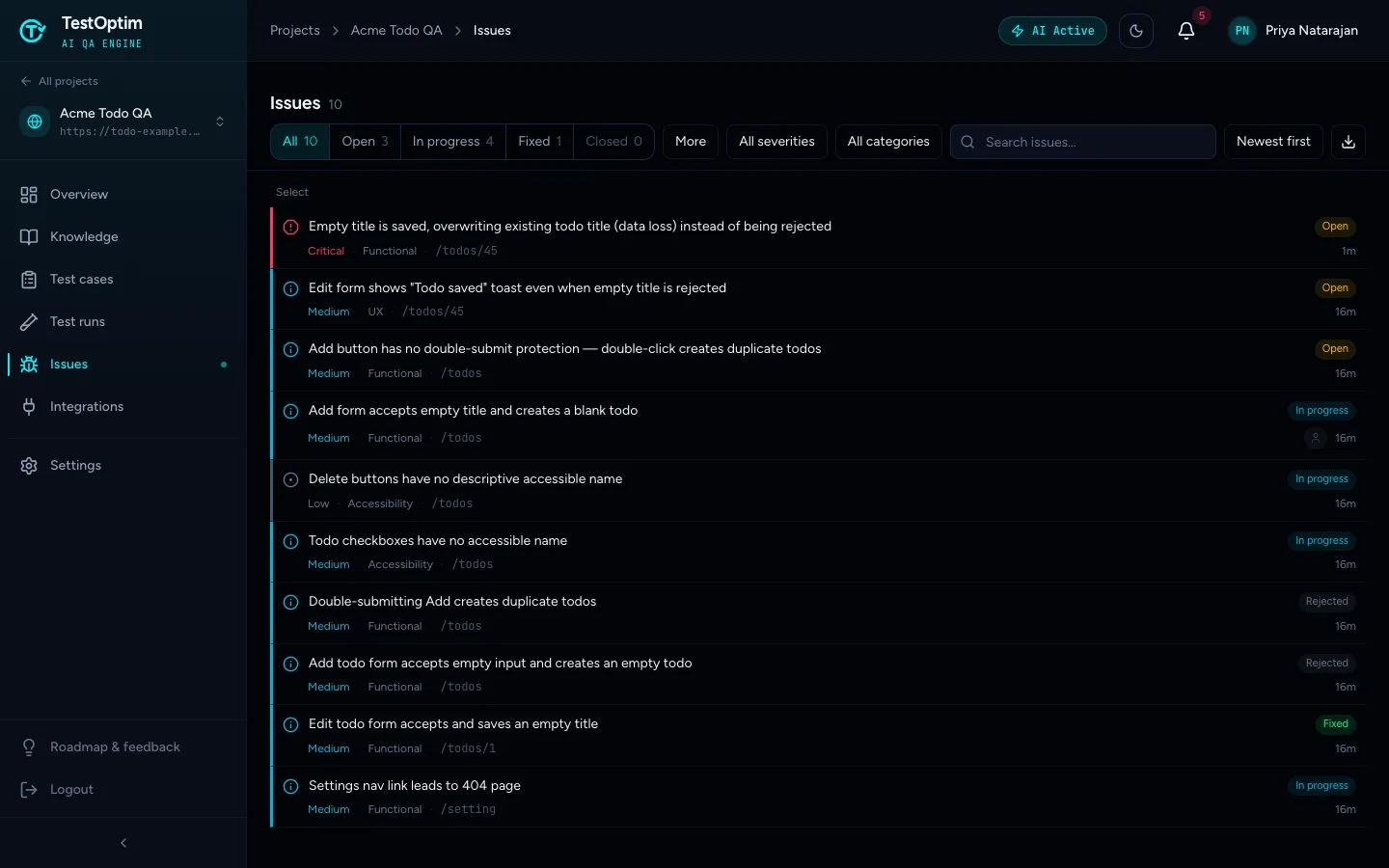
Each row shows the title, a severity label, a category, the page where the problem was seen, how long ago it was filed, and a status badge. If someone is assigned, you also see their avatar.
If the project has no issues yet, you see No issues found and Run a test to discover issues.
Filter and search
The toolbar above the list lets you narrow things down. Filters apply instantly.
- Status tabs: All, Open, In progress, Fixed and Closed, each with a count.
- More: the less common statuses, Rejected, Reopened and Pending verification.
- All severities: Critical, High, Medium or Low.
- All categories: for example Functional, UX, Accessibility, Performance or Security.
- Search issues…: matches the title, description and page URL.
- Newest first: change the sort. You can also sort by oldest, recently updated, severity, status, category or assignee.
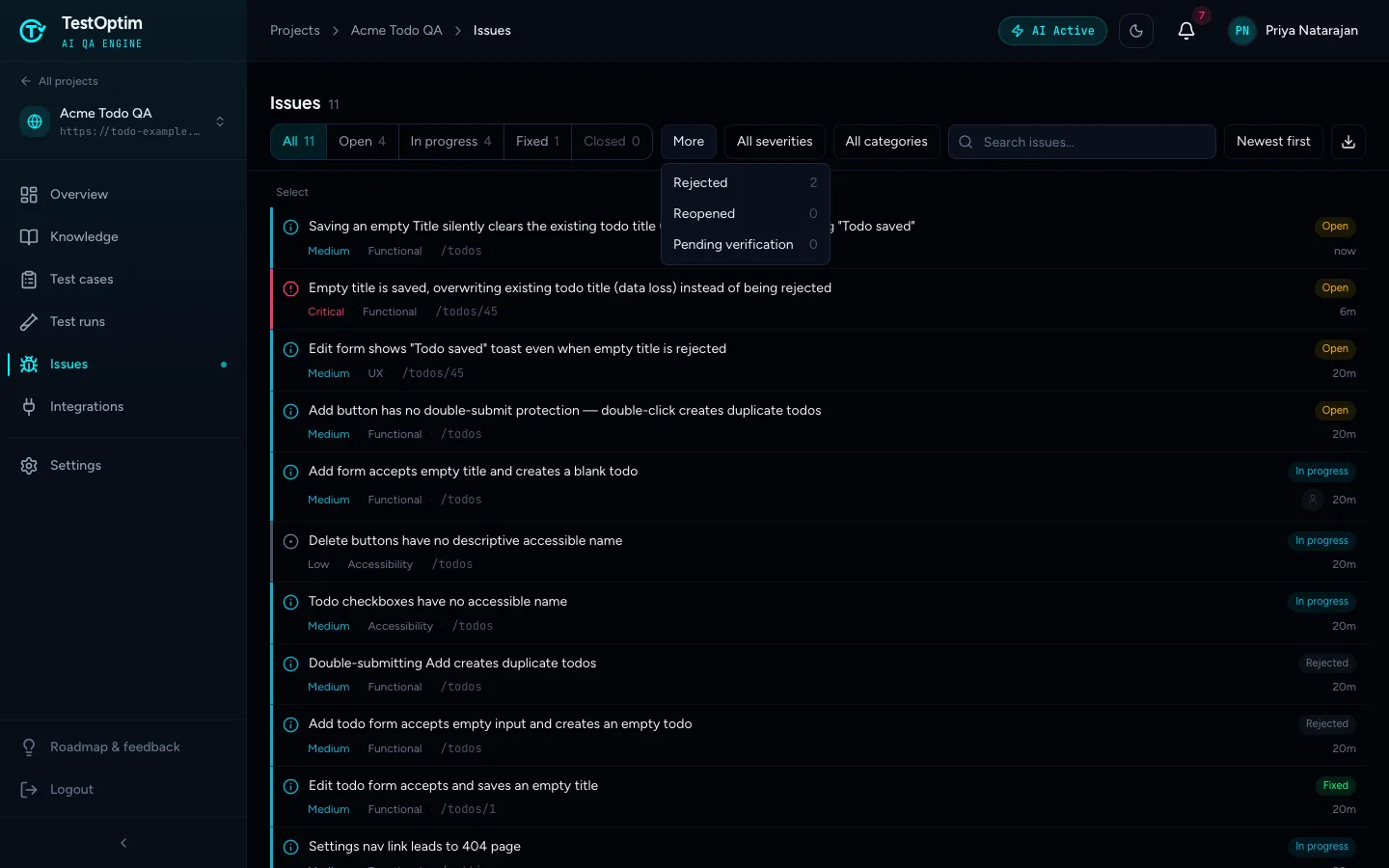
Note
The status that the toolbar calls Pending verification appears as Verifying on the row badge. They are the same thing: TestOptim is checking a fix. See Mark an issue fixed and let TestOptim verify the fix.
What do the severities mean?
Severity is the agent's judgement of how much the problem hurts: Critical, High, Medium or Low. Use it to decide what to look at first, for example by sorting with Severity (Critical → Low).
Exploration maps what it saw to a severity: its critical findings become Critical, warnings become Medium, and informational notes become Low. Test runs set severity from the impact of the failed test. For example, a test that overwrote a todo title with an empty one was filed as Critical because it lost data.
Open an issue
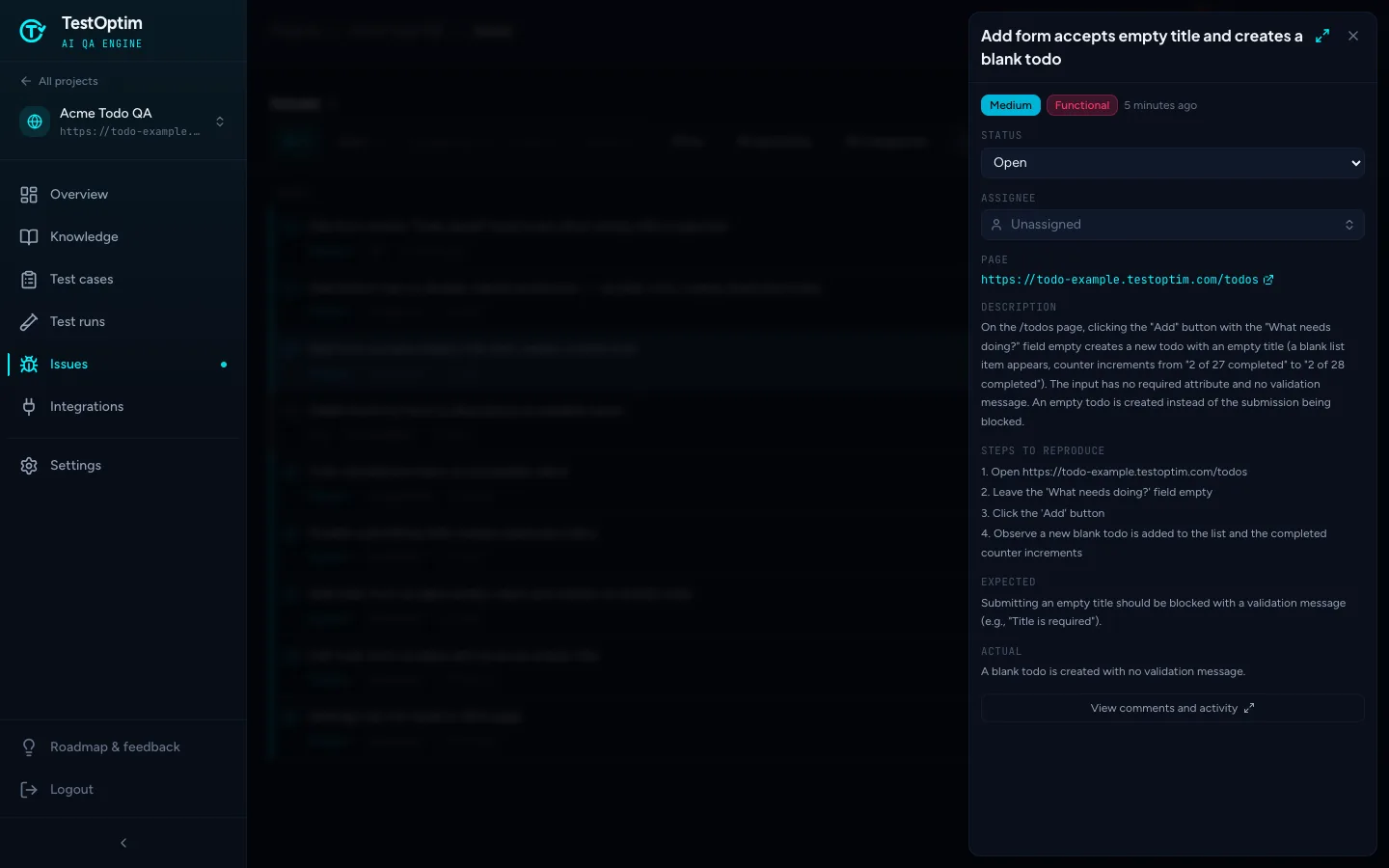
- Click any row. A detail panel slides in from the right.
- Read the sections from top to bottom:
- Status and Assignee, which you can change right here.
- Page, the URL where the problem happened.
- Description, a plain-language summary.
- Steps to reproduce, a numbered list you can follow yourself.
- Expected and Actual, side by side.
- Use the arrow keys to move to the next or previous issue while the panel is open.
- Click View comments and activity (or the expand icon) to open the full issue page.
The full issue page adds a Screenshot area, the Comments and Activity tabs, Related Issues, and a Details card with created and updated dates.
Tip
Issues from test runs usually include a screenshot and a Re-test this fix button. Issues from exploration usually have neither. They do list the exact steps, so you can reproduce them in your own browser.
What to do with an issue
- Real bug: assign it and discuss it. See Assign issues and discuss them in comments.
- Fixed in your app: set the status to Fixed so TestOptim can verify it.
- Not a bug, or a false alarm: set the status to Rejected. There is no separate "false positive" action. This is how you mark a false positive.
Note
Viewers can read issues but cannot change them. Developers, QA Engineers, QA Leads, Admins and Owners can update status, assign and comment.
Related
Keep reading
- Getting startedQuick start: find your first bugsGo from a new account to a list of real bugs in five steps. Create a project, explore your app, generate test cases, run a few tests and review the issues.
- Troubleshooting"Already in progress for this project" errorTestOptim runs one job per project at a time. See what "already in progress for this project" means, which jobs block each other, and how to proceed.
- Getting startedHow TestOptim works: explore, generate, run, fixTestOptim tests your web app in five steps you start yourself. It explores your app, writes test cases, runs them, reports bugs and re-checks fixes.
- IssuesMark an issue fixed and let TestOptim verify the fixWhen you set an issue to Fixed or Closed, TestOptim checks your live app before it believes you. Learn what Verifying means, what happens on pass or fail, and when the check is skipped.