Quick start: find your first bugs
Go from a new account to a list of real bugs in five steps. Create a project, explore your app, generate test cases, run a few tests and review the issues.
In this article
This is the shortest path from a new account to a list of bugs. Each step starts the next one by hand, and links to a full article if you want the details.
Before you start
- You have a TestOptim account and an active plan or trial. See Start your free trial or choose a plan.
- You're the organization Owner or an Admin. Only they can create projects.
- You have the URL of a web app to test. Solo, including the trial, explores 30 pages a month, so a mid-size app may reach that budget in one exploration. A staging copy is best, because the agent clicks buttons and submits forms. The examples below use a small demo todo app.
1. Create a project
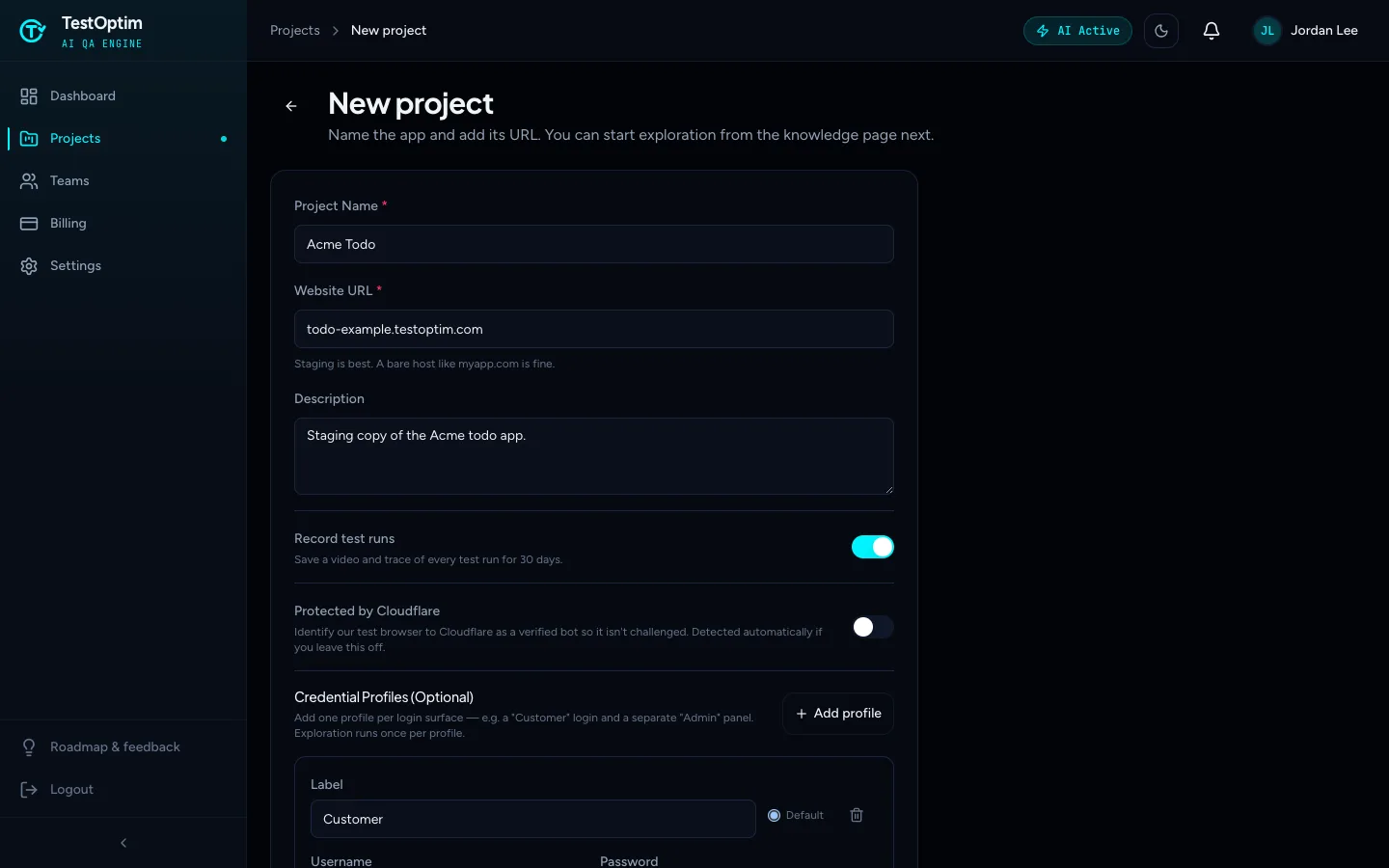
- In the sidebar, select Projects, then New Project. (Right after you start a trial, the Create a project button takes you there.)
- Enter a Project Name and the Website URL. A bare host like
myapp.comis fine. - If your app needs a login, select Add profile and enter a test account's username and password. See Add login credentials so TestOptim can sign in.
- Select Create project.
You land on the project's Knowledge page. Nothing has started yet. See Create your first project.
2. Explore your app
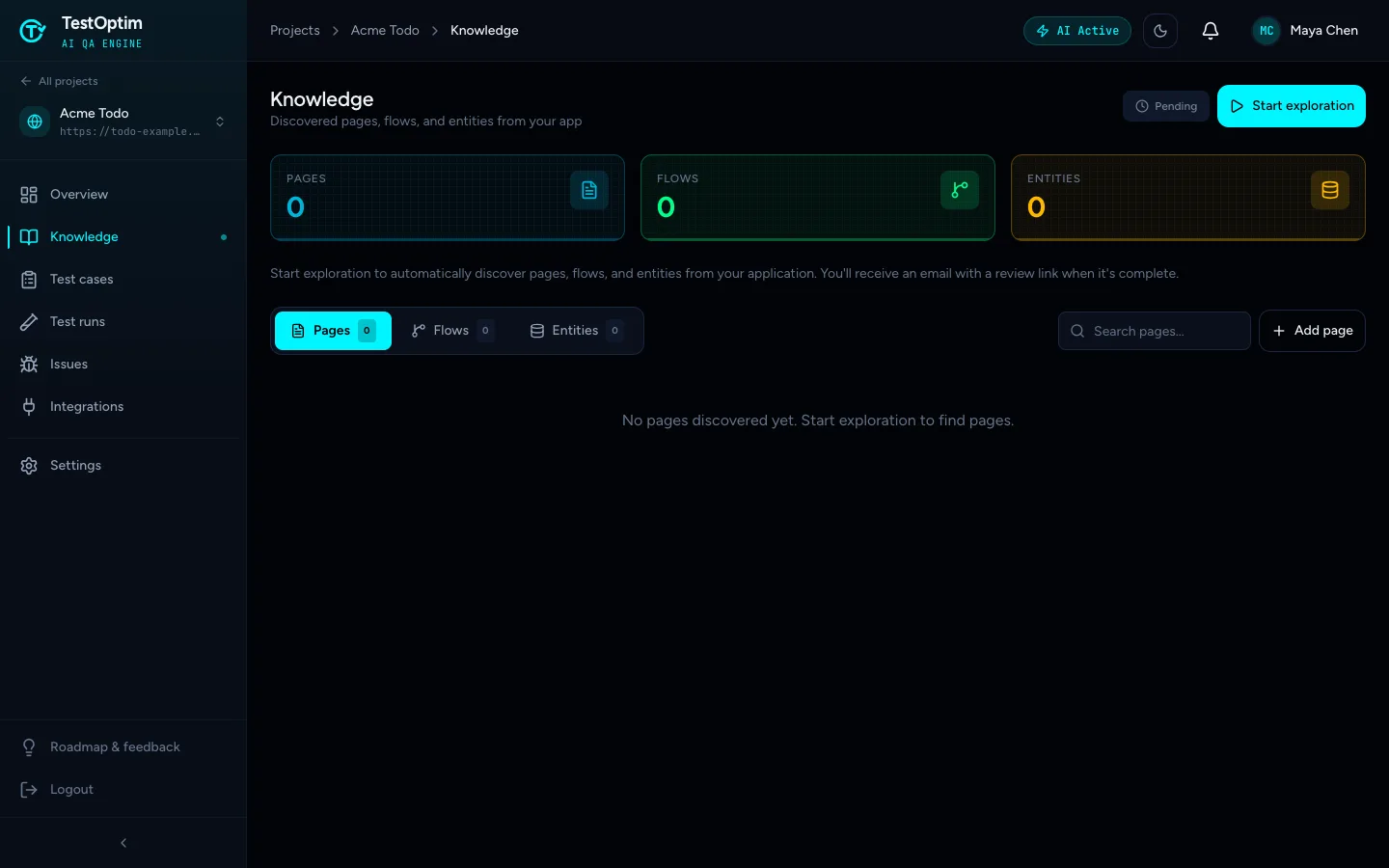
On Knowledge, select Start exploration. If you added more than one credential profile, the button reads Explore as... and lets you pick one.
Start exploration on the Knowledge page Watch the Agent Activity log. The agent signs in, opens pages and counts the pages it visits.
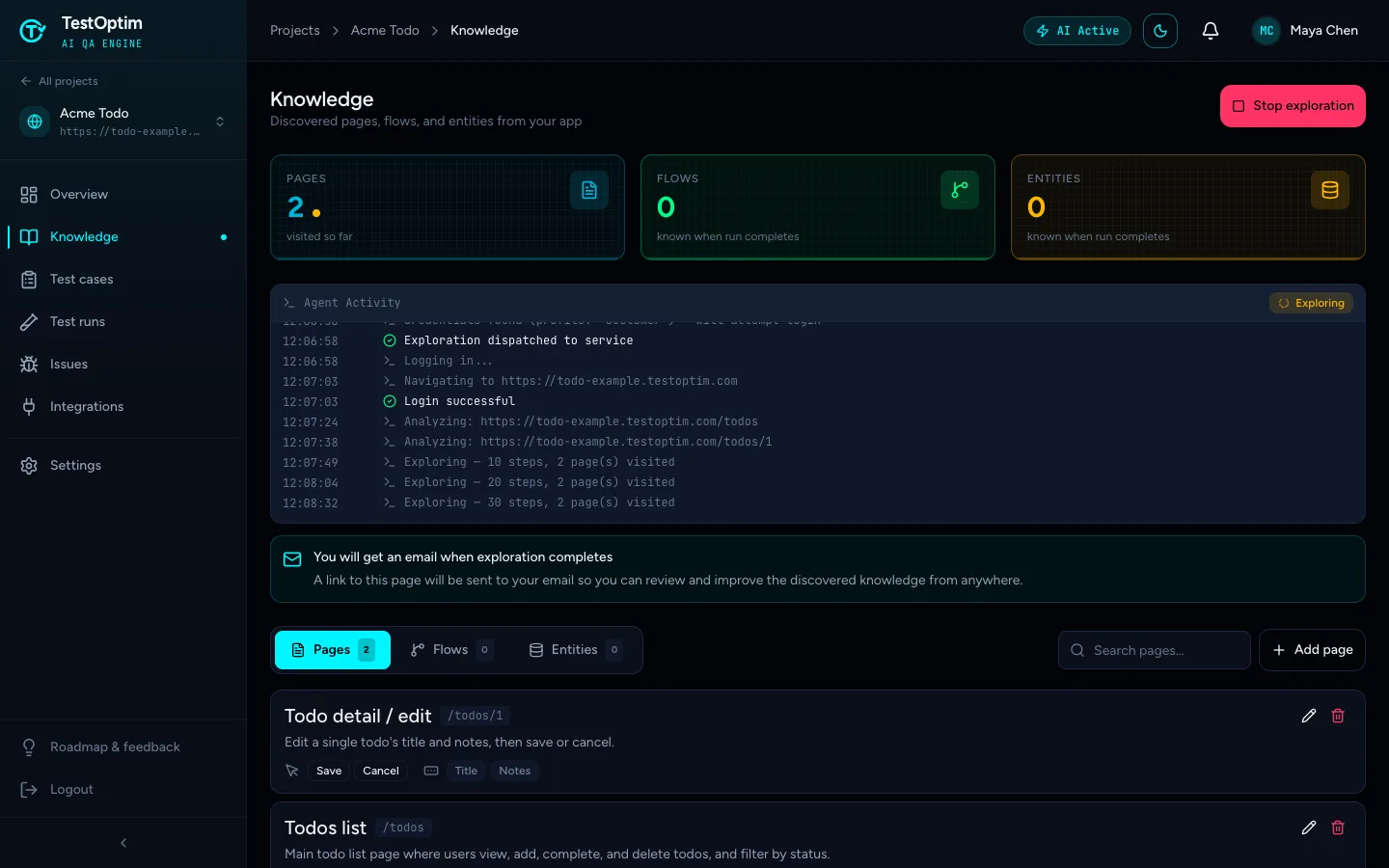
The agent works through your app Wait for the Exploration Complete dialog. A small app usually takes 5 to 15 minutes, and a run stops on its own after 30 minutes with whatever it found so far. You also get an email when it finishes, so you can close the tab.
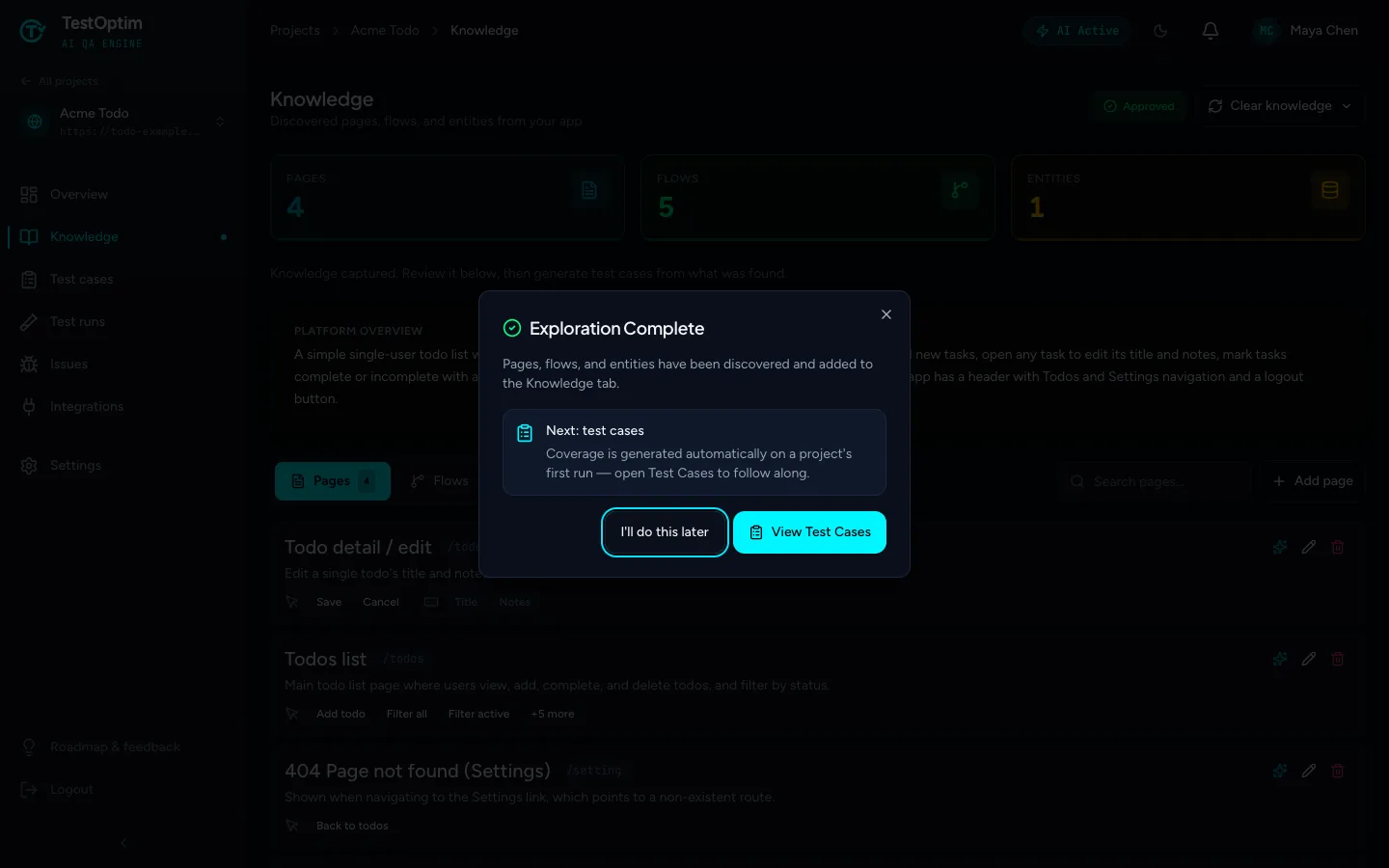
Exploration is finished Test case generation is a separate step, which you start yourself in step 3.
The page now lists the Pages, Flows and Entities it found. If the agent noticed bugs on the way, they're already in Issues. See Explore your app and Review what exploration found.
3. Generate test cases
Select Test cases in the sidebar, or View Test Cases in the dialog.
Select Generate Test Cases. The button is only available after an exploration has produced knowledge.
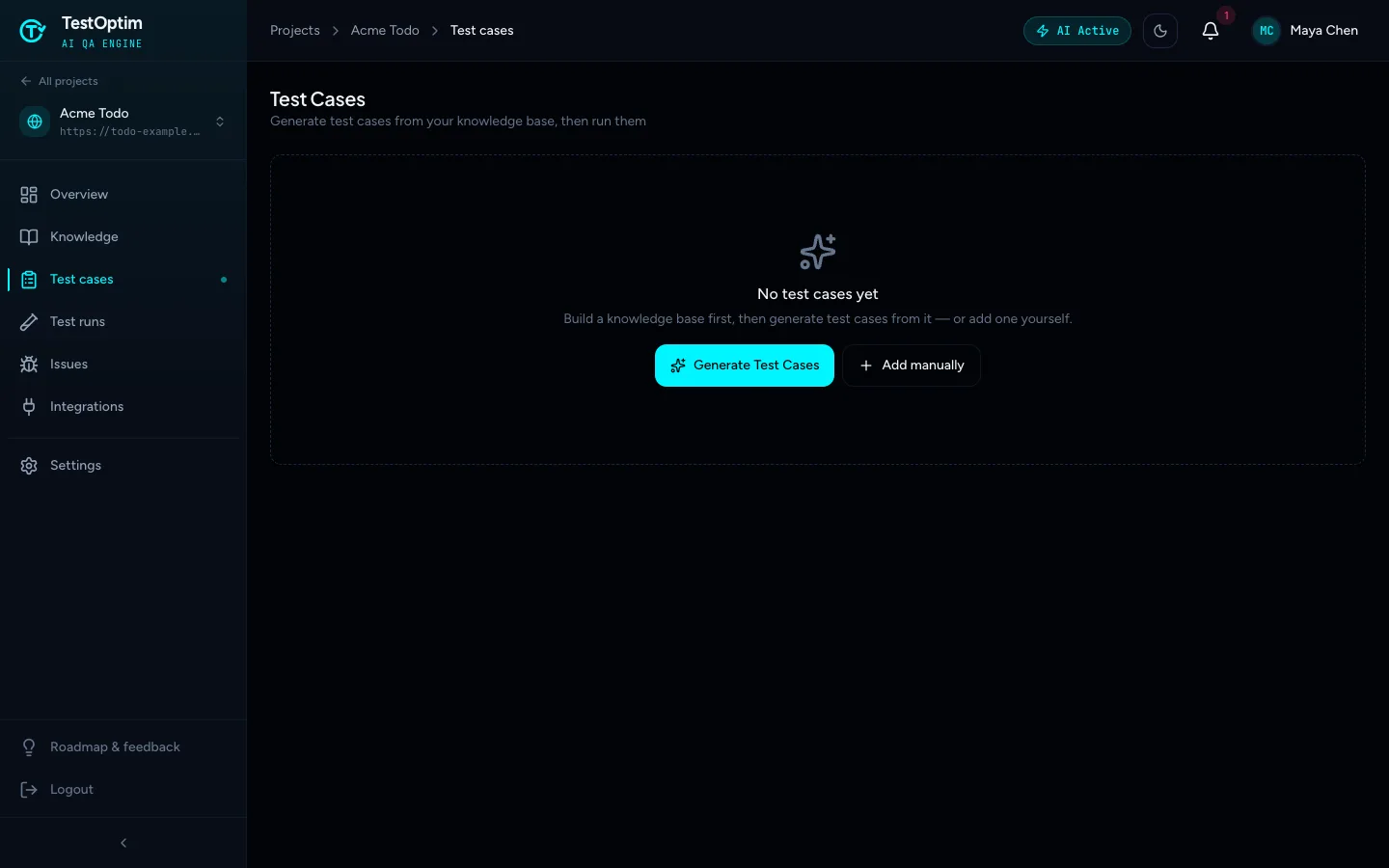
Generate Test Cases Wait for the Test Cases Generated dialog. This usually takes a minute or two.
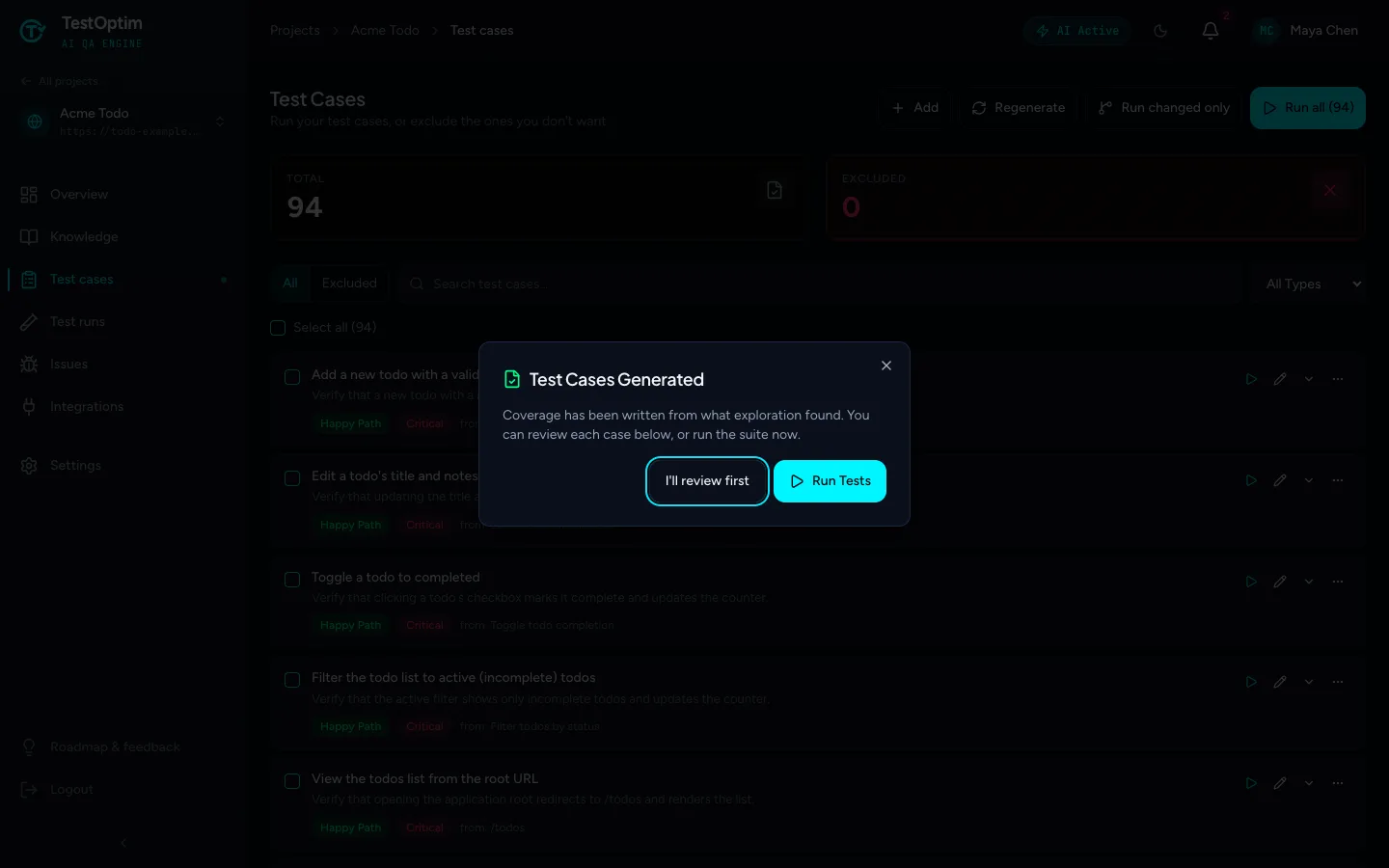
Your test cases are ready
Choose I'll review first to read them before running anything. See Generate test cases.
4. Run a few tests
- On Test cases, run one test case with the play button on its row, or tick a few and select Run on the bar that appears. Or select Run all to run every test case.
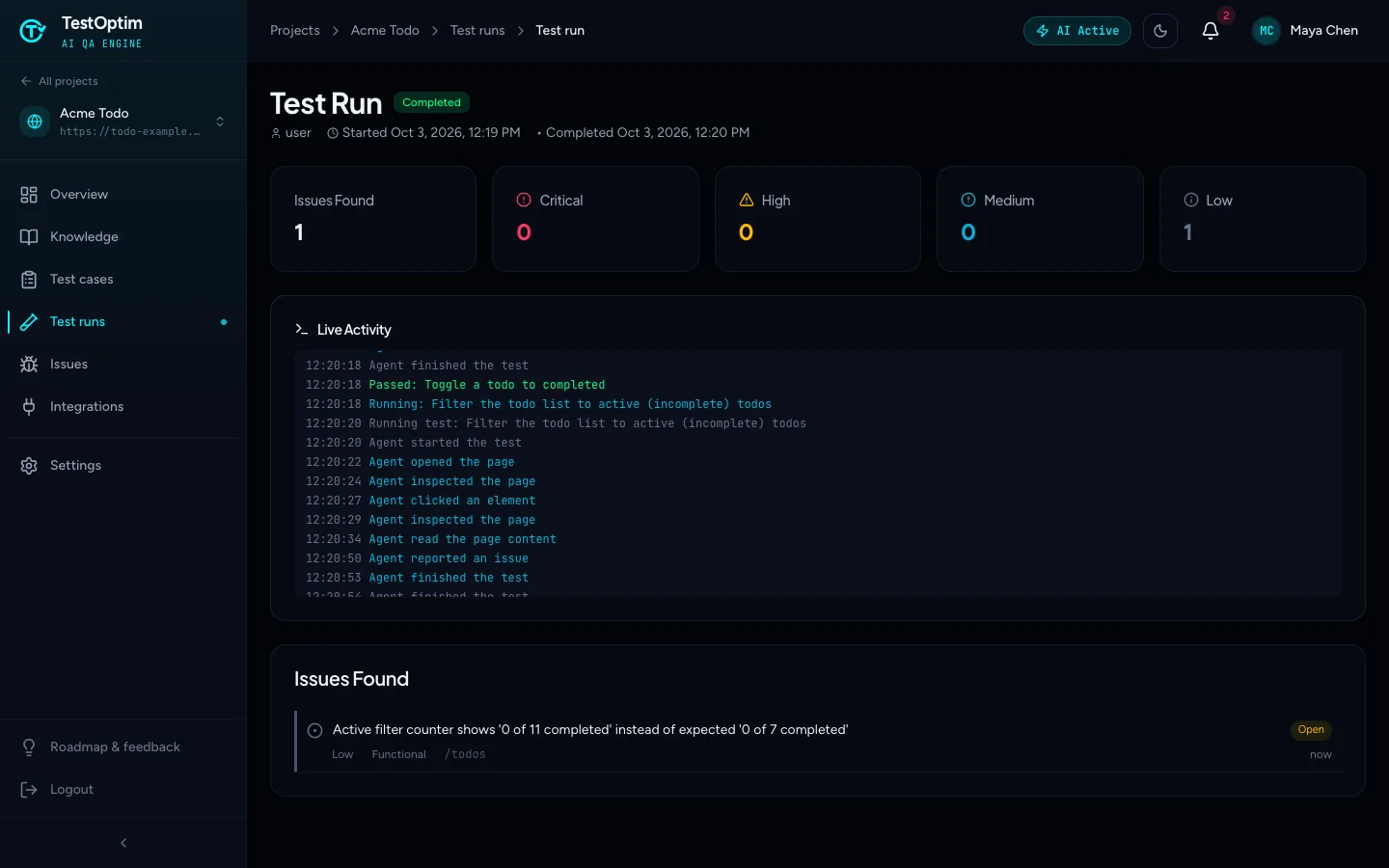
- Open Test runs to follow the run. The run page shows a Live Activity log, and a recording is available once it finishes.
Warning
Every test case you run uses one test execution from your monthly limit, and Solo includes 100. A suite of dozens of test cases can use most of it in one go. Start with a handful, then run more once you know what to expect.
See Run your tests and Read test run results and watch recordings.
5. Review the issues
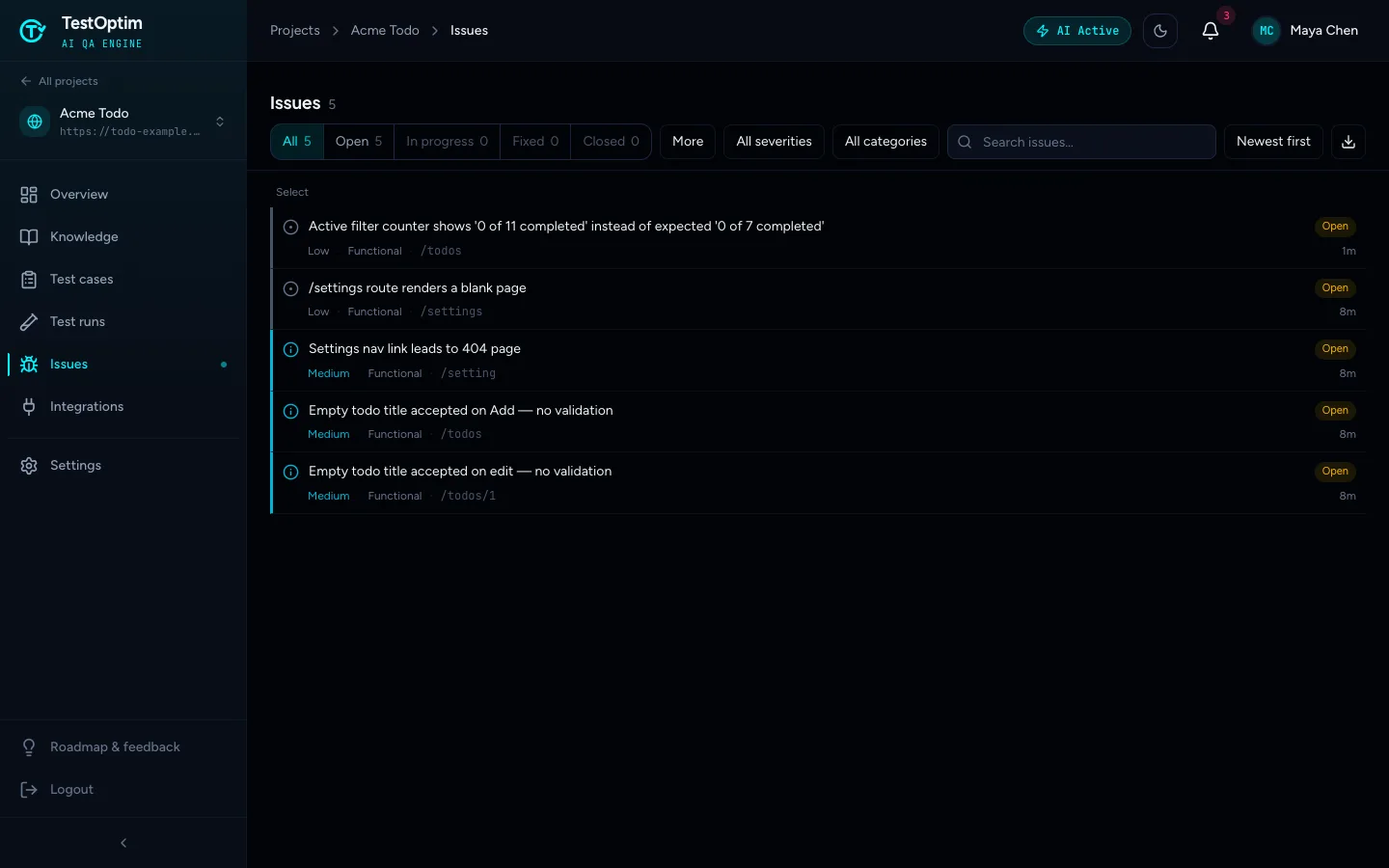
Select Issues in the sidebar. Each bug found by exploration or by a test run has a severity, a category, the page it was found on and a status. Select one to see the steps to reproduce it, what was expected and what happened.
When your team fixes a bug, mark it fixed and TestOptim re-checks it on the live app. See Review issues found by TestOptim and Mark an issue fixed and let TestOptim verify the fix.
Note
A project runs one AI job at a time, so you can't start a test run while an exploration or test generation is still running. If you see "already in progress", wait for it to finish.
Related
Keep reading
- Getting startedHow TestOptim works: explore, generate, run, fixTestOptim tests your web app in five steps you start yourself. It explores your app, writes test cases, runs them, reports bugs and re-checks fixes.
- IssuesReview issues found by TestOptimSee where TestOptim issues come from, what severity and status mean, and how to filter, search and open an issue to read the steps to reproduce.
- Troubleshooting"Already in progress for this project" errorTestOptim runs one job per project at a time. See what "already in progress for this project" means, which jobs block each other, and how to proceed.
- Exploration & knowledgeExplore your app to build the knowledge baseStart an AI exploration of your web app in TestOptim, follow its progress live and stop it if needed. The result is your knowledge base.