Add login credentials so TestOptim can sign in
Give TestOptim a test account so it can explore and test pages behind your login. Add one credential profile per role and see which one each run uses.
In this article
To let TestOptim test pages behind your login, open your project's Settings and add a credential profile: a labelled set of sign-in details for a test account, stored on the project.
Before you start
- Only the organization Owner and Admins can add or change credentials. A QA Lead can edit other project settings, but the credential fields are greyed out with the note "You need permission to manage credentials to change these profiles."
- Create a dedicated test account in your app, on a staging environment, with only the access a normal user of that role has. Don't use a real person's account or an account with access to real customer data.
- You can add credentials when you create the project, or later. The steps below use the project settings.
Warning
Never enter a production login, including for an admin panel. With a production admin account, the agent can change or delete live data, users and settings, because it submits the forms it finds. The Credential Profiles section of the project form shows the same warning.
Add a credential profile
- Open your project and select Settings in the sidebar.
- Under Credential Profiles (Optional), select Add profile.
- In Label, name the profile after the role it signs in as, for example
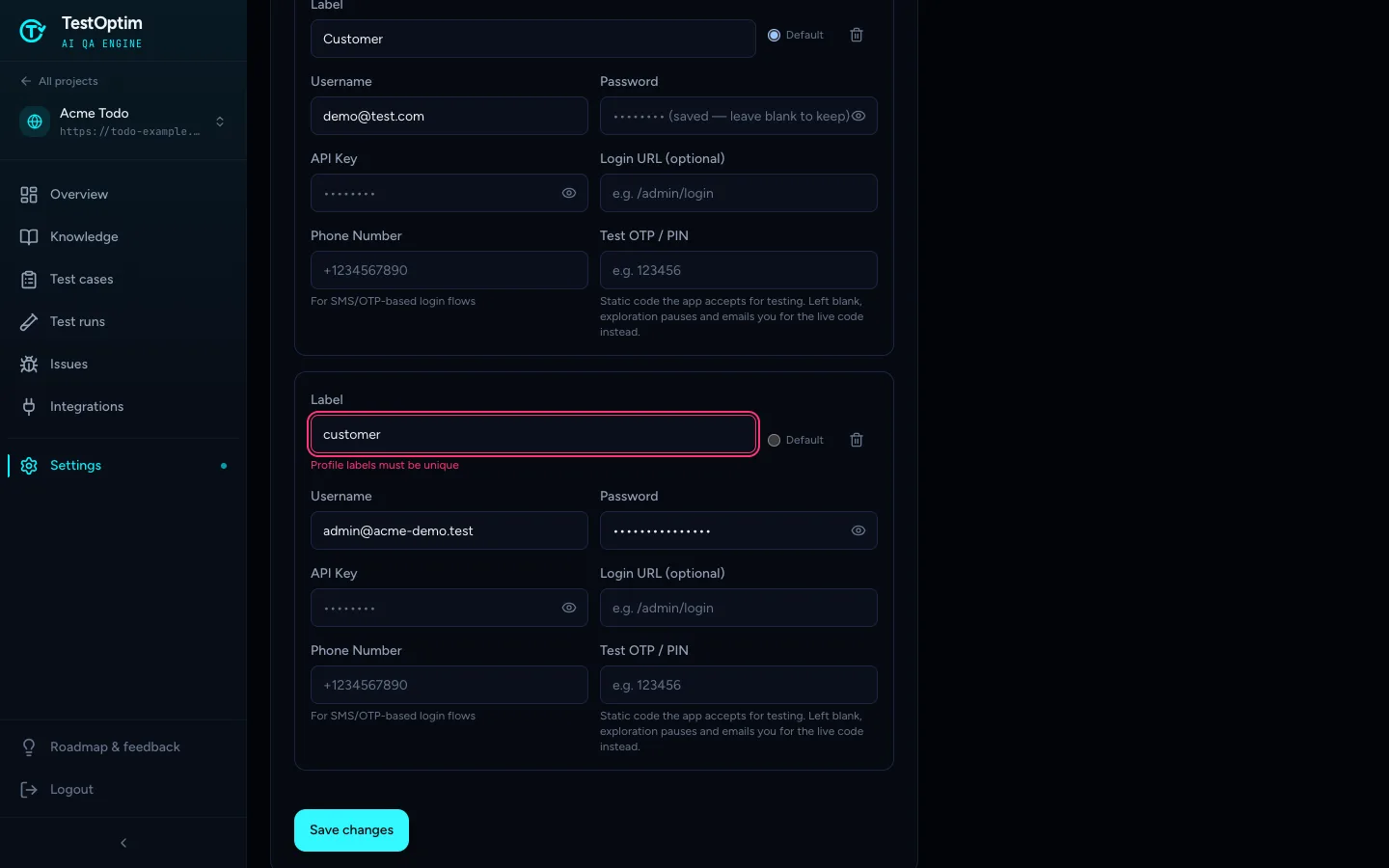
CustomerorAdmin. Labels must be unique, andcustomerandCustomercount as the same label. - Fill in whichever sign-in details your app needs:
- Username and Password for a normal login.
- API Key, only if your login has no password. TestOptim types it into the password field when Password is empty. It isn't sent as an API header.
- Login URL (optional), if your login page isn't on the project's main URL. Enter a path such as
/admin/loginor a full address. - Phone Number, for apps that sign in with an SMS code.
- Test OTP / PIN, a fixed code your app accepts for testing. See One-time codes.
- Select Save changes.
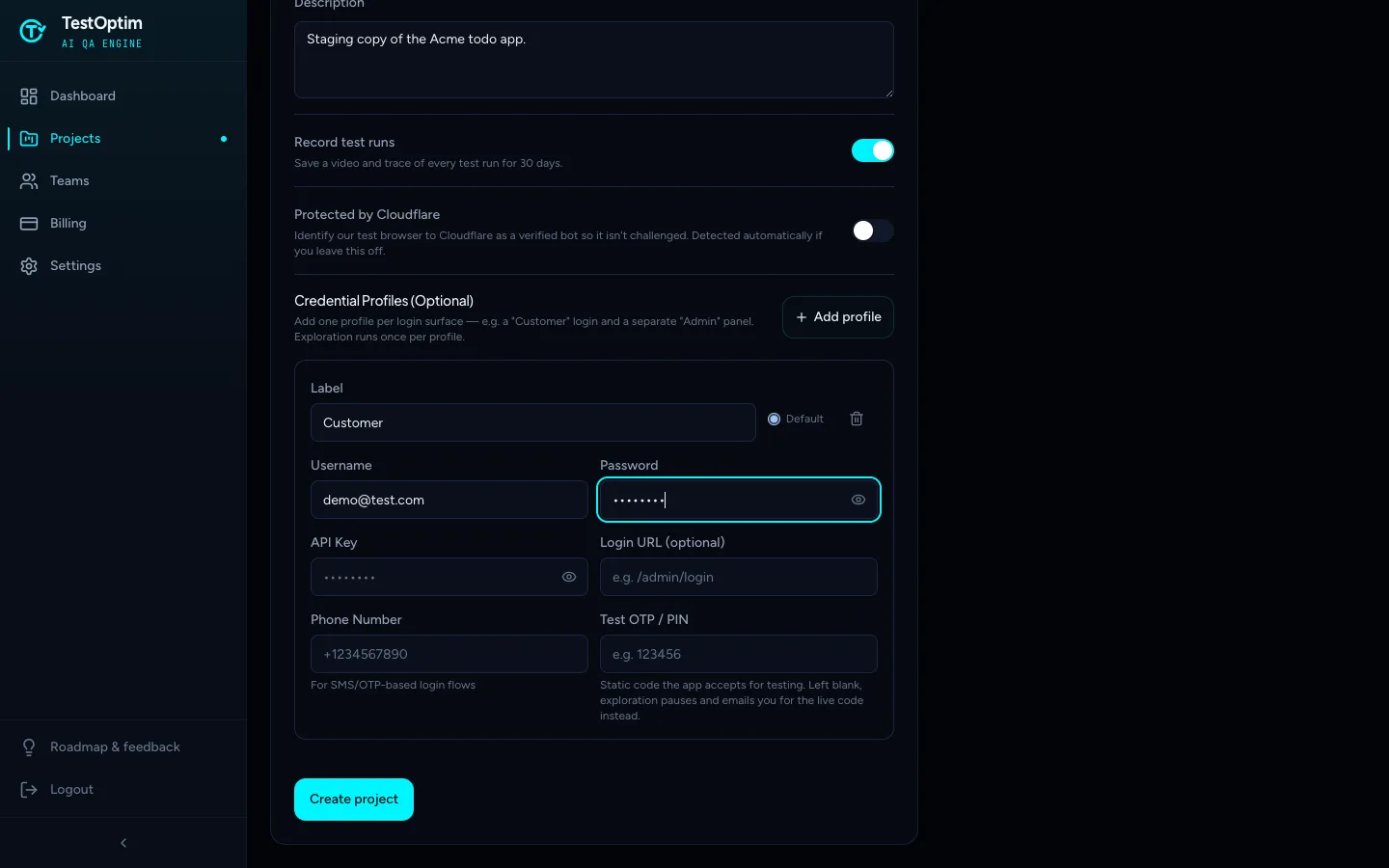
If you add a profile and leave every field except the label empty, it isn't saved.
Several roles
If your app has more than one kind of user, add one profile for each, such as Customer and Admin.
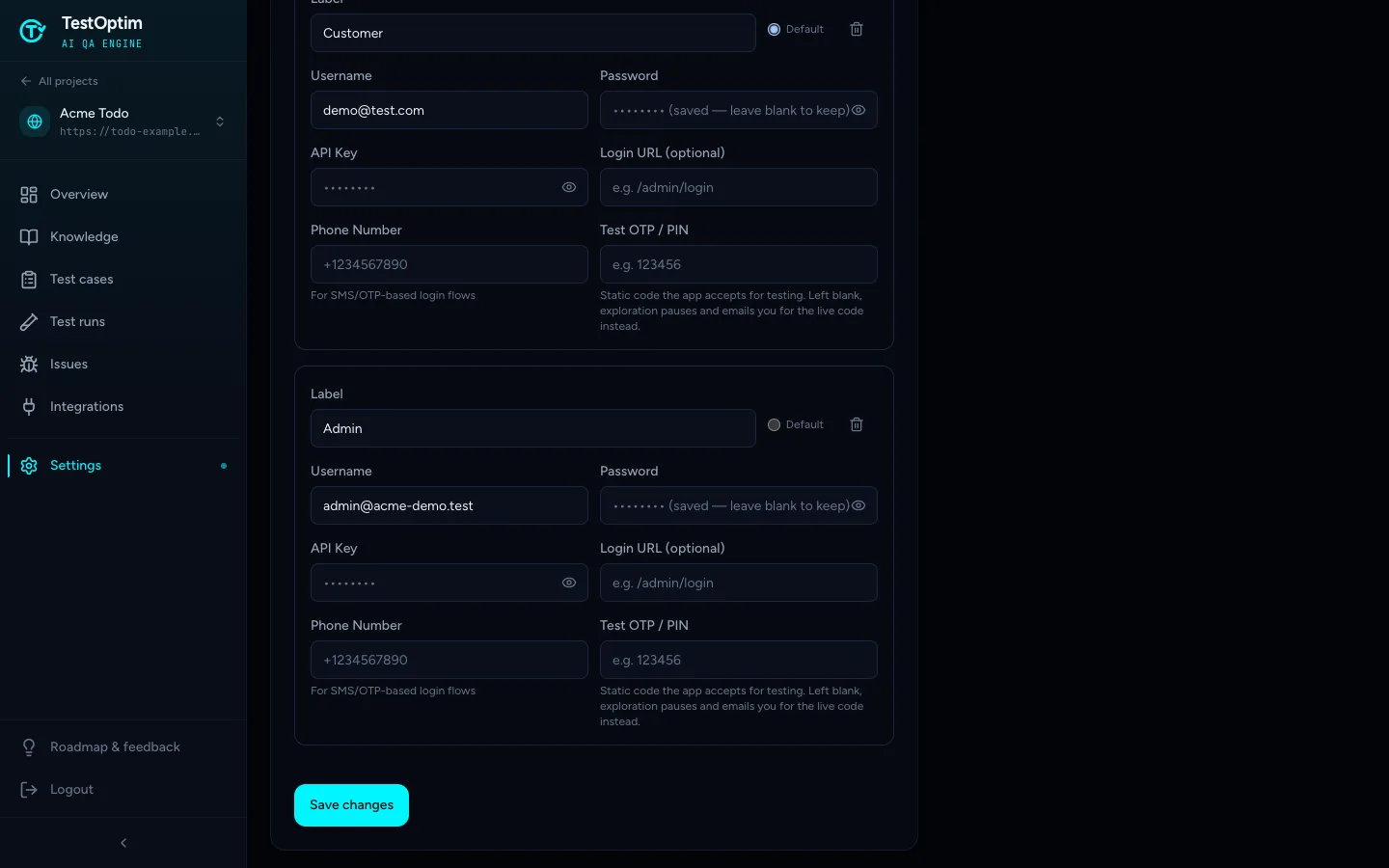
- Mark one profile as Default. Only one profile can be the default.
- If two profiles share a label, the form shows "Profile labels must be unique" and won't save.
Which profile is used
Exploration signs in with a single profile each time. With one profile, select Start exploration as usual. With two or more, the button becomes Explore as..., and you choose which profile to sign in as. If you don't choose, TestOptim uses the default, or the first profile.
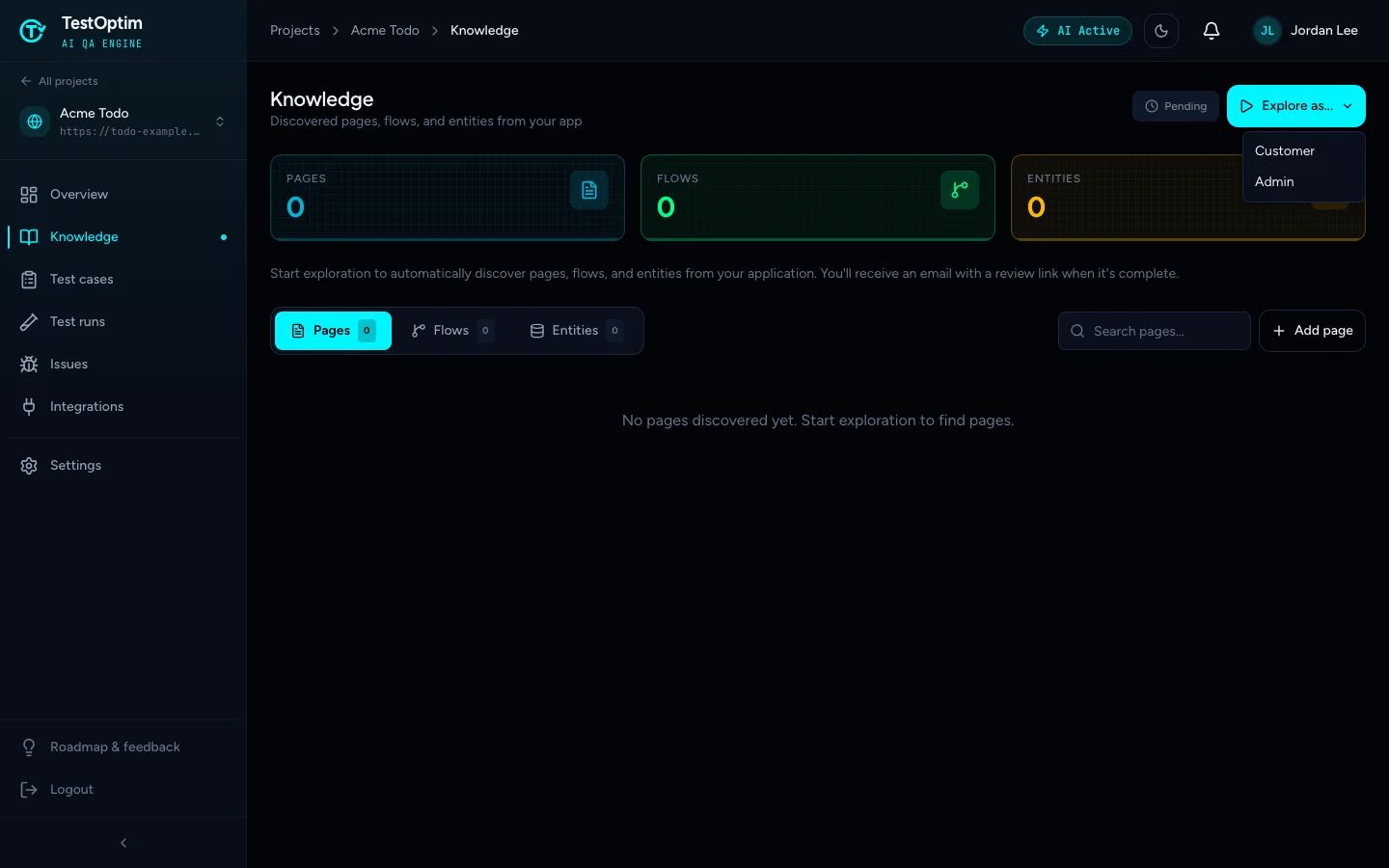
Choose a profile with Explore as... Test runs use the default profile, or the first profile if none is marked default. Each test case starts signed out in a fresh browser. The testing agent signs in only for cases that need a signed-in user, so a case about a visitor who isn't signed in runs signed out.
Note
Each exploration uses the one profile you pick. After a run has saved knowledge, the button reads Re-explore as..., so you can explore again as another profile. The new run adds to what was found.
If you haven't added credentials
When you start an exploration on a project with no credentials, TestOptim warns you first. The agent can only explore pages that are public, without logging in.
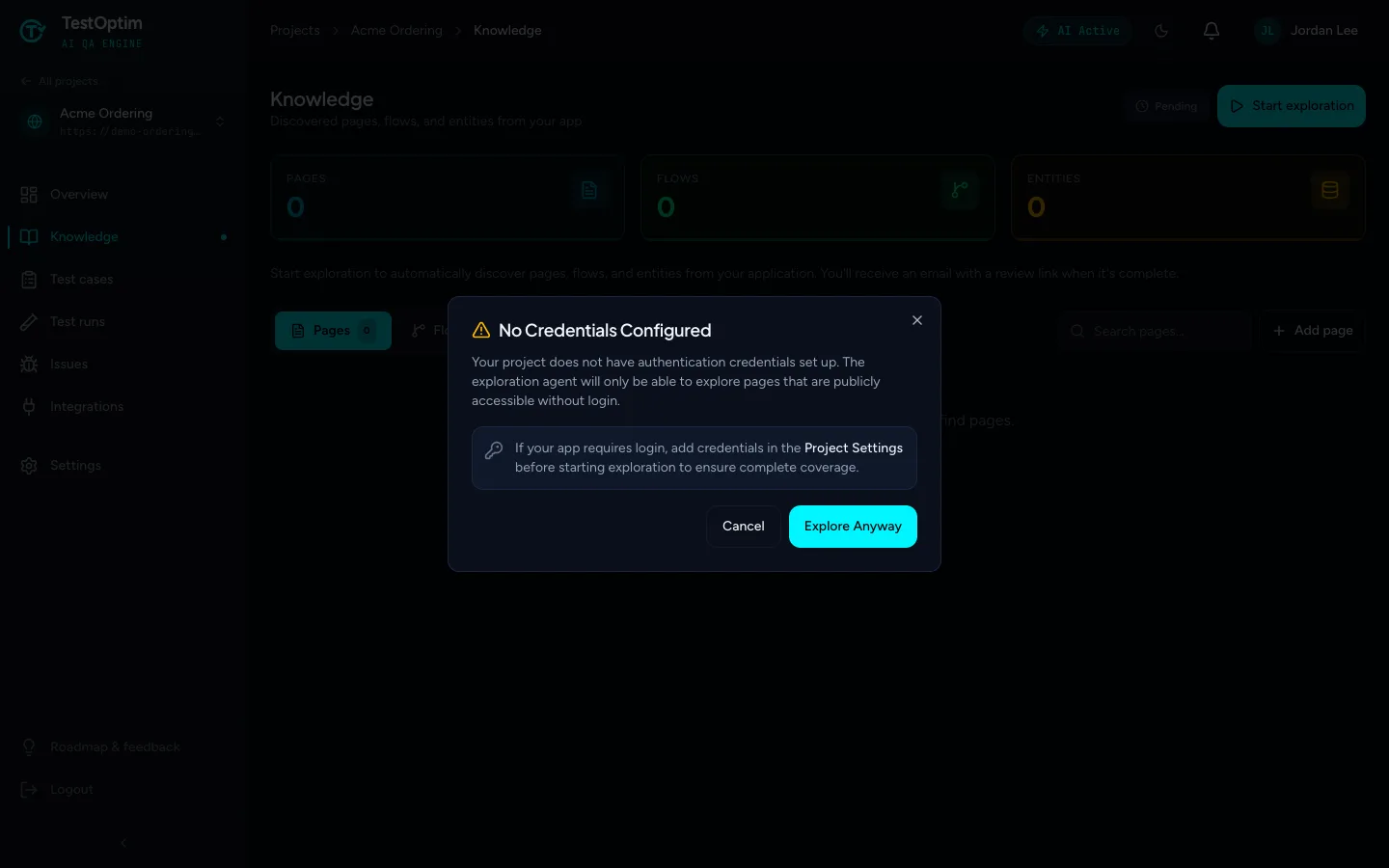
Select Cancel and add credentials, or Explore Anyway if your app doesn't need a login.
One-time codes and two-factor login
If your app sends a code by SMS or email at login:
- Enter a Test OTP / PIN if your app accepts a fixed code for test accounts. TestOptim uses it automatically.
- If you leave it blank, the exploration pauses at the login screen and emails you, so you can enter the live code. See Enter a one-time code when exploration pauses at login.
Warning
Only exploration can wait for a live code. Test runs and fix checks can't, so they can't sign in to a login that sends a code unless the profile has a Test OTP / PIN.
Are my credentials safe?
Passwords, API keys and codes are encrypted when they're saved. After you save, the screen never shows them again. The field shows "(saved — leave blank to keep)", so leave it blank to keep the current value, or type a new one to replace it.
The agent signs in and works through your app like a QA engineer. It never logs out, deletes accounts, makes payments, or changes passwords or account settings. It does fill in and submit forms, so use a test account and a staging environment.
What kind of test account should I use?
Use an account created only for testing, in a staging environment, with the permissions of the role you want covered. If your app has several roles, add one profile per role. Avoid accounts with access to real customer data, because the agent submits forms.
Update or remove a profile
Open Settings, edit the profile and select Save changes. To remove a profile, select the trash icon next to its Default option, then save.
Related
Keep reading
- ProjectsEdit, archive or restore a projectChange a project's name, description and recording setting, archive it to hide it without losing data, and restore it from the Archived tab any time.
- Exploration & knowledgeEnter a one-time code during explorationIf your app's login sends a one-time code, exploration pauses and emails you a link. Request the code and enter it within 5 minutes, or set a fixed test code.
- Troubleshooting"Already in progress for this project" errorTestOptim runs one job per project at a time. See what "already in progress for this project" means, which jobs block each other, and how to proceed.
- ProjectsCreate your first projectA project is one web app, identified by its URL. Add a name and URL, choose whether to record test runs, and TestOptim takes you to the Knowledge page.