Edit, archive or restore a project
Change a project's name, description and recording setting, archive it to hide it without losing data, and restore it from the Archived tab any time.
In this article
You can change a project's details at any time, and archive projects you're not using. Archiving hides a project from your active list and frees up a slot against your plan's project limit, without deleting anything.
Before you start
- Owner, Admin and QA Lead can edit and archive projects.
- Only Owner and Admin can change a project's credentials. See Add login credentials so TestOptim can sign in.
Edit a project
- Open the project and select Settings in the sidebar.
- Change what you need under Project details:
- Project Name
- Description
- Record test runs, which saves a video and trace of every test run for 30 days
- Protected by Cloudflare. See Let TestOptim through Cloudflare bot protection.
- Credential Profiles
- Select Save changes at the bottom of the form. You'll see a Project updated message.
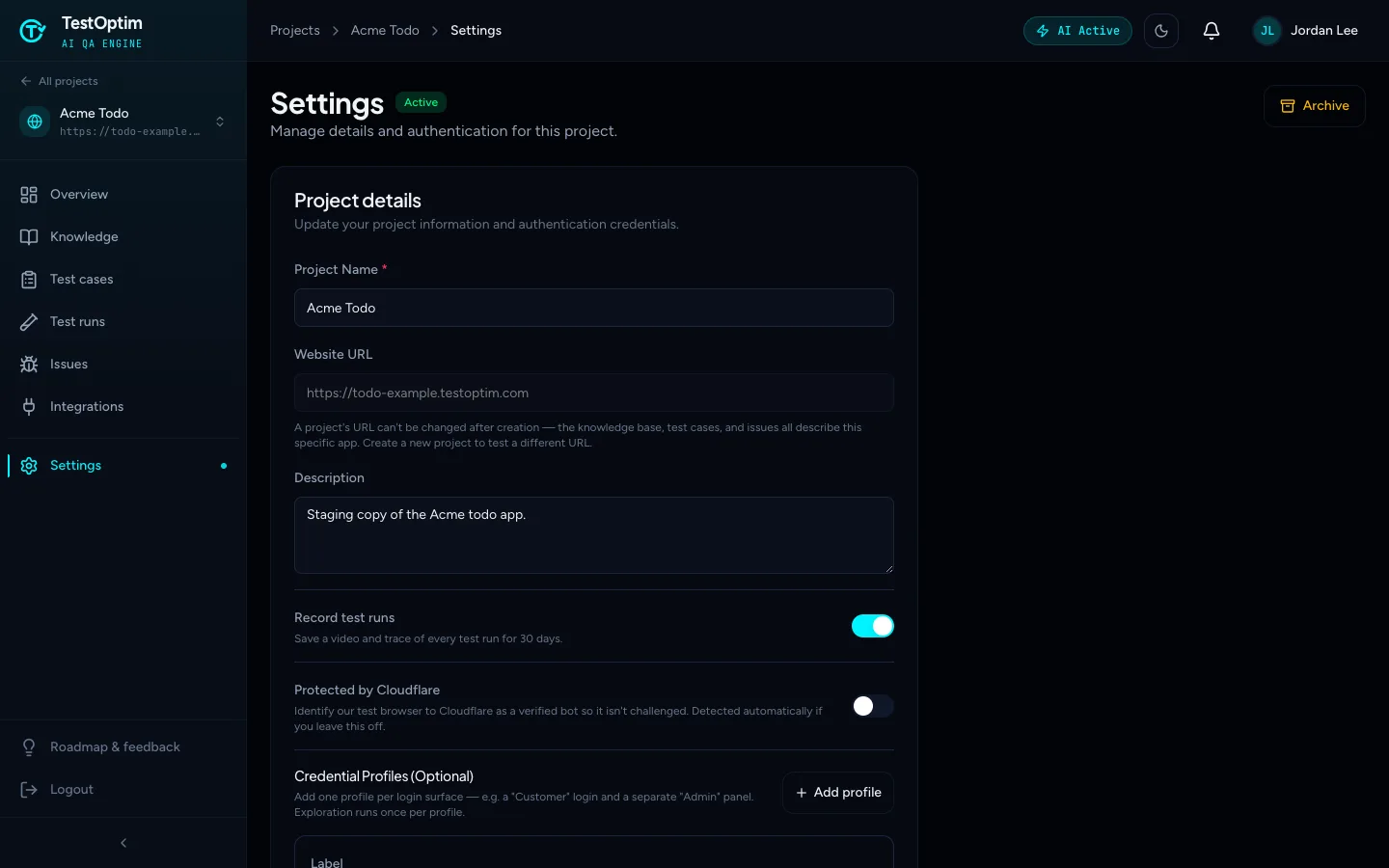
The Website URL is greyed out. A project's URL can't be changed after creation, because the knowledge base, test cases and issues all describe that specific app. To test a different URL, create a new project.
Archive a project
Open the project's Settings and select Archive at the top right. You can also open the menu on the project's card in the Projects list and choose Archive.
Confirm in the dialog. It reads: Archive "project name"? The project will be hidden from your active projects list. You can unarchive it at any time.
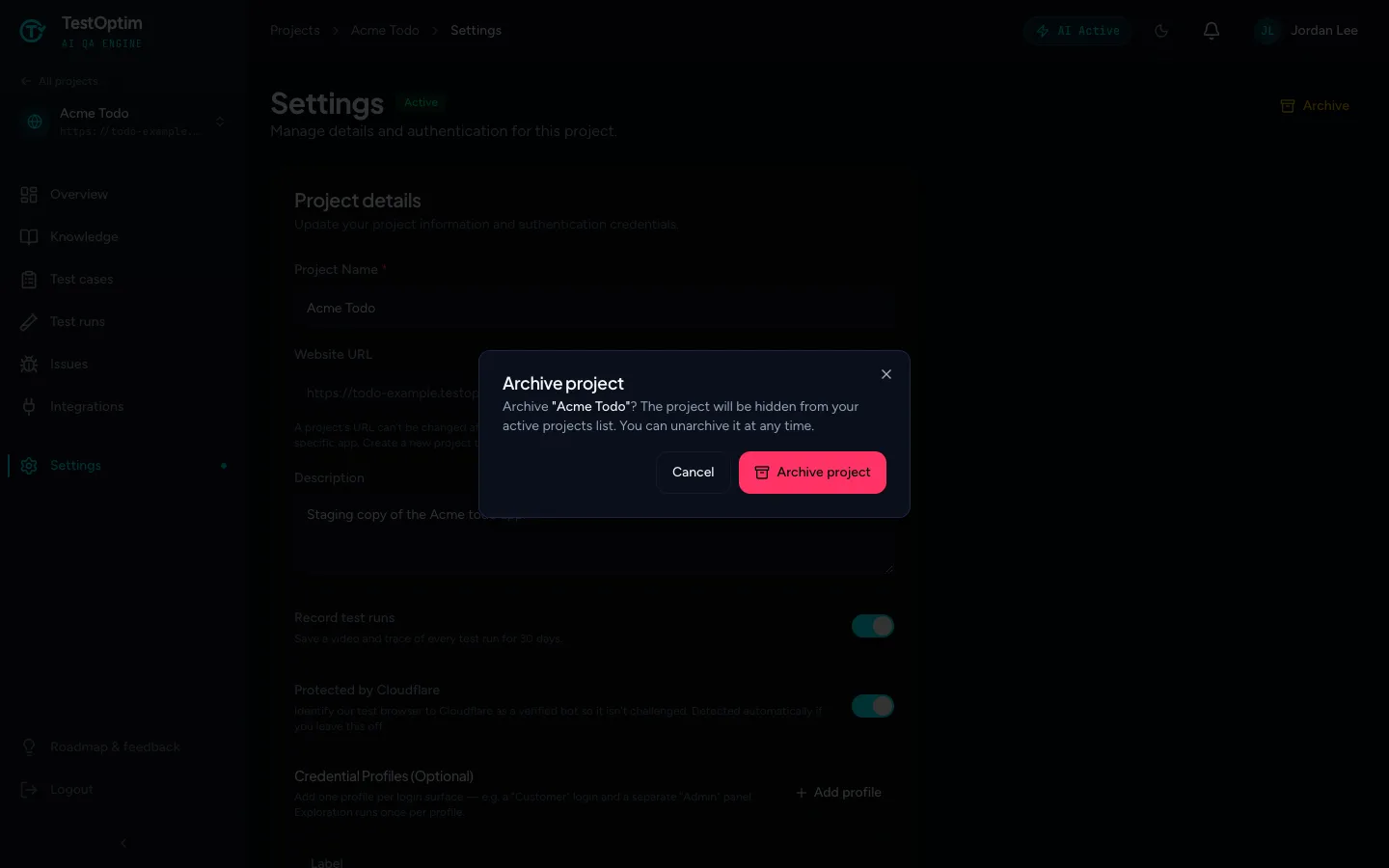
Confirm the archive Select Archive project. TestOptim shows Project archived and takes you back to the Projects list. (Archiving from the card menu shows Project archived successfully and stays on the list.)
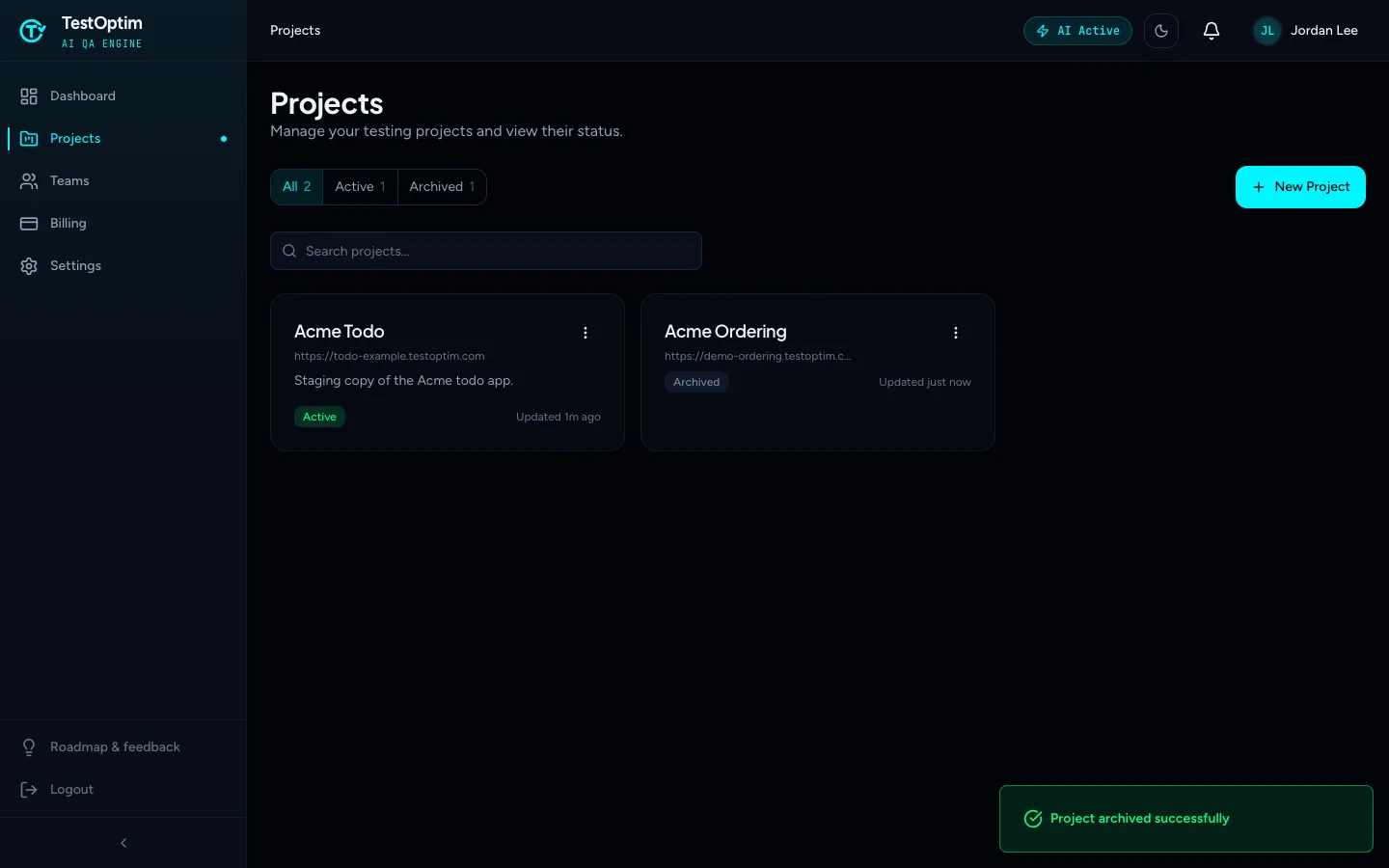
What archiving does
- The project disappears from the Active tab. It stays in All, and shows in the Archived tab, with an Archived badge.
- All of its data stays: knowledge base, test cases, test runs, recordings and issues. Nothing is deleted.
- It no longer counts toward your plan's project limit when you create a new project.
- You can't start an exploration or generate test cases for an archived project. TestOptim shows "Cannot explore an archived project" or "Cannot generate test cases for an archived project".
Note
Archiving doesn't cancel anything on your bill. It only frees a project slot. See Change or cancel your plan.
Restore an archived project
- Go to Projects and select the Archived tab.
- Open the menu on the project's card and choose Unarchive.
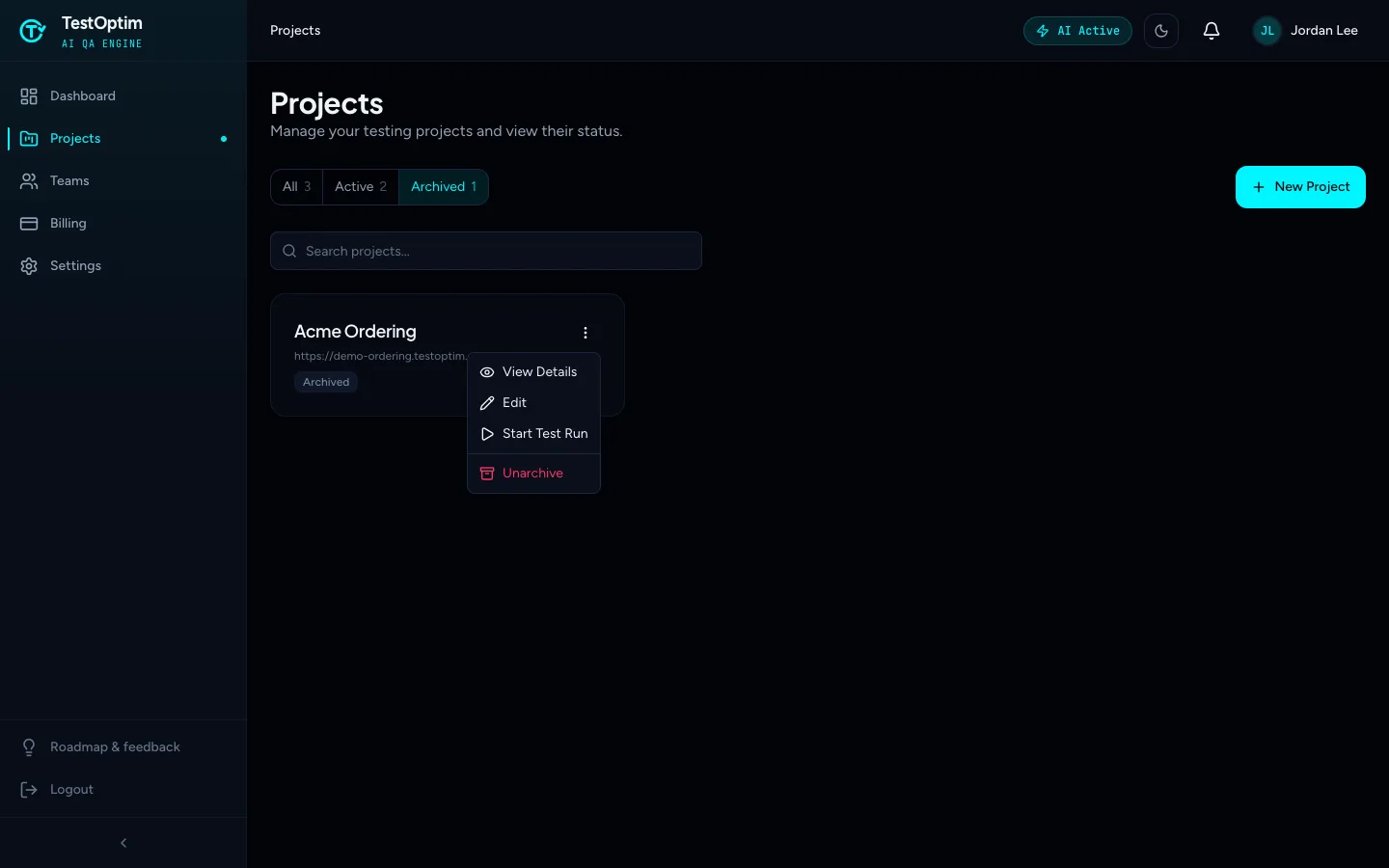
The project is restored straight away, with a Project restored successfully message, and it moves back to the Active tab with all of its data.
Note
Restoring doesn't check your project limit. If you restore a project while all your slots are in use, you'll be over the limit and can't create another project until you archive one or upgrade.
Delete a project
There's no way to permanently delete a project yourself. If you need a project and its data removed, contact support.
Related
Keep reading
- ProjectsAdd login credentials so TestOptim can sign inGive TestOptim a test account so it can explore and test pages behind your login. Add one credential profile per role and see which one each run uses.
- ProjectsCreate your first projectA project is one web app, identified by its URL. Add a name and URL, choose whether to record test runs, and TestOptim takes you to the Knowledge page.
- ProjectsLet TestOptim through Cloudflare bot protectionIf your site is behind Cloudflare, TestOptim signs its test browser's requests as a verified bot so it isn't challenged. Auto-detected, or set in Settings.
- Exploration & knowledgeEnter a one-time code during explorationIf your app's login sends a one-time code, exploration pauses and emails you a link. Request the code and enter it within 5 minutes, or set a fixed test code.