"You have reached your limit" in TestOptim
What "You have reached your limit" means in TestOptim: which limit you hit (projects, seats, pages, executions), when it resets, and how to top up or upgrade.
In this article
TestOptim shows "You have reached your limit" when your plan has no room left for what you tried to do. The Owner can fix it by buying a top-up or upgrading; usage limits also reset on the 1st of each month. The full message reads:
You have reached your <limit> limit (<used>/<allowed>). Upgrade your plan to continue.
The words in the middle tell you which limit it is. Capitalisation of the name varies (for example "Projects limit" or "team seats limit").
Which limit did I hit?
| The message says | Limit | What triggers it | How to continue |
|---|---|---|---|
| Projects limit (2/2) | Projects | Creating a project | Archive a project you no longer use, or upgrade |
| team seats limit (3/3) | Team seats. The Owner counts as a seat. | Inviting someone, or someone accepting an invitation | Remove a member, or upgrade |
| pages explored this month limit (30/30) | Pages explored | Starting an exploration when no pages are left | Wait for the 1st of the month, buy a top-up, or upgrade |
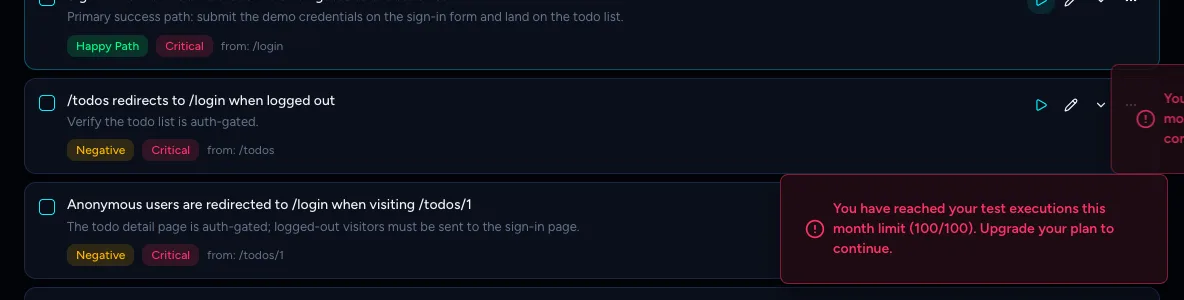
| test executions this month limit (100/100) | Test executions | Running selected test cases, or a changed-areas run, when you do not have enough left | Wait for the 1st of the month, buy a top-up, or upgrade |
The numbers are what you have used and what your plan allows. For what each one counts, see Compare plans and what each limit means.
Projects
On New project, a Project limit reached card replaces the form.

- Archive a project you no longer need: open its Settings and select Archive. Archived projects do not block you from creating a new one, but restoring an archived project counts toward the limit again.
- Or select Upgrade Plan, which opens Billing.
Team seats
Inviting or accepting an invitation fails once every seat is taken. Solo has unlimited seats. Startup has 3 and Growth has 10, and the Owner uses one. Remove a member you no longer need, or upgrade.
Pages explored
- If you have no pages left, Start exploration is refused.
- If you have a few left, exploration still starts but stops after the pages that remain.
- Pages are counted when an exploration finishes. An exploration that is cut short by the pages left in your plan produces a partial map without an error. See Exploration didn't finish.
- Usage resets on the 1st of the calendar month, not on your billing date.
Test executions
When you start a test case or a changed-areas run without enough executions, you see:
- Running selected test cases, or a Run changed only run, needs enough executions for every case. If you have fewer than that, the run is refused.
- Run all works differently: it runs as many cases as you have executions left. A banner reads "Started 100 of 142 test cases — your plan's monthly execution limit is reached. You're missing out on 42 test case runs this month. Upgrade for a higher limit." with View Run and Upgrade buttons.

- Unused executions from a stopped run are given back.
- Usage resets on the 1st of the calendar month.
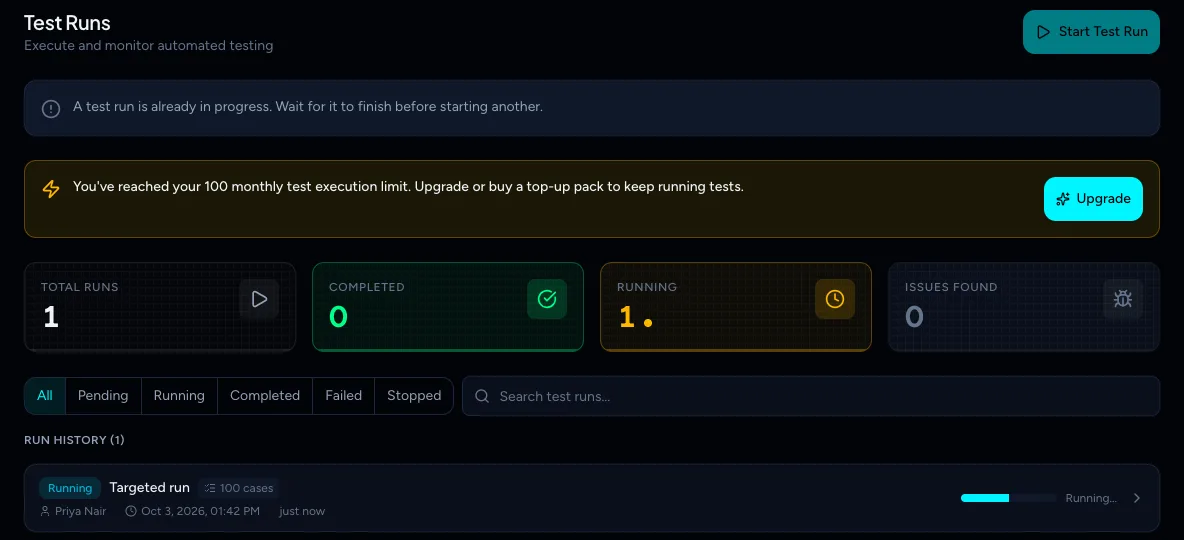
When you are at 80% or more, the Test runs page shows a banner. At the limit it reads "You've reached your 100 monthly test execution limit. Upgrade or buy a top-up pack to keep running tests."
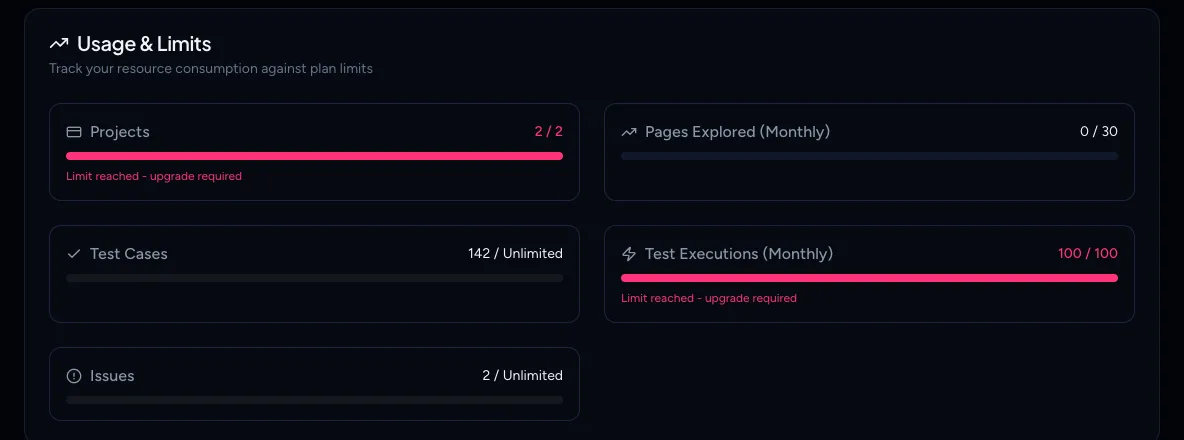
The Usage & Limits section of Billing shows every meter at once.
Fix it (Owner)
Only the organization Owner can buy top-ups or change plan.
- Open Billing.
- To add pages or executions without changing plan, select Buy more. See Track your usage and buy top-up packs.
- To raise every limit, select Change plan. See Upgrade, downgrade or cancel your plan.
Not the Owner? Send them this page and the message you saw. The Owner finds Buy more under Billing > Overview.
Note
Test cases and issues are unlimited on current plans. If you see a limit message for them, your organization is on a legacy or custom plan, so contact support at hi@testoptim.com.
Note
If you see a message that a plan is "missing a usage allowance", the plan is set up incorrectly on our side. Contact support at hi@testoptim.com.
Related
Keep reading
- Plans & billingCompare plans and what each limit meansSee what Solo, Startup and Growth include, how prices change by billing period, and exactly what counts toward projects, seats, pages explored and test executions.
- Troubleshooting"No active subscription" or "Subscription needs attention"Why TestOptim is locked, what "No active subscription" and "Subscription needs attention" mean, and how the organization Owner restores access. Your data is kept.
- Plans & billingTrack your TestOptim usage and buy top-up packsSee how many pages and test executions you have left this month, when they reset, and how to buy one-time top-up packs that never expire.
- TroubleshootingTestOptim payment failed or won't openFix "Payment gateway failed to load", a payment window that never opens, a declined card, and plans that stay "Still processing" after you pay.