Can't sign in to TestOptim: errors and fixes
Fix "Invalid credentials", "Please verify your email before logging in", expired codes, Google or GitHub errors, password reset and being signed out.
In this article
If you cannot sign in to TestOptim, find the message you see below and follow the fix. Most cases are a wrong password, an unverified email, or an expired code.
"Invalid credentials"
The email or password is wrong. Check for typos and caps lock, then try again.
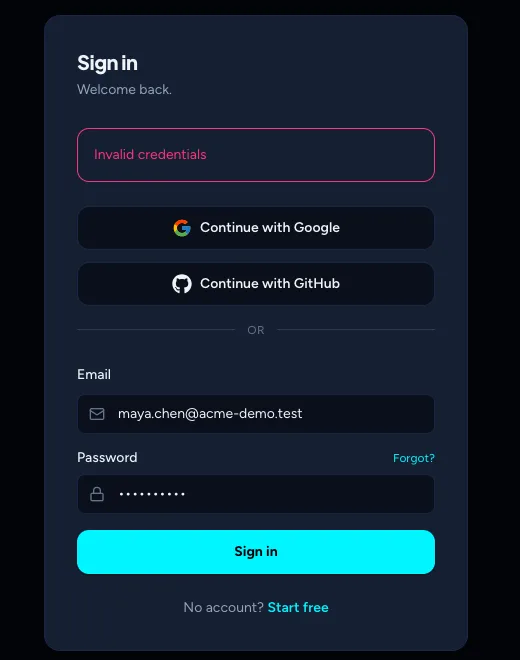
If you do not remember the password, reset it (see below).
How do I reset my password?
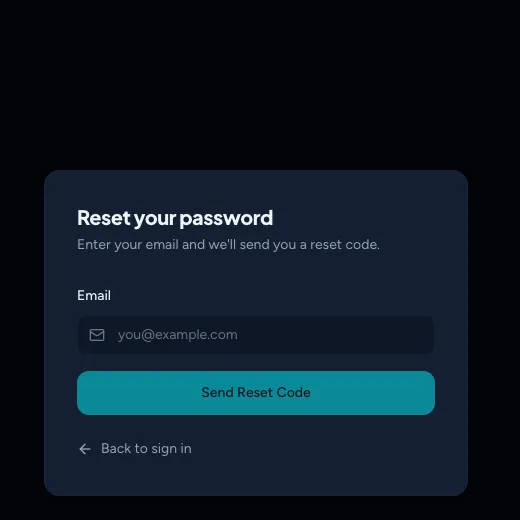
- On the sign-in page, select Forgot? next to Password.
- Enter your email and select Send Reset Code.
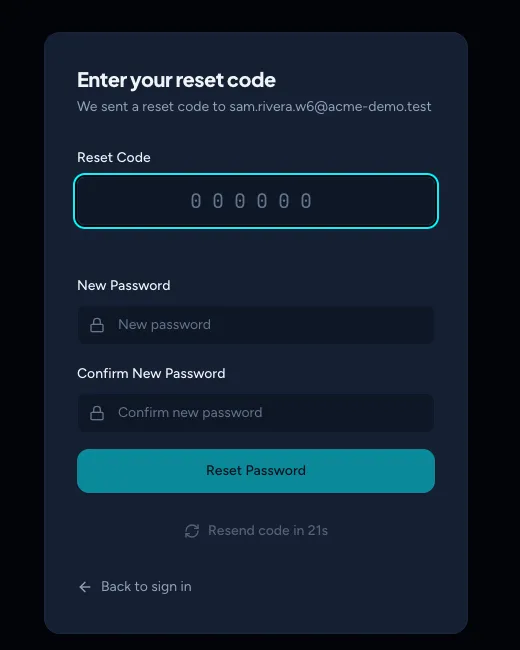
- Enter the 6-digit code from the email, then your new password twice, and select Reset Password.
- The reset code is valid for 1 hour.
- The new password must be at least 8 characters.
- If the code does not arrive, wait for the one-minute countdown on Resend code, then select it. Also check your spam folder.
- An expired or wrong reset code shows "Invalid or expired reset code". Select Resend code and use only the newest code.
- Resetting your password signs you out of every device.
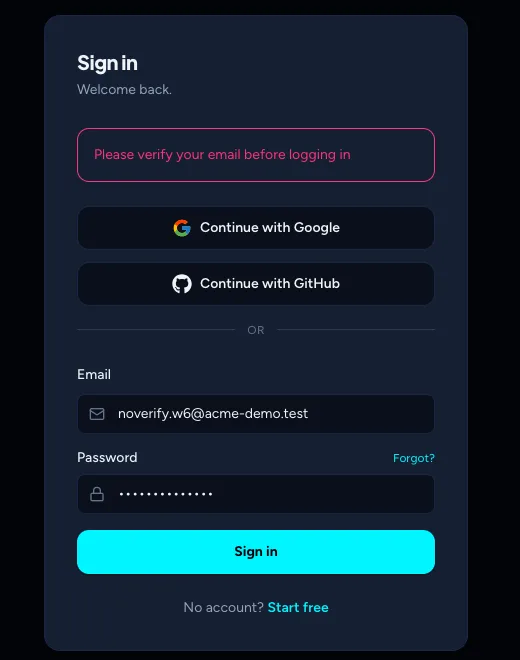
"Please verify your email before logging in"
You created the account but never entered the verification code. The sign-in page does not link to the verification step, so open it yourself.
- Open
https://www.testoptim.com/auth/verify-email?email=you@yourcompany.com, using your own email address afteremail=. - Enter the 6-digit code from the verification email. If you cannot find it, select Resend code.
- Select Verify Email.
You are signed in and taken to plan selection. See Start your free trial or choose a plan.
Tip
Use the same email you registered with. Registering again with that email shows "Email already registered", because the unverified account already exists.
"Invalid or expired verification code"
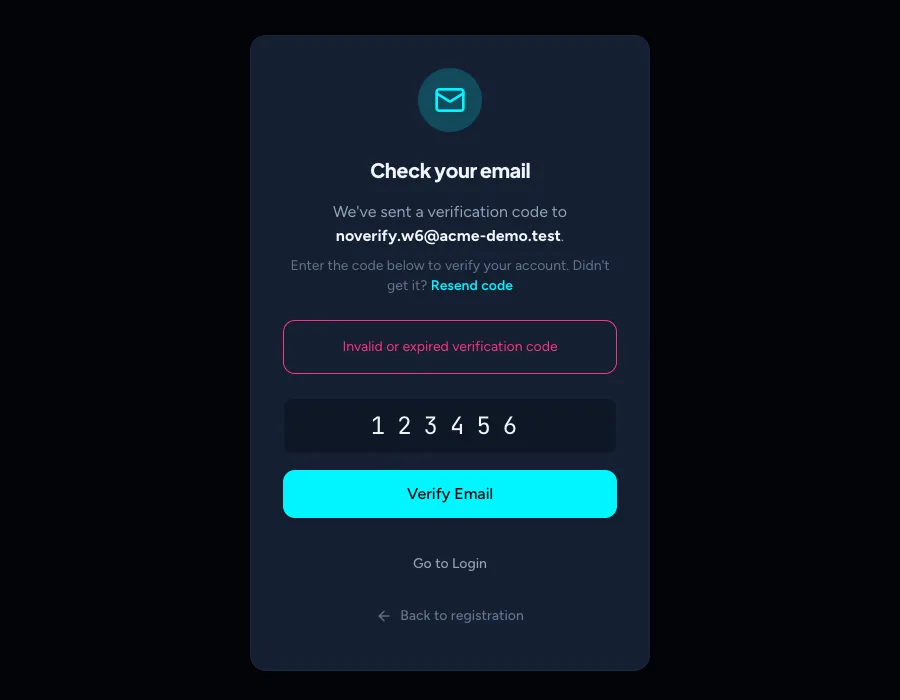
TestOptim uses the same message for a wrong code and an expired one.
- Verification codes are valid for 24 hours.
- Select Resend code to get a new one. Use only the newest code.
- Wait for the one-minute countdown between resends. A resend requested sooner shows as sent but no new email goes out.
"Please use social login"
Your account was created with Google or GitHub and has no password. On the sign-in page, select Continue with Google or Continue with GitHub and use the same provider you signed up with.
Google or GitHub sign-in fails
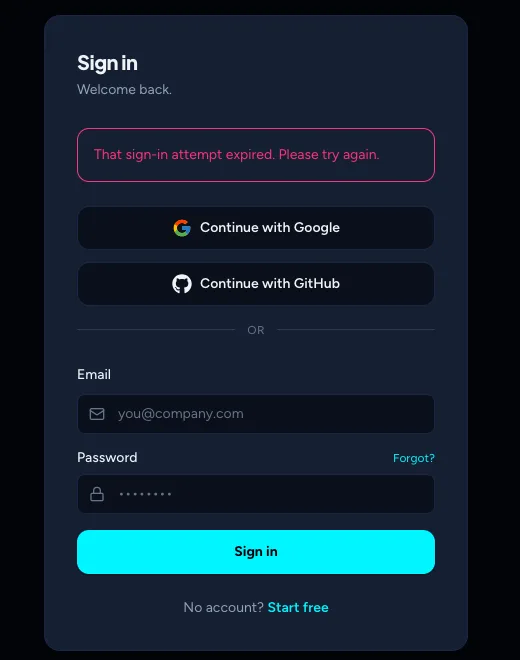
After a failed attempt you return to the sign-in page with a message at the top.
| Message | What to do |
|---|---|
| Sign-in was cancelled. | You closed or declined the provider's screen. Select the button and approve access. |
| That sign-in attempt expired. Please try again. | The attempt took too long. Start again. |
| Your account there has no verified email address. Verify one with the provider, or sign up with email instead. | Verify your email address in your Google or GitHub account, or register with email and password. |
| We couldn't sign you in with that provider. Please try again. | Try again. If it keeps failing, sign in with email and password. |
"Your session has expired. Please sign in again."
Only one device is signed in to your account at a time. Signing in on another browser or device ends the session on the first one the next time it refreshes, and you see this message. Two people sharing one account, or one person using two browsers, can keep signing each other out. Sign in again, and give each person their own account. Resetting your password also signs out every device.
Still stuck
Email hi@testoptim.com and include the email you signed up with and the exact message you see.
Related
Keep reading
- Getting startedCreate your account and verify your emailSign up with an email and password, or with Google or GitHub, and confirm your email with a 6-digit code. Your personal organization is created automatically.
- Troubleshooting"Already in progress for this project" errorTestOptim runs one job per project at a time. See what "already in progress for this project" means, which jobs block each other, and how to proceed.
- Account & notificationsChoose which email and in-app notifications you getTurn TestOptim email and in-app notifications on or off, choose which events you hear about, and opt in to the Monday weekly digest.
- Troubleshooting"No active subscription" or "Subscription needs attention"Why TestOptim is locked, what "No active subscription" and "Subscription needs attention" mean, and how the organization Owner restores access. Your data is kept.