Manage your profile, password and sessions
See your account details, reset your password, and understand why signing in on another device signs you out here. TestOptim allows one active session per user.
In this article
Your personal settings live under Settings. This article covers your account details, how to change your password, and how sign-in sessions work.
Open your account settings
Select your name at the top right, then Settings. The General page shows your Profile: your name, your email address and your initials as an avatar.
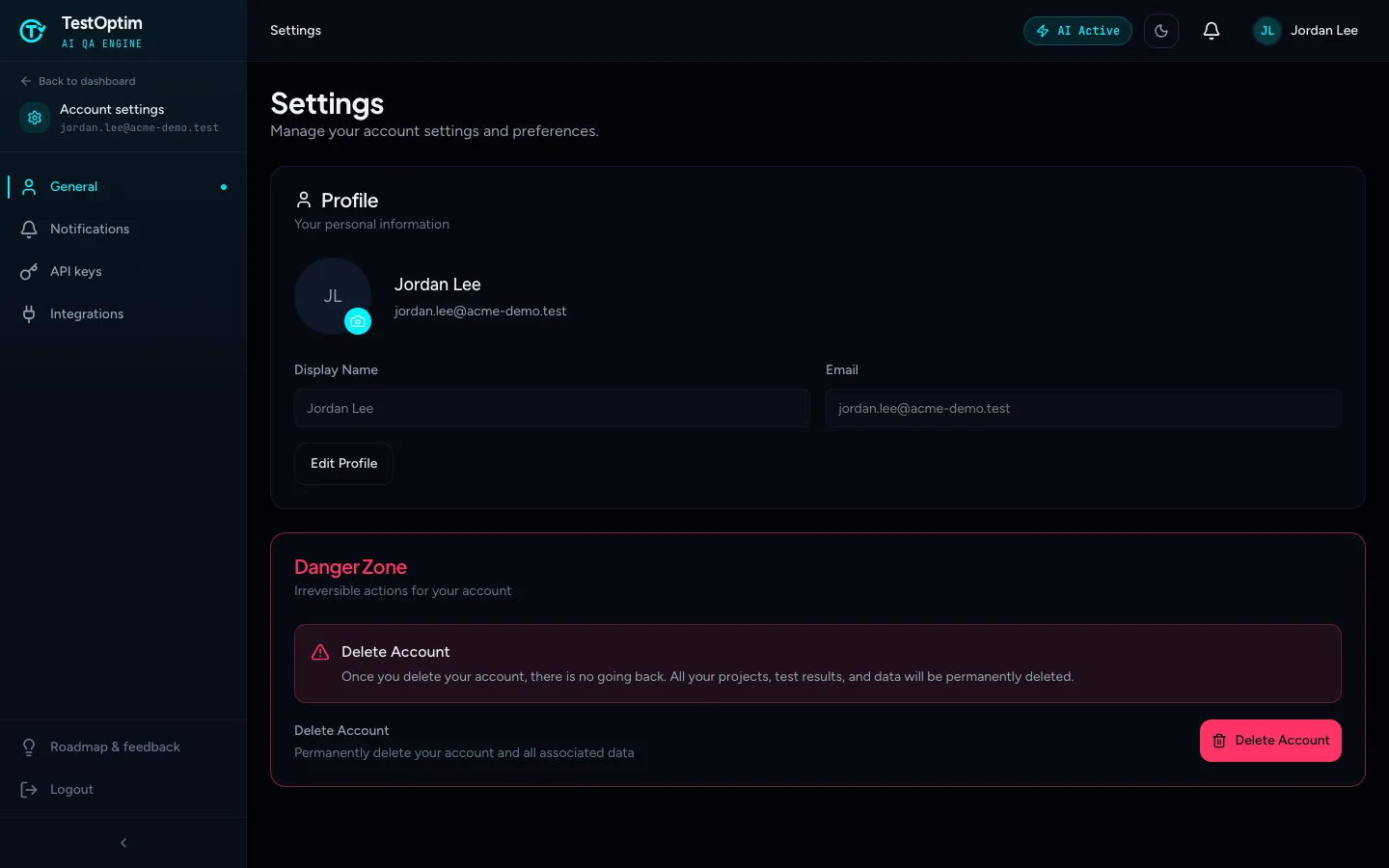
The settings menu on the left also has Notifications (learn more), API keys and Integrations.
Note
Your email address is fixed and can't be edited. The Edit Profile button and the avatar camera icon on this page don't save any changes yet. To change your name or email, contact support.
Change your password
There's no change-password form in Settings. To set a new password, use the password reset on the sign-in page:
- Sign out, then go to the sign-in page and select Forgot? next to the password field.
- Enter your email and select Send Reset Code.
- Enter the 6-digit code from the email, then a new password twice, and select Reset Password.
- Sign in with your new password.
The code is valid for 1 hour. If it doesn't arrive, wait for the countdown and select Resend code. The new password needs at least 8 characters.
Note
Resetting your password signs you out everywhere, on every device and browser.
If you signed up with Google or GitHub, you have no TestOptim password to reset. Keep using Continue with Google or Continue with GitHub. See Can't sign in.
How sessions work
TestOptim allows one active session per user. If you sign in on a second browser or device, the first one is signed out. When you go back to it, you'll see "Your session has expired. Please sign in again." Sign in again to continue.
This is why you can get signed out when:
- you sign in on your phone while a laptop tab is still open;
- two people share the same login;
- you reset your password.
If you need more than one person working at the same time, invite them as teammates so each has their own login.
Delete your account
You can't delete your account yourself. Contact support to have your account and its data deleted.
Related
Keep reading
- Account & notificationsChoose which email and in-app notifications you getTurn TestOptim email and in-app notifications on or off, choose which events you hear about, and opt in to the Monday weekly digest.
- Getting startedCreate your account and verify your emailSign up with an email and password, or with Google or GitHub, and confirm your email with a 6-digit code. Your personal organization is created automatically.
- Team & rolesRoles and permissions: who can do whatSee what each TestOptim role can do, which screens are Owner-only, and why a button that looks available can still say you don't have permission.
- ProjectsLet TestOptim through Cloudflare bot protectionIf your site is behind Cloudflare, TestOptim signs its test browser's requests as a verified bot so it isn't challenged. Auto-detected, or set in Settings.