Roles and permissions: who can do what
See what each TestOptim role can do, which screens are Owner-only, and why a button that looks available can still say you don't have permission.
In this article
Every person in your organization has exactly one role. The role decides which actions work for them. This page lists what each role can do, so you can pick the right role when you invite someone and understand why something is blocked.
The six roles
| Role | In one line |
|---|---|
| Owner | Everything, including billing. Whoever created the organization. |
| Admin | Everything except billing. Manages the team, projects, integrations and API keys. |
| QA Lead | Runs the QA work: explore, generate, run, stop and manage issues. Cannot create projects or set up integrations. |
| QA Engineer | Creates and runs tests and works on issues. Cannot stop runs or use a few project-level tools. |
| Developer | Works on issues (change status, assign, comment). Cannot create issues or create or run tests. |
| Viewer | Read-only access to projects, tests, runs and issues. |
When you change someone's role, the team page shows the same short descriptions:
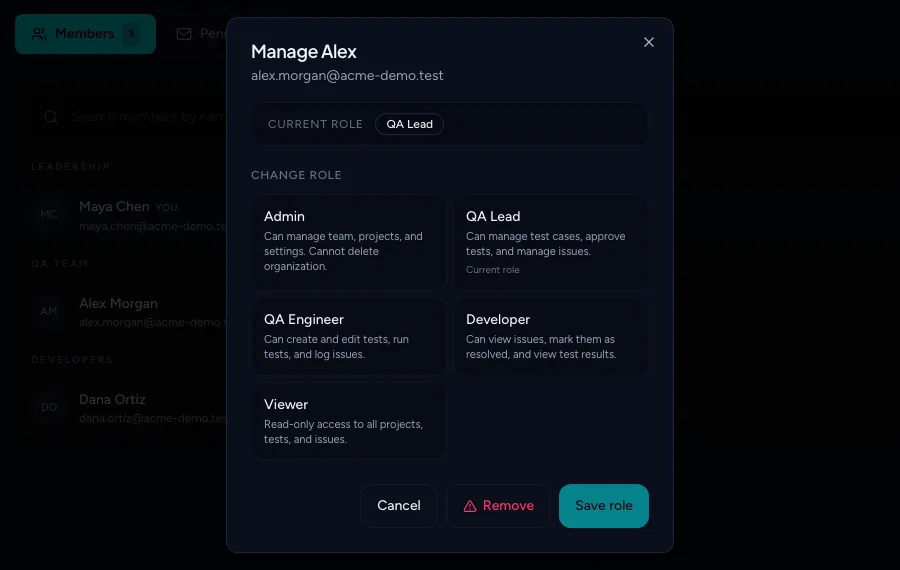
What each role can do
"Yes" means the role can do it. A blank means it can't.
| Action | Owner | Admin | QA Lead | QA Engineer | Developer | Viewer |
|---|---|---|---|---|---|---|
| View projects, knowledge, test cases, runs and issues | Yes | Yes | Yes | Yes | Yes | Yes |
| View the team list | Yes | Yes | Yes | Yes | Yes | Yes |
| See billing, change plan, buy top-ups | Yes | |||||
| Invite, remove members and change roles | Yes | Yes | ||||
| Create a project | Yes | Yes | ||||
| Add or change login credentials for a project | Yes | Yes | ||||
| Edit project settings, archive or restore a project | Yes | Yes | Yes | |||
| Connect Slack, Jira or GitHub | Yes | Yes | ||||
| Create and revoke API keys | Yes | Yes | ||||
| Start an exploration | Yes | Yes | Yes | Yes | ||
| Edit and approve the knowledge base | Yes | Yes | Yes | Yes | ||
| Stop an exploration | Yes | Yes | Yes | |||
| Enter a one-time code when exploration pauses at login | Yes | Yes | Yes | |||
| Use Improve with AI on knowledge | Yes | Yes | Yes | |||
| Generate, add, edit and exclude test cases | Yes | Yes | Yes | Yes | ||
| Delete test cases | Yes | Yes | Yes | |||
| Start a test run (including from Slack, CI and API keys) | Yes | Yes | Yes | Yes | ||
| Stop a test run | Yes | Yes | Yes | |||
| Log a new issue manually | Yes | Yes | Yes | Yes | ||
| Change an issue's status (including Fixed and Rejected), assign it and comment | Yes | Yes | Yes | Yes | Yes | |
| Use Re-test this fix on an issue | Yes | Yes | Yes | Yes |
Things that surprise people
- Billing is Owner-only. Admins don't see the billing page. They get an Access Restricted message instead.
- QA Lead can't connect integrations or create projects. Both need Owner or Admin.
- QA Engineer can start an exploration but can't stop it. Stopping, entering a one-time code and Improve with AI need QA Lead or higher.
- Developers can't create or run tests. They are meant to work through issues. They can set an issue to Fixed so TestOptim verifies it, but Re-test this fix and test runs need a QA role.
- Credentials are Owner or Admin. A QA Lead can edit a project but can't see or change its login profiles.
Frequently asked questions
Can a QA Lead create a project? No. Creating projects and connecting integrations need Owner or Admin.
Can Admins see billing? No. Billing is Owner-only; Admins see Access Restricted.
What you see when a role can't do something
You will see one of three behaviours, depending on the screen.
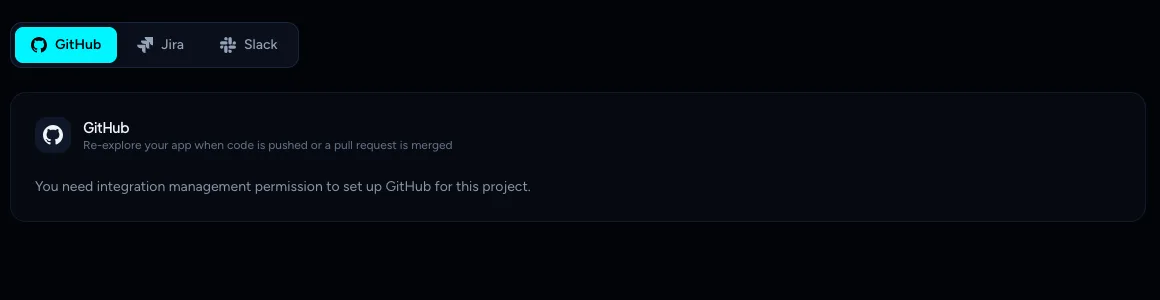
A page explains it. Billing, Integrations and API keys show a message instead of the controls:

The button is there, but the action is refused. Some buttons, such as Create project for a QA Lead or Start Test Run for a Developer, still appear. Selecting them shows this message and nothing happens:

Note
The message is always "You don't have permission to perform this action". It doesn't tell you which role is required. Use the table above, or ask your Owner or an Admin.
The Team page hides management. Only Owners and Admins see Invite member and the options on a member's row. Everyone else can see the list.

Changing a role
Owners and Admins can change roles, including other Admins' roles. Nobody can be made Owner from the Team page. See Change a member's role or remove them.
Related
Keep reading
- Team & rolesInvite teammates to your organizationInvite people to your TestOptim organization by email, pick their role, and manage pending invitations. Covers seats, 7-day expiry and common errors.
- Team & rolesChange a member's role or remove themPromote, demote or remove a teammate from the TestOptim Team page, including other Admins, and learn which rows you can't change and how to free a seat.
- Troubleshooting"You don't have permission to perform this action"Which role you need for each action in TestOptim, why a button is missing or an action is refused, and what to do about stale-tab errors.
- Account & notificationsManage your profile, password and sessionsSee your account details, reset your password, and understand why signing in on another device signs you out here. TestOptim allows one active session per user.