Accept an invitation to join a team
Join a teammate's TestOptim organization from your invitation email, whether you are new or already have an account, and fix the common errors.
In this article
To accept a TestOptim invitation, open the link in your invitation email, enter your name and a password, and select Create Account & Join. Links expire after 7 days. You join your teammate's organization with the role they chose.
Before you start
- Use the invitation email, and open the link before it expires. Links work for 7 days.
- The invitation is tied to the email address it was sent to. You can only join with an account that uses that address.
If you are new to TestOptim
Open the link in your invitation email.
Read the panel at the top. It shows the Organization, who invited you and your Role.
Enter your Full Name, then choose a Password (at least 8 characters) and repeat it under Confirm Password.
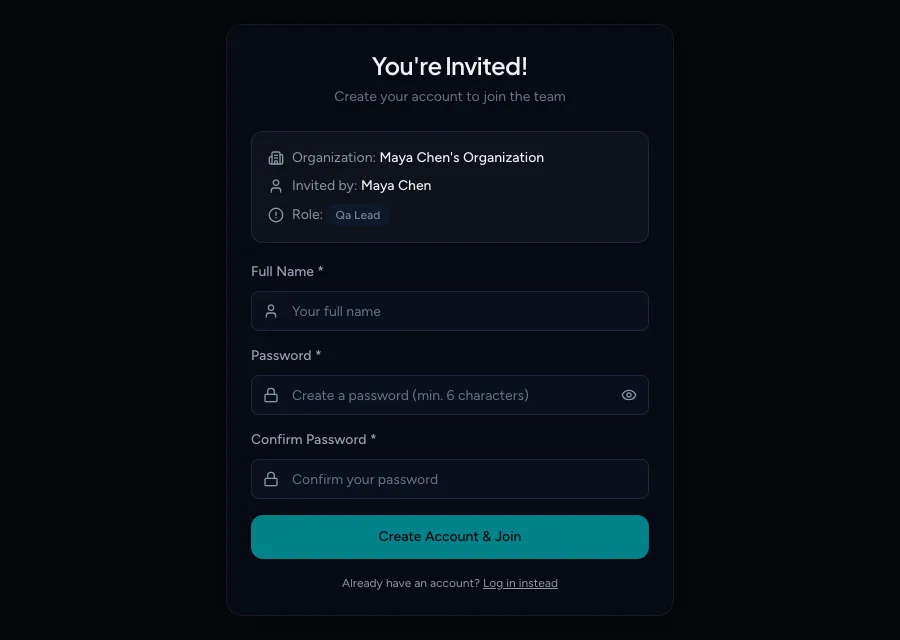
The page doesn't show the invited email address, so make sure you opened the link from the right inbox Select Create Account & Join.
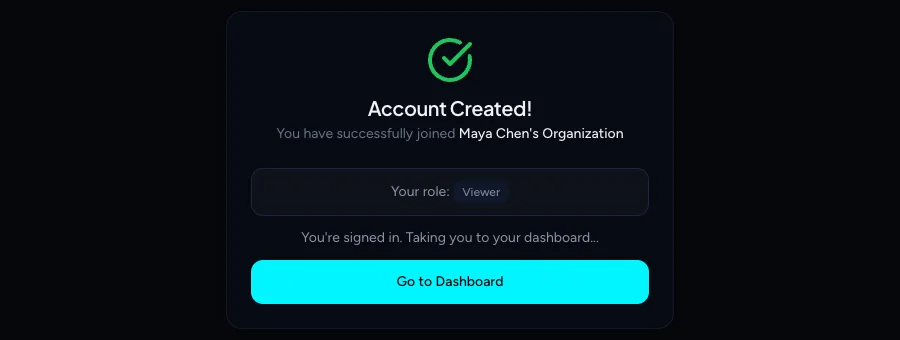
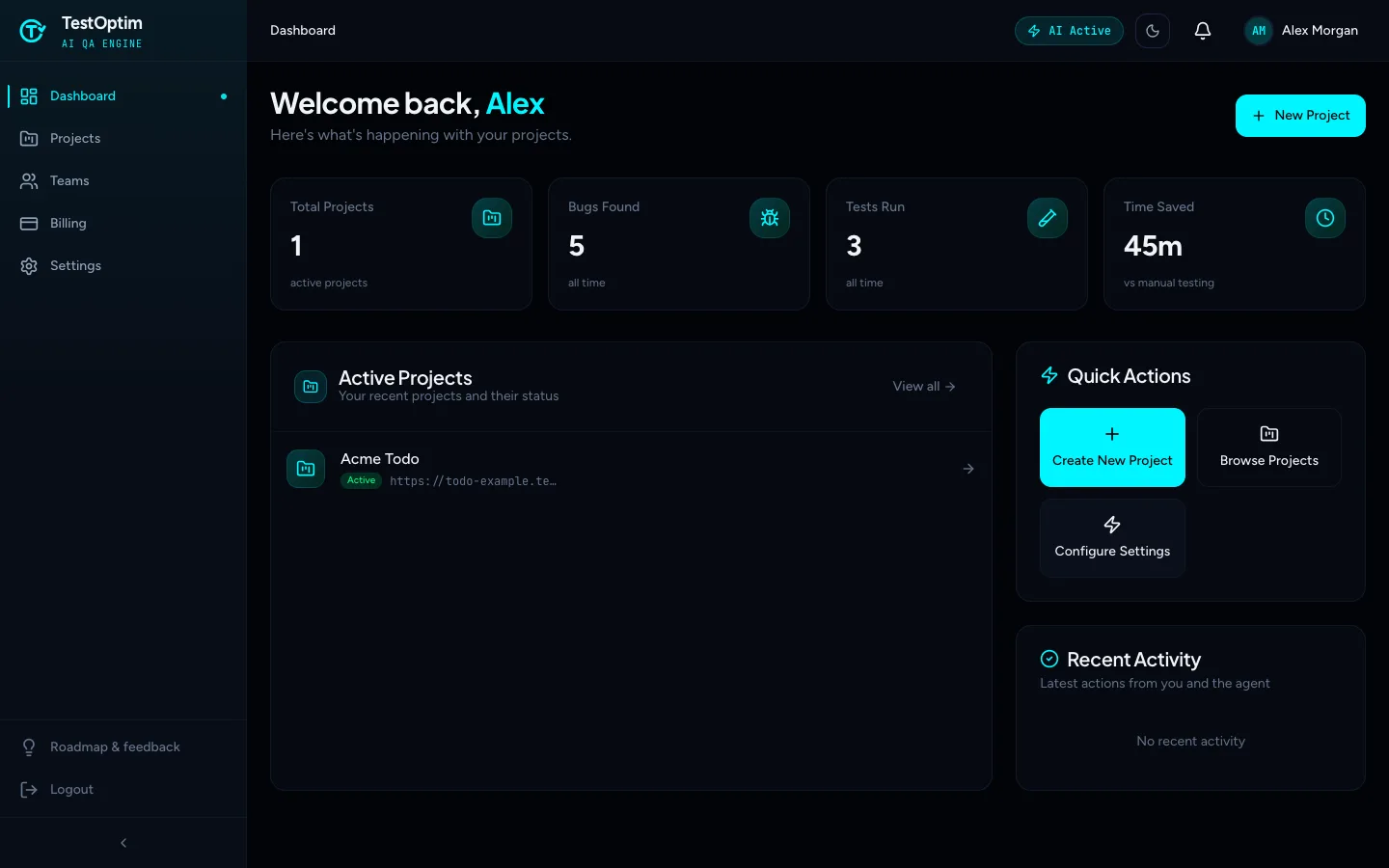
You see Account Created! with the organization and your role, then land on your dashboard inside your teammate's organization. Your email is marked as verified automatically, so there is no code to enter.
If you already have a TestOptim account
The page is the same and still says Create Account & Join. Open the link and enter your Full Name and the password you already use for that account, then select Create Account & Join. You don't need to sign in first.
If you are already signed in with the invited email, the same steps work.
Warning
Entering a password here replaces the current password for the account, and signing in elsewhere signs out your other devices. Type the one you already use. If you're not sure of it, reset your password first (see Manage your profile, password and sessions), then open the link again.
Note
If you signed up with Google or GitHub and never set a password, the page tells you: "This account signs in with Google or GitHub. Sign in first, then open the invitation link again."
Reaching the team's projects
Joining adds the team as an additional organization. If you already own an organization, TestOptim doesn't switch you automatically. Open a link to one of the team's projects (ask a teammate to share it) and TestOptim switches to the team's organization. After that, Projects and Team show the team.
If your own organization has no plan yet, TestOptim may ask you to choose a plan before it shows anything.
Fix common problems
| What you see | What it means | What to do |
|---|---|---|
| Invalid Invitation with "Invalid or expired invitation" | The link was already used, revoked, expired or mistyped. They all look the same. | Ask the person who invited you to send a new invitation. |
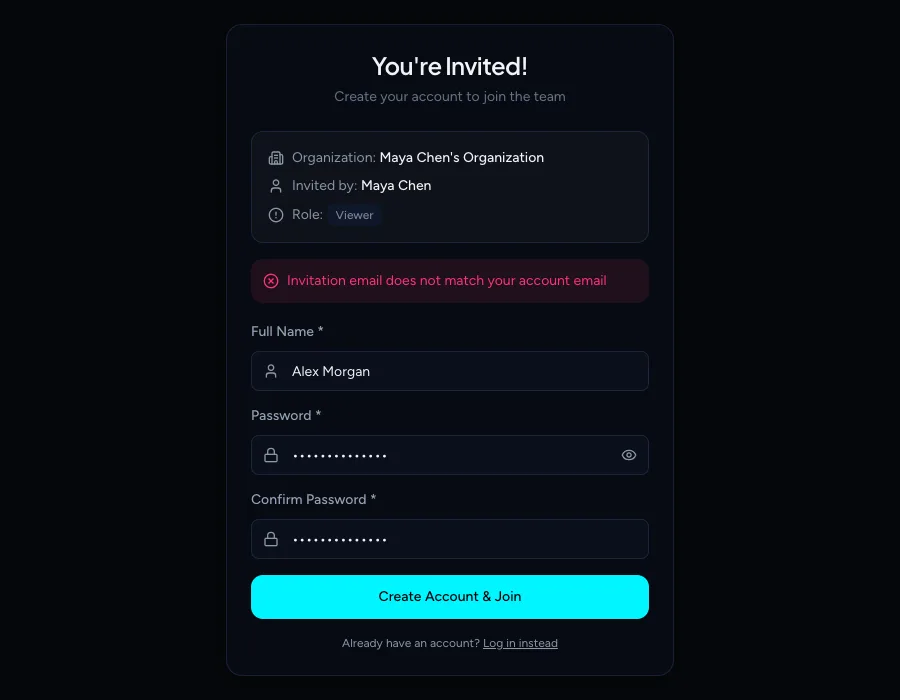
| "Invitation email does not match your account email" | You're signed in with a different account. | Sign out, or sign in with the invited address, then try again. |
| "Invalid password for existing account" | An account exists for this email and the password is wrong. | Enter your existing password, or reset it from the sign-in page. |
| "Too many attempts. Please try again later." | Too many invitation attempts from your network in the last hour. | Wait about an hour and try again. |
| "Password must be at least 8 characters" or "Passwords do not match" | The form checks failed. | Fix the password fields. |
| "You have reached your team seats limit" | The team has no free seats. | Ask the Owner to upgrade or free a seat. |

If none of this fixes it, email hi@testoptim.com with the inviter's name and the email address the invitation was sent to.
Related
Keep reading
- Team & rolesInvite teammates to your organizationInvite people to your TestOptim organization by email, pick their role, and manage pending invitations. Covers seats, 7-day expiry and common errors.
- Team & rolesChange a member's role or remove themPromote, demote or remove a teammate from the TestOptim Team page, including other Admins, and learn which rows you can't change and how to free a seat.
- Troubleshooting"You don't have permission to perform this action"Which role you need for each action in TestOptim, why a button is missing or an action is refused, and what to do about stale-tab errors.
- Troubleshooting"Already in progress for this project" errorTestOptim runs one job per project at a time. See what "already in progress for this project" means, which jobs block each other, and how to proceed.