Why OTP logins break most test automation
A one-time password sent by SMS or email is designed so that only a person holding the phone or inbox can sign in. That is exactly what stops an automated test: the agent reaches the code screen, has no way to read your messages, and every page behind the login stays untested.
TestOptim AI handles OTP login in two ways, and you pick per credential profile: a fixed test code your staging app accepts, or a short pause where a person on your team supplies the live code.
Option 1: give TestOptim a fixed test OTP
If your test or staging environment can accept a fixed code, such as 123456 for test accounts, enter it in the Test OTP / PIN field of the project's credential profile, along with the Phone Number if your login asks for one. TestOptim uses the code automatically and exploration never pauses.
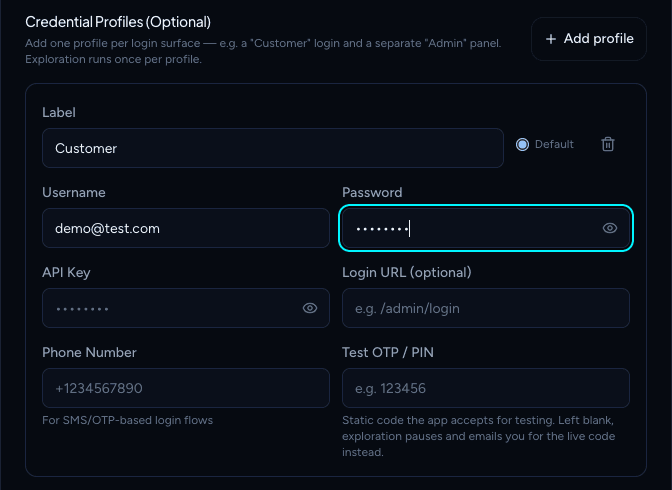
This is the option to choose if you want test runs to get past the login too. Only exploration can wait for a live code. Test runs and fix checks can't, so they can't sign in to a login that sends a code unless the profile has a Test OTP / PIN.
Option 2: exploration pauses and emails you for the live code
Leave Test OTP / PIN blank and exploration still gets through a real OTP login. When the agent reaches the code step, it pauses and hands the moment over to a person:
- 1Exploration pauses. The live log shows "Waiting for you to request a verification code". Nothing has been sent to your phone or inbox yet, so the code can't expire before you are ready.
- 2You get an email. The person who started the exploration (or the project owner, if that isn't known) gets "Action needed: <project> needs a verification code" with an Open OTP Page button.
- 3You request the code. On the Verification code page, click Send my code. TestOptim asks your app to send the code now.
- 4You type it in. Enter the code you received before the countdown ends and click Submit code. Exploration resumes.
The Owner, Admins, QA Leads and QA Engineers can request and submit the code; Developers and Viewers can't. If the email went to someone who isn't allowed to, they can forward the link to someone who is.
Time limits for the one-time code
| Step | How long you have |
|---|---|
| Open the page and click Send my code | Up to 30 minutes after the pause |
| Type the code after it is sent | 5 minutes, shown as a countdown |
If time runs out, the agent carries on with whatever it can reach without logging in, and nothing it already found is lost. Waiting for you doesn't count toward the exploration's own 45 minutes of exploring.
Use a test account, not a real one
The agent signs in and works through your app like a QA engineer. It never logs out, deletes accounts, makes payments, or changes passwords or account settings, but it does fill in and submit forms. Give it a dedicated test account on staging with the access a normal user of that role has, and never a production admin login.
Passwords, API keys and codes are encrypted when saved and never shown again. Apps with several roles get one credential profile per role, and you choose which profile each exploration signs in as. See Add login credentials.