Explore your app to build the knowledge base
Start an AI exploration of your web app in TestOptim, follow its progress live and stop it if needed. The result is your knowledge base.
In this article
To explore your app, open your project's Knowledge page and click Start exploration. TestOptim's AI agent opens your project's URL in a real browser, clicks around, tries forms and, if you gave it a login, signs in and keeps going. What it finds is saved as your knowledge base.
Before you start
- You need the Owner, Admin, QA Lead or QA Engineer role to start an exploration. Only Owner, Admin and QA Lead can stop one. Developers and Viewers can watch but not start.
- If your app needs a login, add a credential profile first. Without one the agent only sees pages that are public.
- Exploration uses your plan's monthly page budget. Solo, including the trial, has 30 pages a month, so a first exploration of a mid-size app can use most of it. See How long does exploration take, and what does it cost?.
- The project must not be archived, and no other AI job (a test run, test generation) can be running on it.
Start an exploration
Open your project and click Knowledge in the sidebar.
Check that the status badge says Pending. The page shows 0 pages, 0 flows and 0 entities.
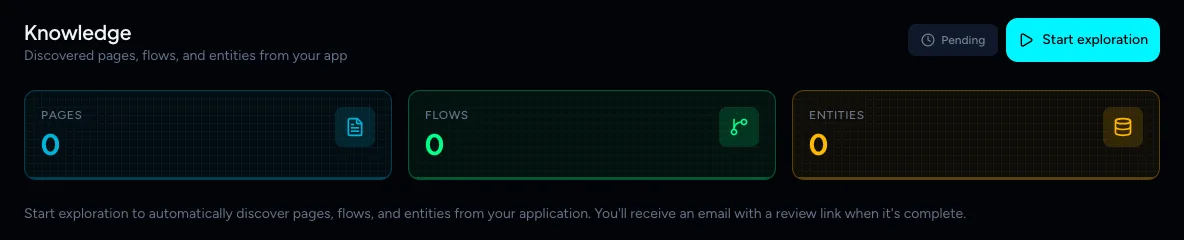
A new project's Knowledge page Click Start exploration.
- If the project has two or more credential profiles, the button reads Explore as.... Pick the profile the agent should log in with. Each exploration uses one profile. Explore as... only appears while the status is Pending, so to explore as another profile after a finished run, clear the knowledge base first. The new run replaces what was found.
- If the project has no credentials at all, a No Credentials Configured dialog appears. Click Cancel to add credentials in Settings, or Explore Anyway to explore only the public pages.
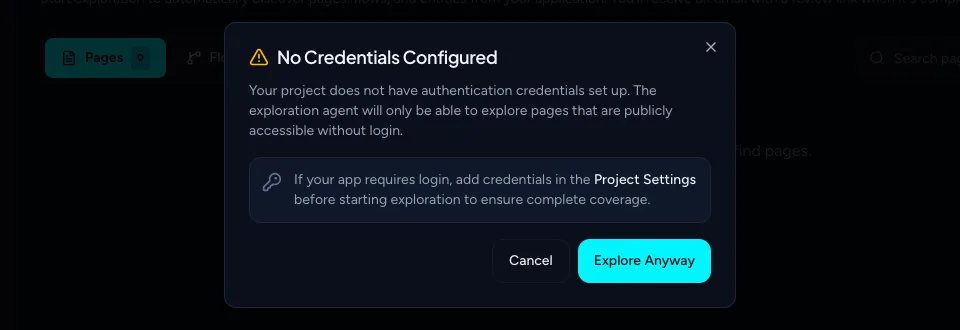
Shown when the project has no credential profile
Watch it work
As soon as the run starts, the Stop exploration button appears and an Agent Activity log opens with an Exploring badge. The Pages counter goes up as the agent visits pages. Flows and entities show "known when run completes".
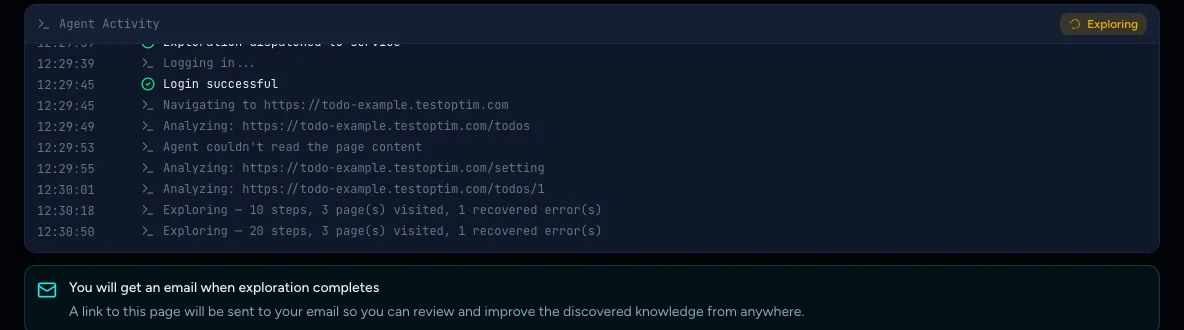
The log is the only progress signal, and it can look quiet for a minute or more while the agent works on a page. That is normal. You can leave the page: you get an email and an in-app notification when the run ends.
What the agent does:
- Without logging in, it lists your public pages and tests forms, including empty and invalid input.
- Logs in once with the credential profile you chose, then explores the signed-in pages.
- It saves what it finds as it goes.
The agent never logs out, deletes data, makes payments or changes passwords or settings.
Stop an exploration
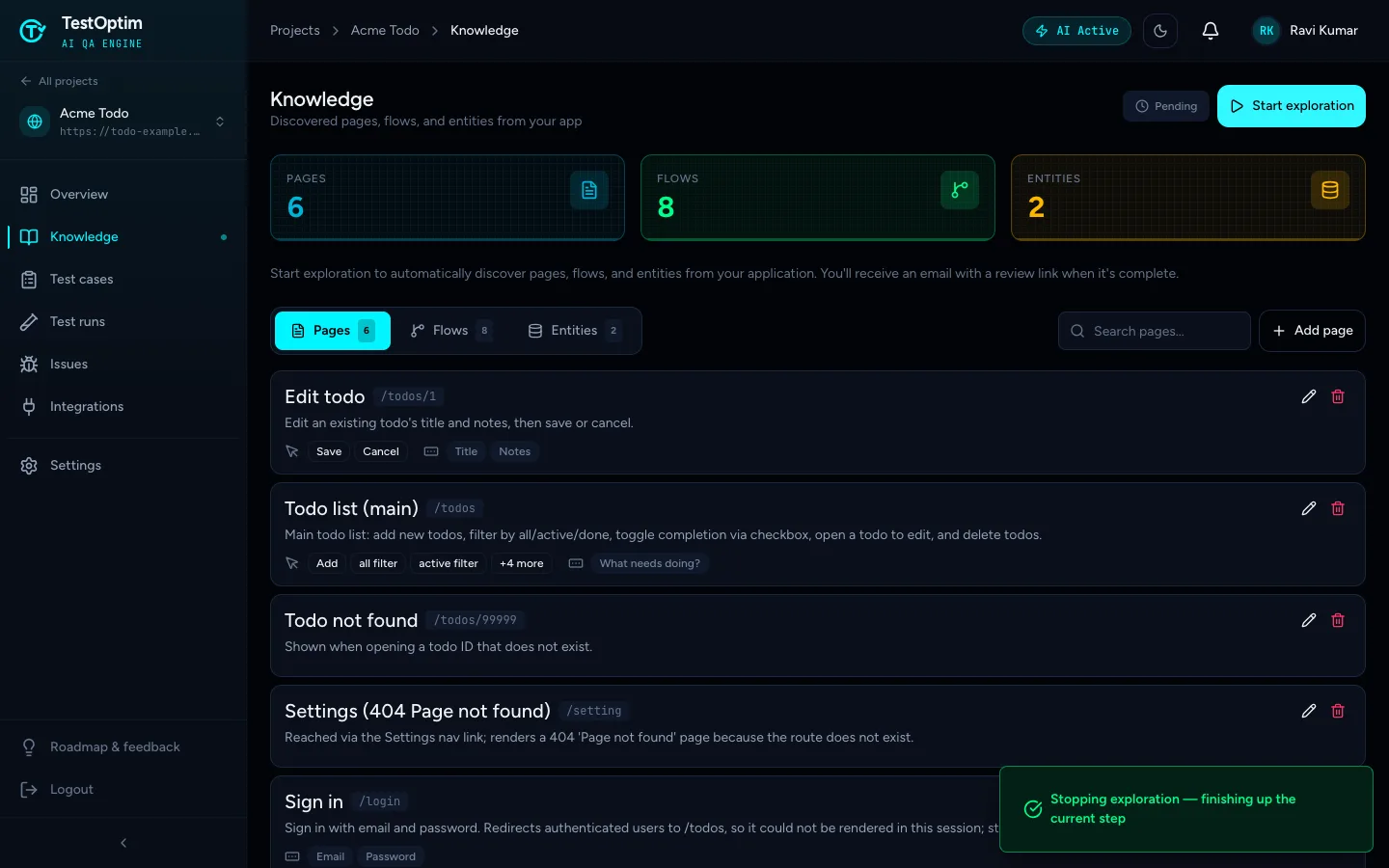
Click Stop exploration if you started it by mistake or the agent is stuck. It finishes the current step and then stops. Everything it discovered up to that point is kept, so a stopped run still leaves you a partial knowledge base. The badge goes back to Pending and the pages, flows and entities found so far stay listed, but Improve with AI and Clear knowledge are not offered. Click Start exploration to run again. Only Owner, Admin and QA Lead can stop a run.
Note
Starting a new exploration while one is running stops the running one first. Other jobs on the same project (a test run, test generation) are blocked until exploration ends and show "... is already in progress for this project" (see Another job is already in progress).
What happens when exploration finishes?
When the agent finishes:
- The badge changes to Approved. This is just how "exploration finished" is shown. There is no review step you must complete.
- The counters show how many pages, flows and entities were found.
- An Exploration Complete dialog offers View Test Cases or I'll do this later.
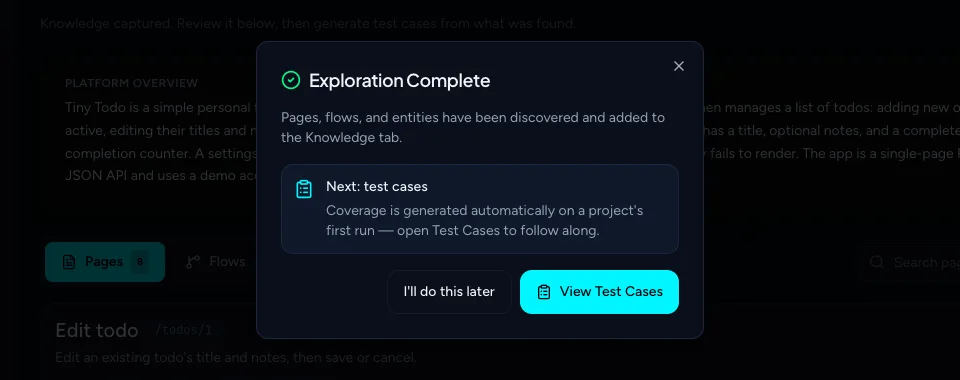
Click I'll do this later to stay on the Knowledge page
Next, review what exploration found before you generate test cases from it. Exploration also files issues for problems it notices along the way. You will find them in Issues.
How long does exploration take, and what does it cost?
A small app usually takes 5 to 15 minutes. A single run stops on its own after 30 minutes, and everything found up to that point is kept as a partial knowledge base. If a run fails, TestOptim retries automatically up to 2 times and notifies you if it still did not finish.
Pages are counted against your monthly budget when the crawl ends. Every distinct page visit counts, so a page seen both logged out and logged in counts twice. The crawl stops when it reaches your remaining page budget, and if you have no pages left, exploration won't start. See You have reached your plan limit and Track your usage and buy top-up packs.
Tip
If the run keeps pausing at a login that sends a code, see Enter a one-time code during exploration.
Related
Keep reading
- Test casesGenerate AI test cases for your web appGenerate a ready-to-run suite of AI test cases from your explored app with one click, and add more later with Regenerate without losing your edits.
- Getting startedHow TestOptim works: explore, generate, run, fixTestOptim tests your web app in five steps you start yourself. It explores your app, writes test cases, runs them, reports bugs and re-checks fixes.
- Exploration & knowledgeReview what exploration found: pages, flows and entitiesWhat the Pages, Flows and Entities tabs on the Knowledge page mean, and how to tell if your knowledge base is good enough to generate test cases from.
- Exploration & knowledgeEdit the knowledge base and improve it with AIFix what the agent got wrong or add what it missed. Edit pages, flows and entities by hand, or describe the change and let AI refine one item for you.