Edit the knowledge base and improve it with AI
Fix what the agent got wrong or add what it missed. Edit pages, flows and entities by hand, or describe the change and let AI refine one item for you.
In this article
The agent can misread a page or miss a journey. You can correct the knowledge base directly. Your changes are used the next time you generate test cases.
Before you start
- Owner, Admin, QA Lead and QA Engineer can add, edit and delete items by hand.
- Improve with AI is limited to Owner, Admin and QA Lead. A QA Engineer who tries it gets an error.
- Developer and Viewer roles can only read.
- Improve with AI is available only once exploration has finished. While the project is Pending or Exploring the sparkle icons and the button are not shown.
Add an item
Open Knowledge and pick a tab: Pages, Flows or Entities.
Click Add page, Add flow or Add entity.
Fill in the form. For a page: Path, Name, Description, Actions and Inputs. Type an action or input and click the + button to add it to the list. For a flow: Name, Description, Expected Outcome and Steps. For an entity: Name, Type and Attributes.
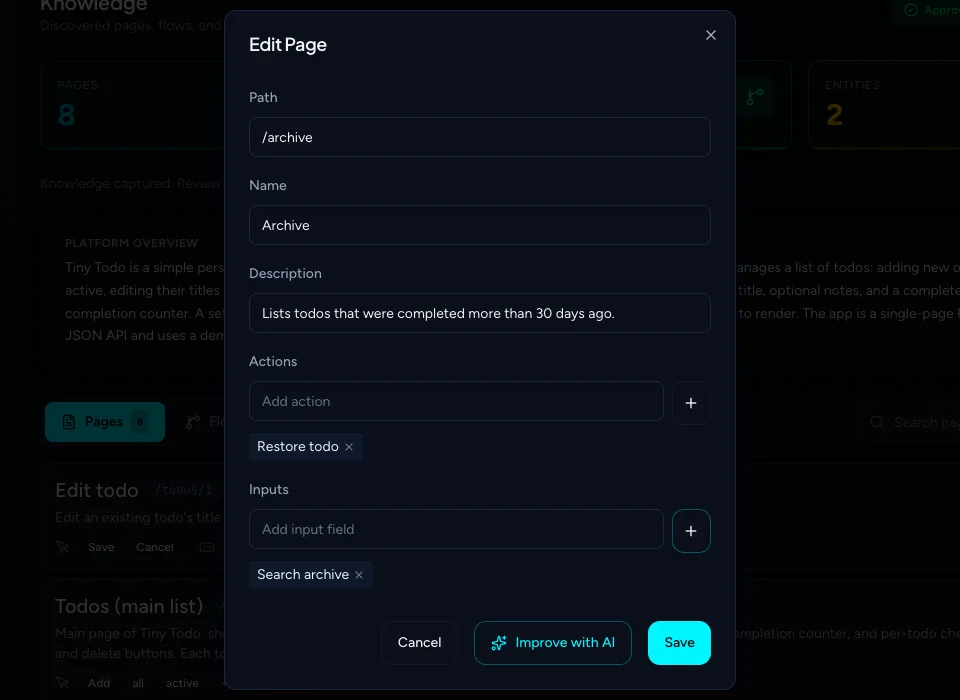
The page dialog filled in Click Save. A Knowledge updated message appears and the item shows in the list.
Edit or delete an item
- Click the pencil icon on the item. Change what you need and click Save.
- To remove an item, click the red trash icon and confirm with Delete in the Delete Item dialog. You can't undo it.
Improve an item with AI
Use this when the item is roughly right but needs a better description, more actions, or a missing step, and you would rather explain it than rewrite it.
Click the sparkle icon on the item. The edit dialog opens.
Click Improve with AI.
In Your Feedback, describe the change. For example: "Add a Delete forever action and a note that items are removed after 90 days."
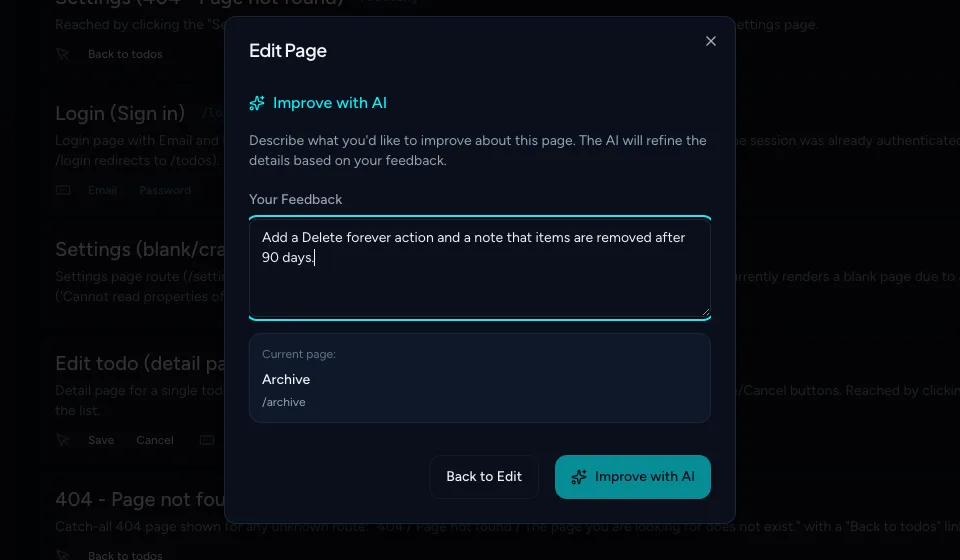
Be specific about what to add or fix Click Improve with AI again. The dialog closes and a Knowledge refinement started message appears.
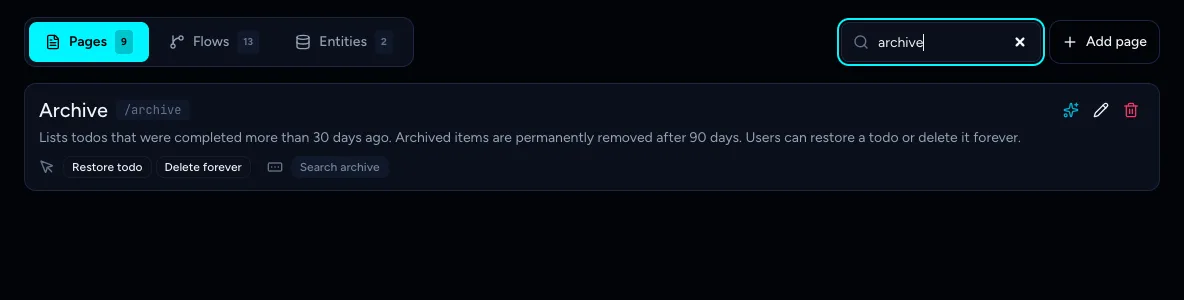
Wait about a minute, then reload the page. The item shows the refined details.
Note
There is no progress bar. Refinement runs as a background job and it counts as the project's one active job, so you can't start a test run, test generation or an exploration until it ends. If you try, you get "... is already in progress for this project".
Tip
AI may also add or update related items. In our example the number of flows went up by one after refining a page. Check the Flows tab afterwards.
Warning
If you clear the knowledge base or explore again, your edits are not carried over. Exploration replaces the contents. See Re-explore your app after it changes.
Related
Keep reading
- Exploration & knowledgeReview what exploration found: pages, flows and entitiesWhat the Pages, Flows and Entities tabs on the Knowledge page mean, and how to tell if your knowledge base is good enough to generate test cases from.
- Exploration & knowledgeRe-explore your app after it changesRefresh your TestOptim knowledge base after your app changes: clear the old knowledge, start a new exploration, and decide what happens to test cases.
- Exploration & knowledgeExplore your app to build the knowledge baseStart an AI exploration of your web app in TestOptim, follow its progress live and stop it if needed. The result is your knowledge base.
- Test casesGenerate AI test cases for your web appGenerate a ready-to-run suite of AI test cases from your explored app with one click, and add more later with Regenerate without losing your edits.