Re-explore your app after it changes
Refresh your TestOptim knowledge base after your app changes: clear the old knowledge, start a new exploration, and decide what happens to test cases.
In this article
To re-explore your app in TestOptim, open Knowledge, click Clear knowledge, then click Start exploration again. It takes two steps because Start exploration only appears while the status is Pending, and a finished exploration is Approved.
Before you start
- Owner, Admin, QA Lead and QA Engineer can clear and explore.
- Re-exploring uses your monthly page budget again. See Track your usage.
- The project must not be archived and no other job can be running.
- Changes you made by hand in the knowledge base are replaced. Note down anything you want to keep.
Steps to re-explore
Open your project and click Knowledge.
Click Clear knowledge at the top right. A menu opens with two options.
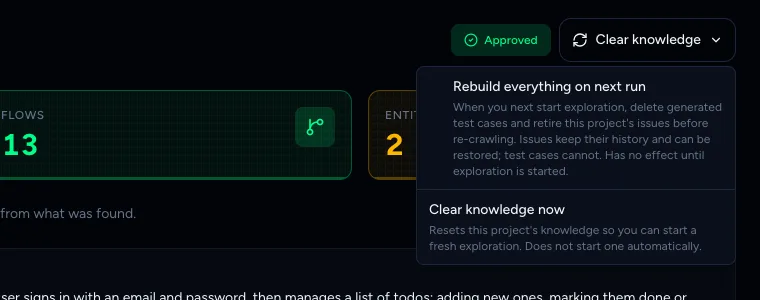
Rebuild everything is a checkbox, Clear knowledge now is a button Decide whether to tick Rebuild everything on next run. Most of the time you should leave it off. See the next section.
Click Clear knowledge now. You see "Knowledge cleared. You can start fresh exploration."
The badge goes back to Pending, the counters show 0 and the Start exploration button is back. Nothing has started yet.
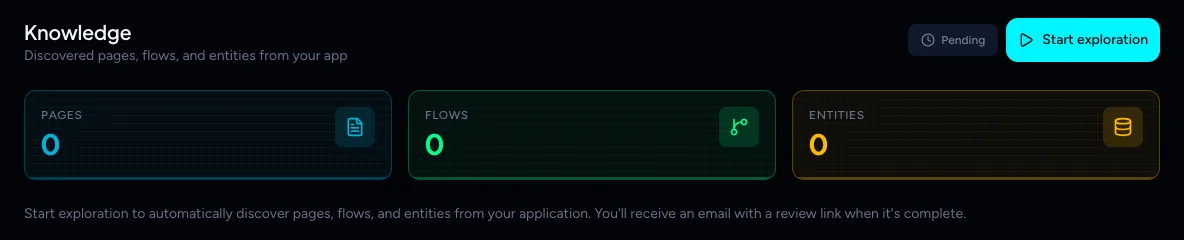
Cleared and waiting for a new exploration Click Start exploration (or pick a profile from Explore as...). Follow it as described in Explore your app.
Note
Clear knowledge now does not start an exploration and does not touch your test cases or issues.
If an exploration was stopped or failed part way, the status is already Pending. Start exploration is available and Clear knowledge isn't shown, so you can simply start again.
How often should I re-explore?
Re-explore after changes that add, remove or reshape pages or flows, such as a redesign, a new feature or a changed sign-in. Small copy or styling changes don't need it. Each exploration uses your monthly page budget, so on a small plan don't re-explore for every release.
What "Rebuild everything on next run" does
This is a checkbox, not an action. It only takes effect when you click Start exploration afterwards. When you do, before the crawl begins:
- Test cases are deleted permanently and can't be recovered. The warning text says "generated test cases". In practice the project's test cases are removed, so treat any you added by hand as gone too.
- Issues are retired. They keep their history and comments and can be restored.
Use it when your app has changed so much that the old tests and issues are mostly noise. Then generate test cases again from the new knowledge base.
Warning
If you only want an up-to-date knowledge base, leave Rebuild everything on next run off. Without it, your existing test cases and issues are kept, and re-exploring only replaces the knowledge base.
What happens next
- The new run replaces the pages, flows and entities. When it finishes you get the Exploration Complete dialog.
- Exploration can raise issues it already reported. It de-duplicates by title and reopens them where it can.
- If you changed your app a lot, open Test cases and review them. Run changed only is a faster way to retest what moved.
Tip
You can have exploration run on every push to your repository. See Re-explore automatically on every GitHub push.
Related
Keep reading
- Exploration & knowledgeReview what exploration found: pages, flows and entitiesWhat the Pages, Flows and Entities tabs on the Knowledge page mean, and how to tell if your knowledge base is good enough to generate test cases from.
- Exploration & knowledgeEdit the knowledge base and improve it with AIFix what the agent got wrong or add what it missed. Edit pages, flows and entities by hand, or describe the change and let AI refine one item for you.
- Exploration & knowledgeExplore your app to build the knowledge baseStart an AI exploration of your web app in TestOptim, follow its progress live and stop it if needed. The result is your knowledge base.
- Test casesGenerate AI test cases for your web appGenerate a ready-to-run suite of AI test cases from your explored app with one click, and add more later with Regenerate without losing your edits.