Re-explore automatically on every GitHub push
Connect a GitHub repository so each push or merged pull request re-explores your app and refreshes its knowledge. It does not run your tests; use CI for that.
In this article
Connect a GitHub repository to a project and TestOptim re-explores your app whenever code changes, so your knowledge base stays current.
Important
The GitHub integration re-explores your app. It does not run your tests. To run tests on every push, call TestOptim from your CI pipeline. See Run tests from CI, scripts or an AI assistant.
Before you start
- You need the Owner or Admin role.
- You need permission to install a GitHub App on the account or organization that owns the repository.
- The project must already have its URL set, because exploration visits that URL.
Connect GitHub
Open the project, then select Integrations in the left sidebar.
On the GitHub tab, the card says Not connected. Select Install GitHub App.
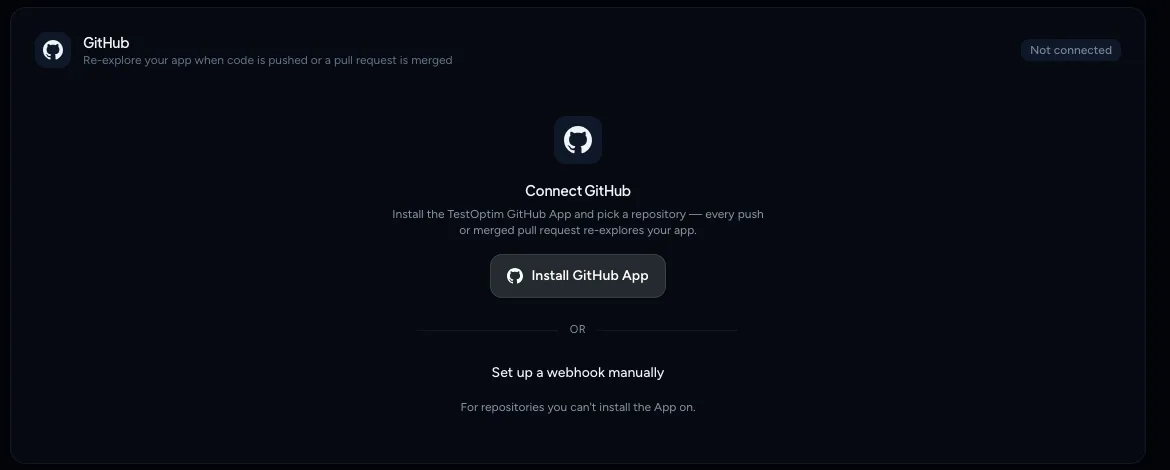
Install the TestOptim GitHub App, then pick a repository GitHub opens. Choose the account and the repositories to give TestOptim access to, then confirm.
Back in TestOptim, if the card shows Repository not set, choose the GitHub account (if you have several) and the Repository, then select Link repository.
The card now says Connected. It shows Connected via (the GitHub App and account), Last delivery and Last exploration. Use Change repository to link another repository or Disconnect to remove the link.
Note
The GitHub approval happens on GitHub's screens, so this article doesn't show them.
If you don't see your repository in the list, select Give the App access to it on GitHub, then refresh the list. You can also install the App on another account.
Choose what triggers an exploration
A settings card, What happens when the repository changes, controls this.
Triggers
- Push: every push to the repository.
- Pull request merged: only when a pull request is merged, not when it's opened or updated.
If you turn both off, GitHub changes won't start explorations.
Exploration mode
- Full re-exploration: explore the whole app.
- Only when watched paths change: add Watch paths, for example
src/pages/, and press Enter. Leave the list empty to explore on any change. - Disabled — receive but don't explore: record the events without exploring.
Start exploration automatically can also be switched off to record deliveries without exploring.
Select Save changes to apply them.
What happens after a push
TestOptim queues an exploration of the project URL. When it finishes, your knowledge is updated, TestOptim may open or reopen issues it finds, and you get the usual notifications.
The Recent deliveries list on the GitHub tab shows the last explorations GitHub started, with a status such as Completed, Running, Failed or Stopped.
Warning
Keep these in mind before you connect a busy repository:
- Every branch triggers it. There is no branch filter, so a push to any branch starts an exploration.
- It stops a running exploration. If one is in progress, the new one replaces it.
- It uses your page quota. Explorations count toward your plan's pages per month.
- Watched paths apply to pushes only. Merged pull requests aren't filtered by path.
Manual webhook
The tab also offers Set up a webhook manually for repositories you can't install the App on. We recommend the GitHub App, so this article doesn't cover the manual route.
Related
Keep reading
- Troubleshooting"Already in progress for this project" errorTestOptim runs one job per project at a time. See what "already in progress for this project" means, which jobs block each other, and how to proceed.
- Integrations & APIConnect Slack and use /testoptim commandsPost test results, new issues and run failures to a Slack channel, choose which events to send, and use /testoptim to list issues or start a run from Slack.
- Exploration & knowledgeExplore your app to build the knowledge baseStart an AI exploration of your web app in TestOptim, follow its progress live and stop it if needed. The result is your knowledge base.
- Getting startedHow TestOptim works: explore, generate, run, fixTestOptim tests your web app in five steps you start yourself. It explores your app, writes test cases, runs them, reports bugs and re-checks fixes.