Connect Slack and use /testoptim commands
Post test results, new issues and run failures to a Slack channel, choose which events to send, and use /testoptim to list issues or start a run from Slack.
In this article
Connect a Slack channel to a project to get test results, new issues and failures where your team already works. You can also list issues and start a run with the /testoptim command.
Before you start
- You need the Owner or Admin role. See Roles and permissions.
- You need permission to add apps in your Slack workspace.
- Setup is per project. Use one project per Slack channel.
Connect Slack
Open the project, then select Integrations in the left sidebar.
Open the Slack tab. The card says Not connected.
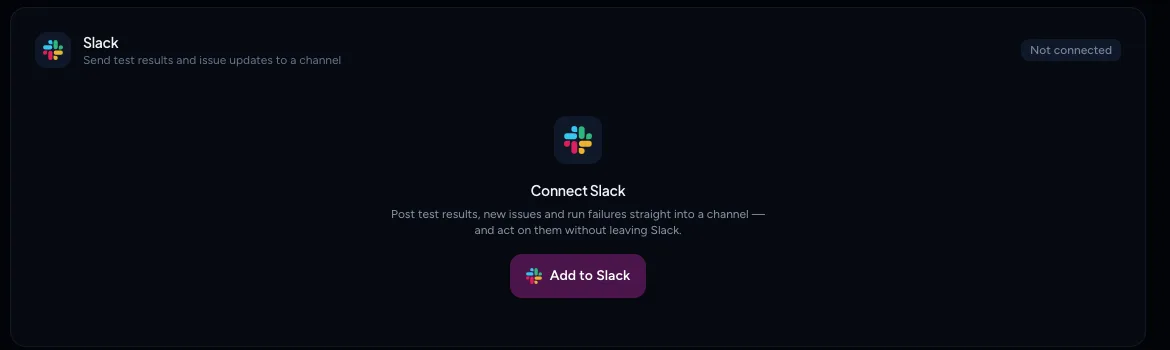
Each project has its own Slack connection Select Add to Slack. Slack opens and asks you to sign in and approve the TestOptim app.
After you approve, you return to the Integrations tab. Under Post to channel, choose a channel and select Save channel.
If your Slack workspace is already connected to another project in your organization, TestOptim reuses it and skips the Slack approval. You only choose a channel.
Note
Public channels work immediately and are listed automatically. For a private channel, run /invite with the TestOptim bot name inside that channel first, then refresh the list. TestOptim can only see private channels it has been added to.
Note
The Slack approval step happens on Slack's own screens, so this article doesn't show them.
Choose what Slack receives
Once a channel is saved, the card shows the Workspace, Channel and Last message. A second card lets you tune what the project sends. These are the defaults.
| Event | Sent by default |
|---|---|
| Issue created | Yes |
| Issue status changed | Yes |
| Test run completed | Yes |
| Test run failed | Yes |
| Issue assigned | |
| Issue commented | |
| Test generation completed | |
| Exploration completed | |
| Agent job failed | |
| Quota exhausted |
Under the toggles you can also set:
- Minimum severity: Low — everything, Medium and above (the default), High and above or Critical only.
- Daily digest: turn it on and pick a time. The default time is 09:00. You get one summary a day, in the project's timezone.
- Thread test run results: on by default. TestOptim posts one message per run and puts each failure in its thread, instead of one message per failure.
Select Save changes to apply, or Reset to discard.
To check everything works, select Send test message on the connection card. Change channel moves alerts to another channel, and Disconnect removes the connection.
Use /testoptim in Slack
Type these in the connected channel.
| Command | What it does |
|---|---|
/testoptim help |
Lists the commands. |
/testoptim status |
Replies that the bot is online and shows the linked project. It doesn't check your app's health. |
/testoptim issues |
Lists the 10 most recent issues that aren't closed, fixed or rejected. |
/testoptim issues open |
Same list. |
/testoptim issues high |
Only high and critical issues. |
/testoptim run |
Starts a run of the whole test suite and replies with a link. |
Replies are private to you.
Warning
/testoptim issues mine doesn't filter to your issues. It shows the same open issues as /testoptim issues.
Starting a run from Slack
/testoptim run runs as you, so TestOptim has to recognise you:
- Your Slack profile email must exactly match your TestOptim email.
- You must belong to the organization and have a role that can start runs (QA Engineer or higher).
If not, Slack replies "We couldn't match your Slack account to a TestOptim user in this organization. Make sure your Slack email matches your TestOptim account email, or ask a workspace admin to invite you." or "Your TestOptim role doesn't allow you to do that."
Other replies you may see: "A test run is already in progress for this project." and a quota message if the plan's test executions are used up.
Fix common problems
- "This Slack channel isn't connected to a TestOptim project." The channel isn't linked to exactly one project. If two projects post to the same channel, commands stop working. Give each project its own channel.
- The card says "Needs attention". The bot isn't in the channel anymore. Invite it, or pick a different channel.
- Slack's connection is no longer valid. Select Disconnect & reconnect and add the app again.
Related
Keep reading
- Account & notificationsChoose which email and in-app notifications you getTurn TestOptim email and in-app notifications on or off, choose which events you hear about, and opt in to the Monday weekly digest.
- Integrations & APIConnect Jira and sync issue statusFile the issues TestOptim finds into a Jira project automatically or by hand, and keep their status in sync both ways, including optional re-verification when Jira marks one Done.
- IssuesAssign issues and discuss them in commentsHand an issue to a teammate, get them notified, and keep the conversation on the issue with comments. Includes what does and does not work with @mentions.
- Integrations & APIRe-explore automatically on every GitHub pushConnect a GitHub repository so each push or merged pull request re-explores your app and refreshes its knowledge. It does not run your tests; use CI for that.