Assign issues and discuss them in comments
Hand an issue to a teammate, get them notified, and keep the conversation on the issue with comments. Includes what does and does not work with @mentions.
In this article
Assign an issue so it has an owner, then use comments to share context with your team.
Before you start
- You need a teammate in your organization. See Invite teammates.
- Developers, QA Engineers, QA Leads, Admins and Owners can assign and comment. Viewers cannot.
Assign an issue
- Open your project and click Issues.
- Click an issue to open the detail panel.
- Click the Assignee menu (it shows Unassigned).
- Pick a member from the list. Type in Find member to filter by name or email.
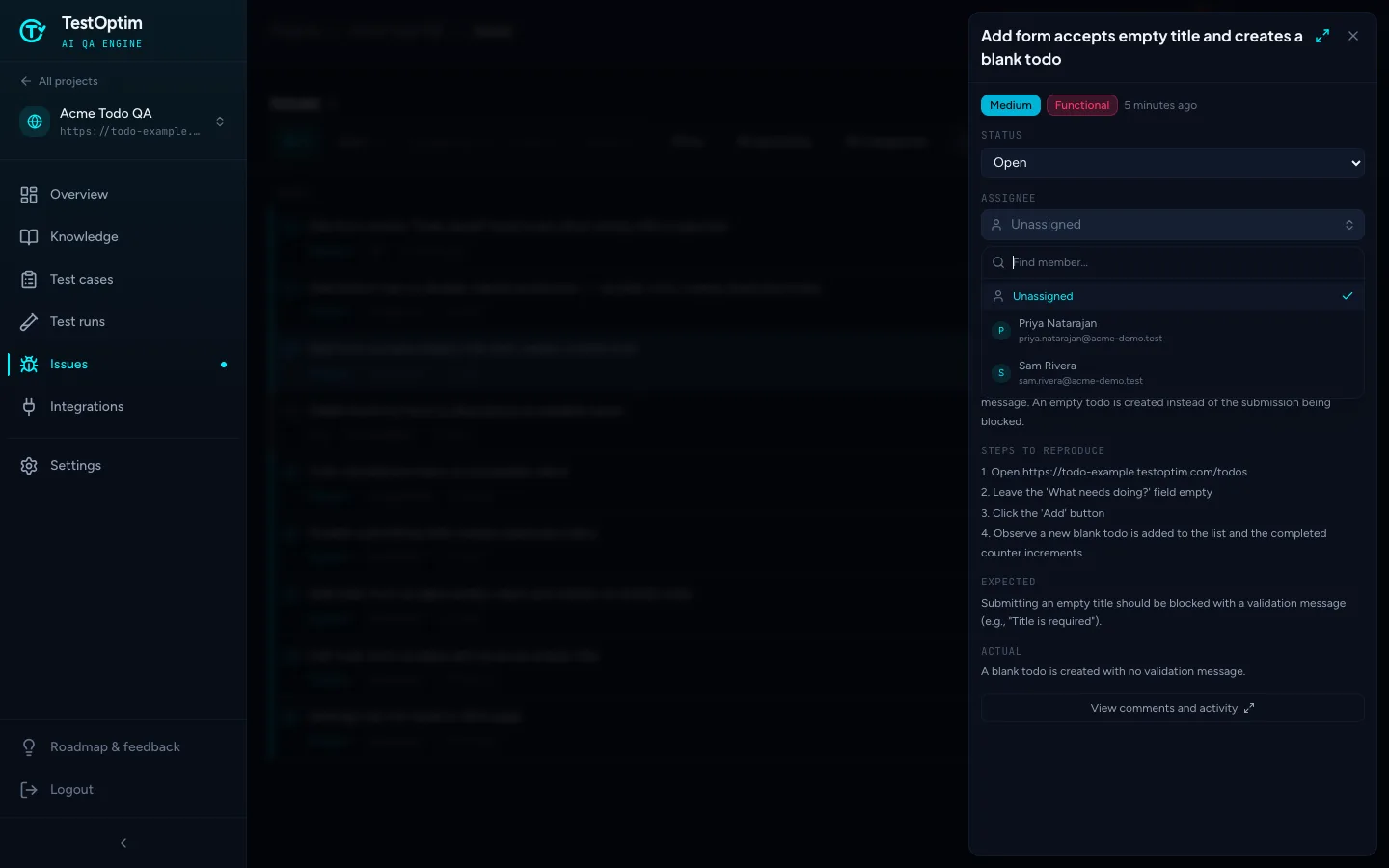
A toast says Issue assigned successfully. The assignee's avatar now shows on the row in the list. To remove the assignee, open the menu and choose Unassigned. A toast says Issue unassigned successfully.
You can also set the assignee on the full issue page, in the Assignee card.
What the assignee gets
- An in-app notification, Issue assigned to you, with the text "Priya Natarajan assigned you to issue: …".
- An email, if their notification settings allow it. See Choose which email and in-app notifications you get.
- Later in-app notifications, Issue status changed, when the status of that issue changes.
Note
Assigning several issues at once with the bulk Assign action sends no notification and writes no entry to the issue's activity. Only the assignment you make on a single issue notifies the person.
Comment on an issue
- Open the full issue page. From the detail panel, click View comments and activity.
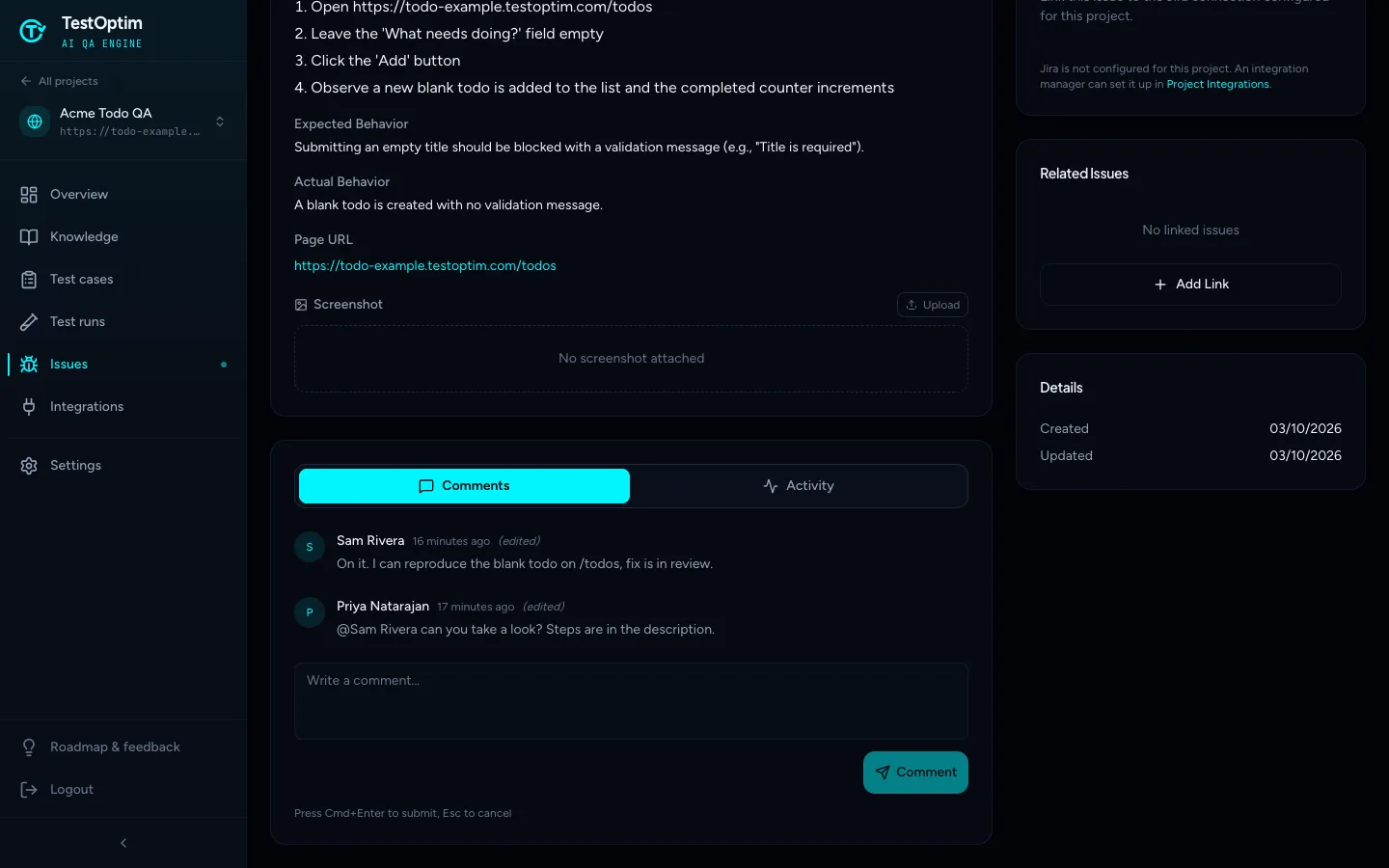
- In the Comments tab, click the Write a comment... box below the existing comments.
- Type your message, then click Comment or press Cmd+Enter (Ctrl+Enter on Windows).
A toast says Comment added. Your comment appears in the thread with your name and the time. The thread lists comments newest first.
- A comment can be up to 5,000 characters.
- Comments cannot be edited or deleted from the issue page, and there is no reply button, so write each comment so it can stand alone.
- Every comment currently shows an (edited) label, even if it was never changed.
@mentions
You can type @ and a name in a comment, but there is no list to pick from, and mentions do not reliably notify people:
- A mention only notifies a teammate whose profile name is a single word, typed exactly the same. For example,
@Samwould notify a member named exactly "Sam". - A mention of a full name such as
@Sam Riveradoes not notify anyone.
If you need someone to see a comment, assign the issue to them. That reliably sends a notification.
The Activity tab
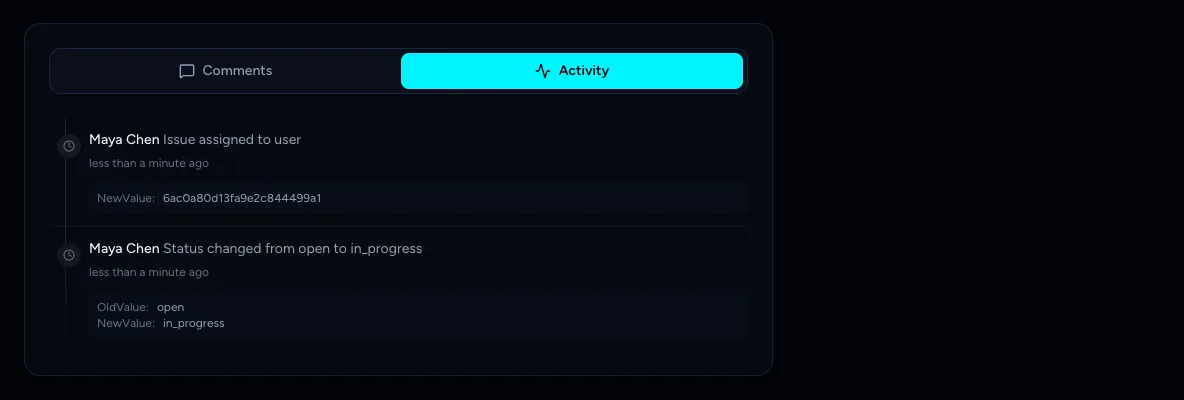
The Activity tab lists status changes and assignments, newest first, with who did it and when. Comments are in the Comments tab, not here.
Note
An assignment entry shows "Issue assigned to user" followed by a technical identifier rather than the person's name.
Related
Keep reading
- Account & notificationsChoose which email and in-app notifications you getTurn TestOptim email and in-app notifications on or off, choose which events you hear about, and opt in to the Monday weekly digest.
- Integrations & APIConnect Slack and use /testoptim commandsPost test results, new issues and run failures to a Slack channel, choose which events to send, and use /testoptim to list issues or start a run from Slack.
- Team & rolesInvite teammates to your organizationInvite people to your TestOptim organization by email, pick their role, and manage pending invitations. Covers seats, 7-day expiry and common errors.
- IssuesReview issues found by TestOptimSee where TestOptim issues come from, what severity and status mean, and how to filter, search and open an issue to read the steps to reproduce.