Invite teammates to your organization
Invite people to your TestOptim organization by email, pick their role, and manage pending invitations. Covers seats, 7-day expiry and common errors.
In this article
To invite a teammate to TestOptim, open Team in the sidebar, select Invite member, enter their email and a role, then select Send Invite. Only an Owner or Admin can invite, and the link in the email works for 7 days. Each person gets a role that controls what they can do.
Before you start
- You need the Owner or Admin role. Other roles can see the team list but not invite.
- Know which role to give. See Roles and permissions.
- You can give a role at your own level or lower, and never Owner.
Send an invitation
In the left sidebar, open Team.
Select Invite member.
Enter the person's email address under Email address.
Choose a Role: Admin, QA Lead, QA Engineer, Developer or Viewer. Admin is pre-selected, so check it before you send.
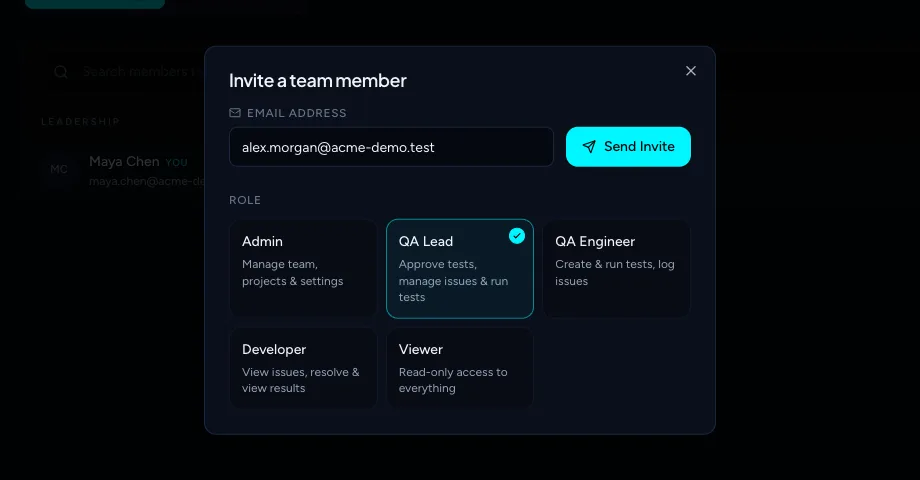
Pick the role carefully. The person gets exactly these permissions when they join. Select Send Invite. Sending can take a few seconds.
A message confirms Invitation sent to the address, and the person receives an email with a link to join.
Track pending invitations
Open the Pending tab on the Team page. Each row shows the email, the role, when the invitation expires (for example "in 6 days", with an expiring soon badge in the last 24 hours) and who sent it.
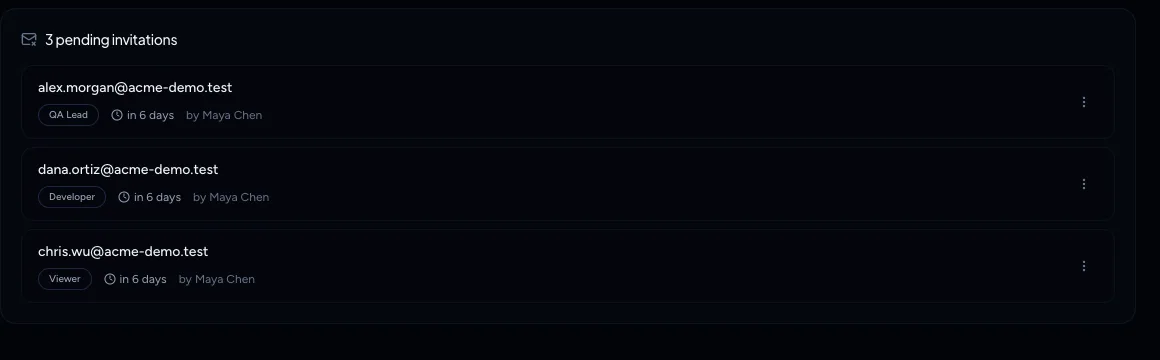
Invitations are valid for 7 days. After that the link stops working and you need to invite the person again.
Revoke an invitation
- On the Pending tab, open the menu at the right of the invitation.
- In the Revoke invitation dialog, select Revoke.
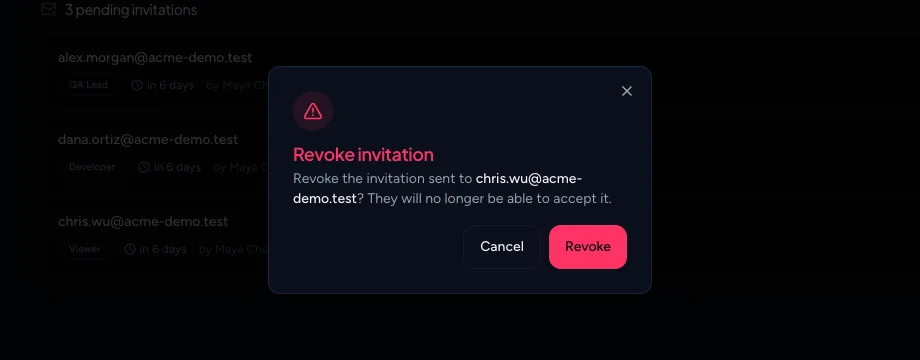
The person can no longer accept it. You can send a new invitation to the same address afterwards.
Note
There is no Resend or Copy link option. To send the email again, revoke the pending invitation and invite the person again. TestOptim won't let you send a second invitation to an address that already has a pending one.
Seats
Each member of the organization uses one seat, and the Owner counts as one. Pending invitations don't use a seat. A seat is used when the person accepts.
- Solo has no seat limit.
- Startup includes 3 team seats.
- Growth includes 10 team seats.
If you're at the limit, you see "You have reached your team seats limit" and the invitation isn't sent. The same check runs when someone accepts, so an invitation can fail to be accepted if the team filled up in the meantime. Upgrade from Billing or remove a member to free a seat.
Limits and errors
- You can send up to 10 invitations per hour for one organization.
- If the address already belongs to a member of your organization, you can't invite it again.
- Invitation emails are sent by TestOptim. Ask the person to check spam if it doesn't arrive. The invitation can show as sent even when the email didn't go out, so if it still doesn't arrive, revoke it and invite again, or email hi@testoptim.com.
Frequently asked questions
How long does an invitation last? 7 days. After that the link stops working and you need to invite the person again.
Why can't I invite someone? You need the Owner or Admin role, your plan's seats may be full, the address may already be a member or have a pending invitation, or you may have sent 10 invitations in the last hour.
Does a pending invitation use a seat? No. A seat is used when the person accepts.
What happens next
When the person accepts, they appear on the Members tab with the role you chose. If they need a different role, see Change a member's role or remove them.
Related
Keep reading
- Team & rolesChange a member's role or remove themPromote, demote or remove a teammate from the TestOptim Team page, including other Admins, and learn which rows you can't change and how to free a seat.
- Team & rolesRoles and permissions: who can do whatSee what each TestOptim role can do, which screens are Owner-only, and why a button that looks available can still say you don't have permission.
- Team & rolesAccept an invitation to join a teamJoin a teammate's TestOptim organization from your invitation email, whether you are new or already have an account, and fix the common errors.
- Troubleshooting"You don't have permission to perform this action"Which role you need for each action in TestOptim, why a button is missing or an action is refused, and what to do about stale-tab errors.