What is selective regression testing?
Selective regression testing means re-running only the tests that cover the parts of an app a change touched, instead of the whole suite. A full regression run is the safest check, but it is also the slowest and the most expensive, so on a small release it mostly re-confirms pages nobody changed. Picking the right subset by hand is where it usually goes wrong: someone has to know which tests exercise which screens.
TestOptim AI already knows that mapping. Its test cases are generated from the pages and flows the exploration agent found in your app, so every generated case is tied to the page or flow it came from. Choosing what changed is enough to choose the generated tests.
How Run changed only works in TestOptim AI
On the project's Test cases page, click Run changed only. The What changed? dialog lists your pages and flows with the number of test cases that cover each one. Tick the ones your release touched, check the summary line, and click Run N tests.
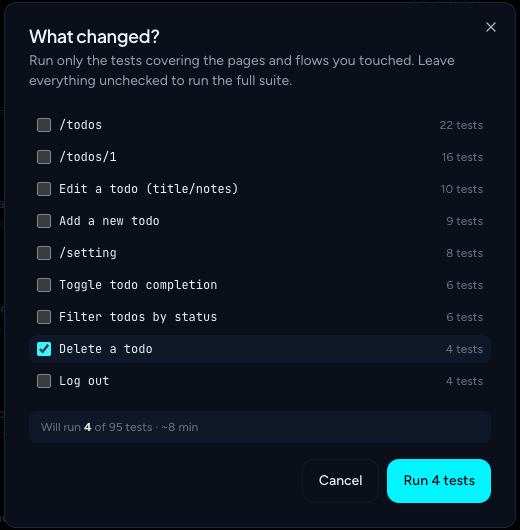
The summary reads Will run N of M tests with an estimated duration, so you see the saving before you start. The run appears on the Test runs page as a Targeted run and works like any other: real browser, live activity log, and bugs filed with reproduction steps. For comparison, the run dialog estimates about 3 hours for a full run of 95 cases.
Which test cases a targeted run includes
- Generated cases only. A case is included when it was generated from a page or flow you ticked.
- Manual cases are never included. Cases you added by hand aren't tied to a page or flow. They show as (unattributed), and ticking only that entry finds nothing to run. Select them yourself and click Run instead.
- Excluded cases are skipped, as in every run.
- Nothing matching means no run. If no included case covers what you ticked, TestOptim doesn't start a run and no executions are used.
If you tick nothing, the button changes to Run full suite, so check the label before you click.
How selective runs use your executions
Each test case that runs uses one execution from your plan's monthly allowance, so running 4 tests instead of 95 uses 4 executions instead of 95. A targeted run is never trimmed to fit: if you have fewer executions left than the tests you picked, the run doesn't start and you see that you have reached your limit. A full-suite run, by contrast, is trimmed to your remaining executions. See plans and limits for each plan's allowance.
Keep the page and flow map current
Selective regression testing is only as good as the map behind it. When your app gains pages or flows, re-explore it so the knowledge base includes them, then generate test cases again so the new pages and flows have tests. On Startup and above, an Owner or Admin can connect the GitHub integration to re-explore automatically on a push or a merged pull request, optionally only when watched paths change. It refreshes knowledge; it doesn't run your tests. To run tests from a pipeline, use the API from CI.
A targeted run needs the QA Engineer role or higher, generated test cases, and no other run or exploration in progress on the project, because a project runs one job at a time.