Run your tests (all, selected or one) and stop a run
Start a TestOptim test run for your whole suite, a selection or one test case, see how many executions it uses, and stop a run under way.
In this article
To run your tests in TestOptim, open Test cases and click Run all, select cases and click Run, or click the play icon on one case. A test run sends the testing agent into your app to carry out your cases in a real browser.
Before you start
- You need the QA Engineer role or higher to start a run. Stopping a run needs QA Lead or higher. Developers and Viewers can watch runs but not start them.
- The project needs test cases (see Generate test cases).
- If your app needs a login, add it first (see Add login credentials).
- Each test case that runs uses one execution from your plan's monthly allowance. Check your balance under Billing.
Choose what to run

Run all included test cases
Click Run all (N) at the top of the Test cases page. N is the number of included cases. Excluded cases are not counted and do not run.
TestOptim starts the run and takes you to the Test runs page.
Warning
Run all and Start Test Run on the Test runs page both start immediately. There is no confirmation step, and a large suite can take hours (the Run changed only dialog estimates about 3 hours for 95 cases). Starting one by accident is easy to undo: stop the run straight away and executions that did not run are given back.
Run selected test cases
- On the Test cases page, tick the checkbox on each case you want.
- Click Run in the bar at the bottom of the page.

You will see the message Test run started for N test case(s) and land on the Test runs page.
Run a single test case
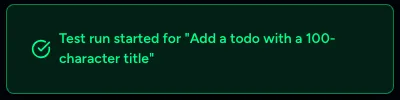
Click the play icon (Run this test case) on the row. The message Test run started for "<case title>" appears and you stay on the Test cases page. Open Test runs to follow it.
Run only what changed
Use Run changed only to pick pages and flows you touched. See Run only the tests for areas that changed.
Follow the run
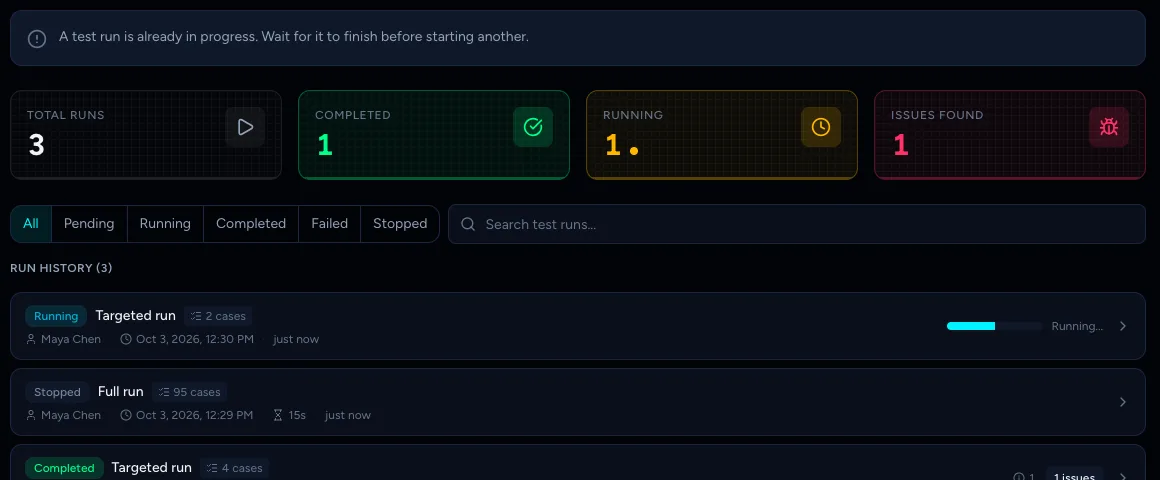
- Open Test runs in the sidebar. A running run shows a Running badge, its size (for example Targeted run, 2 cases) and a progress bar. A Full run is a run of the whole suite.
- Click the run to open its page, where the Live Activity log shows what the agent is doing, step by step.
When it finishes, see Read test run results and watch recordings. You also get a notification, depending on your notification settings.
Stop a run
- Open the running run from Test runs.
- Click Stop Run at the top right.

The run stops within a few seconds, without a confirmation, and its badge changes to Stopped. Anything the agent already found stays on the page.

Executions reserved for cases that never ran are returned to your balance. The case that was in progress when you stopped still counts as used.
Note
There is no scheduling and no Retry failed button. To run something again, start a new run. To automate runs, for example after every deploy, see Run tests from CI with an API key.
If a run will not start
Only one run can be active per project at a time, and runs cannot overlap with an exploration or another background job. TestOptim shows the reason on the Test runs page, where Start Test Run is dimmed:
| Message | What to do |
|---|---|
| A test run is already in progress. Wait for it to finish before starting another. | Wait for the current run to end, or stop it. |
| Exploration is currently running for this project. Test runs will be available once it finishes. | Wait for the exploration to finish. |
| No test cases have been generated yet. Generate test cases before starting a run. | Generate test cases or add one manually. |
If you click a run button on the Test cases page while a run is active, a message appears at the bottom right instead:
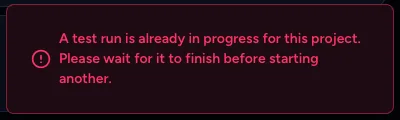
See Another job is already in progress for more.
When you are close to your monthly limit
- Run all is trimmed to what is left. If you have 40 executions left and 95 included cases, TestOptim starts the 40 highest-value cases and shows Started 40 of 95 test cases — your plan's monthly execution limit is reached. with View Run and Upgrade buttons.
- Selected cases, single cases and Run changed only with areas ticked are never trimmed. If there are not enough executions left, the run does not start and you see a message such as You have reached your test executions this month limit (97/100). Upgrade your plan to continue.
See Track your usage and buy top-up packs.
Frequently asked questions
Does a run use my monthly executions?
Yes. Each test case that runs uses one execution. Cases that never ran because you stopped the run are given back.
Can I schedule runs?
Not in the app. Use the CI integration to start runs from your pipeline.
Related
Keep reading
- Test runs & resultsRun only the tests for areas that changedAfter a release, pick the pages and flows you changed and TestOptim runs only the test cases that cover them, saving time and executions.
- Test casesAdd a manual test case in plain languageWrite your own test case for a scenario the AI missed. Describe the steps in plain language and TestOptim's agent runs it like any generated case.
- Troubleshooting"Already in progress for this project" errorTestOptim runs one job per project at a time. See what "already in progress for this project" means, which jobs block each other, and how to proceed.
- Plans & billingCompare plans and what each limit meansSee what Solo, Startup and Growth include, how prices change by billing period, and exactly what counts toward projects, seats, pages explored and test executions.