Schedule test runs
Run a project's tests every day at a set time, or every hour on Growth and above, for the whole suite or only the test cases you choose.
In this article
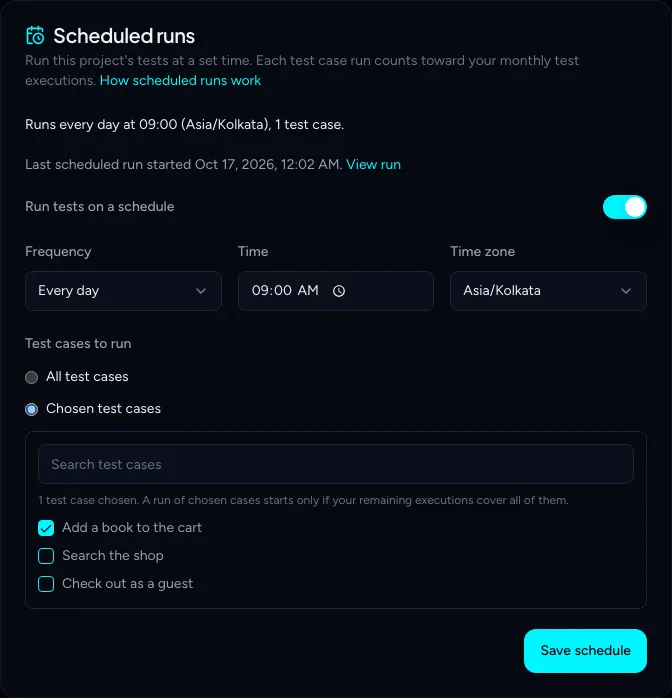
A schedule runs a project's tests for you at a set time. Open the project, go to Settings, and turn on Run tests on a schedule in the Scheduled runs card. Pick when to run and which test cases to run, then click Save schedule.
Before you start
- You need a role that can run tests: Owner, Admin, QA Lead or QA Engineer. Developers and Viewers can see the schedule but can't change it.
- The project needs test cases. See Generate test cases.
Choose when it runs
| Plan | Schedules you can use |
|---|---|
| Solo, Startup | Every day at a time you choose |
| Growth, Enterprise | Every day, or Every hour at a minute you choose |
- Every day runs once a day at the Time you set, in the Time zone you pick. The time zone starts as your browser's and follows daylight saving time.
- Every hour runs once an hour at the minute you pick, for example at :15.
A schedule starts at its next run time. If you save at 09:05 a schedule set for 09:00, the first run is tomorrow at 09:00. A run can start up to five minutes after its time.
On the day clocks go forward, a time that doesn't exist runs just after the jump: 02:30 runs at 03:30.
Choose what it runs
- All test cases runs every test case that isn't rejected, like Run all. If your remaining test executions can't cover the whole suite, the run starts with as many cases as fit.
- Chosen test cases runs only the cases you tick. Search to find them. Rejected cases aren't listed. A run of chosen cases starts only if your remaining executions cover all of them, so you never get half of a set you picked.
Each case that runs uses one test execution from your monthly balance, the same as a run you start yourself.
See what happened
Scheduled runs appear on the project's Test runs page marked Scheduled, and you get the usual "Test run complete" notification. The person who saved the schedule is the one notified.
Under the schedule, the card shows its last run. View run opens the results.
When a scheduled run is skipped
A run is skipped, and the card says Last scheduled run skipped with the reason, when:
- another exploration, generation or run is still going on the project,
- your remaining test executions don't cover it (see You have reached your plan limit),
- the project has no test cases, or every chosen case was deleted or rejected,
- the organization has no active plan, or its plan no longer includes the schedule (for example an hourly schedule after a downgrade from Growth), or
- TestOptim couldn't start it within an hour of its time, for example during maintenance, or
- the person who saved the schedule has left the organization or no longer has a role that can run tests. Scheduled runs act as that person, so someone who can run tests should save the schedule again.
A skipped run isn't retried. The schedule tries again at its next run time.
Turn a schedule off
Turn off Run tests on a schedule and click Save schedule. Your time and test case choices are kept for when you turn it back on.
Related
Keep reading
- Test runs & resultsRun your tests (all, selected or one) and stop a runStart a TestOptim test run for your whole suite, a selection or one test case, see how many executions it uses, and stop a run under way.
- Plans & billingTestOptim pricing: plans, prices and limits comparedCompare TestOptim's Solo, Startup and Growth plans: prices by billing period, and what counts toward projects, seats, pages explored and executions.
- Test runs & resultsRun only the tests for areas that changedAfter a release, pick the pages and flows you changed and TestOptim runs only the test cases that cover them, saving time and executions.
- Plans & billingTrack your TestOptim usage and buy top-up packsSee how many pages and test executions you have left this month, when they reset, and how to buy one-time top-up packs that never expire.