Generate AI test cases for your web app
Generate a ready-to-run suite of AI test cases from your explored app with one click, and add more later with Regenerate without losing your edits.
In this article
To generate test cases in TestOptim, open your project's Test cases page and click Generate Test Cases. TestOptim writes a full suite from what it learned when it explored your app. It usually takes a few minutes for a small app and needs no input from you.
Before you start
- Your project needs a knowledge base, the map of pages and flows TestOptim built when it explored your app. Run an exploration first (see Explore your app to build the knowledge base).
- You need the QA Engineer role or higher.
- The project must not be archived. Restore it first if it is.
- Only one background job runs per project at a time. If an exploration or a test run is in progress, wait for it to finish.
Generate your test cases
Open your project and select Test cases in the sidebar.
Click Generate Test Cases.
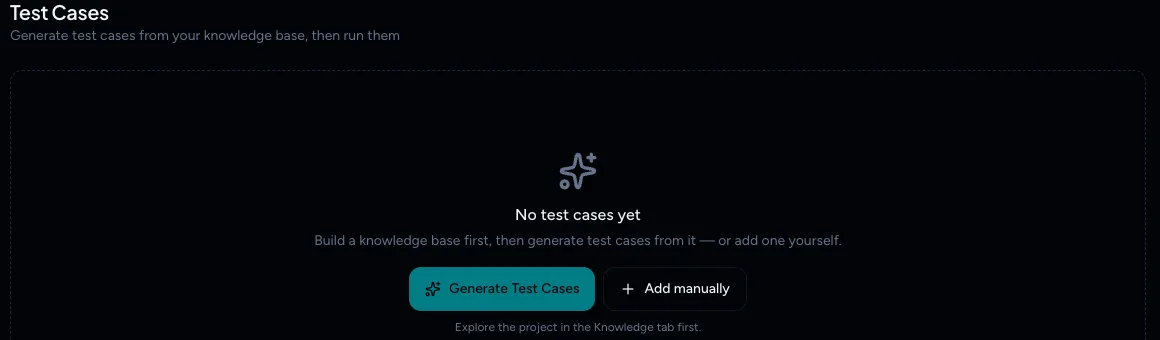
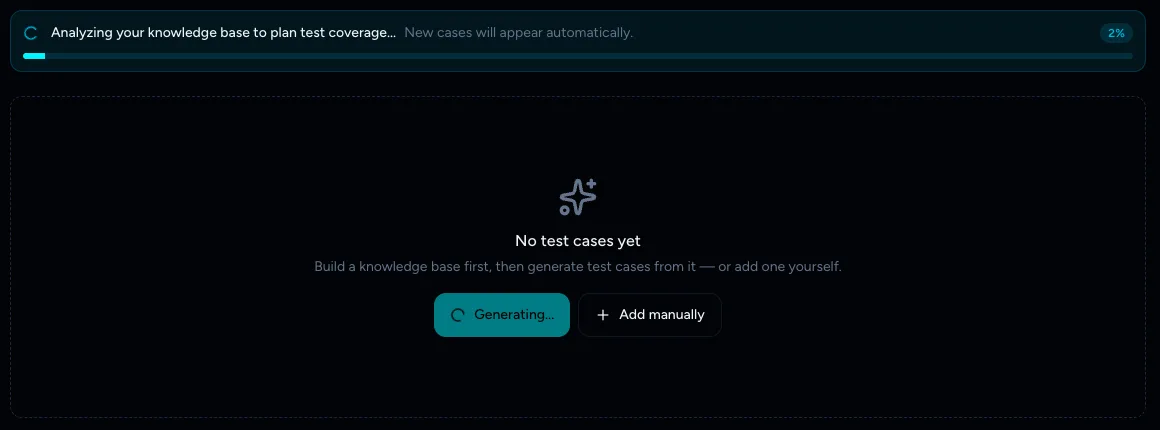
Before the first generation. If the project has not been explored yet, the button is dimmed and the hint reads: Explore the project in the Knowledge tab first. Wait while TestOptim writes the suite. A progress bar at the top of the page shows the current stage, for example Analyzing your knowledge base to plan test coverage.... The button reads Generating... and cases appear in the list automatically as they are created. You can leave the page; you will get a notification when it finishes.
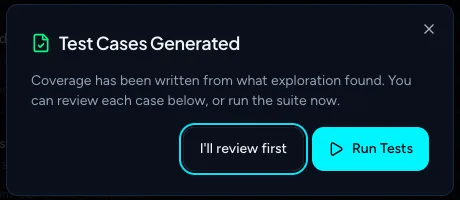
When it finishes, a Test Cases Generated dialog opens. Choose I'll review first to look through the cases, or Run Tests to start a run of the whole suite straight away.
Warning
Run Tests starts a run of every included test case and uses one execution from your monthly allowance per case. If you want to look at the suite first, choose I'll review first.
What you get
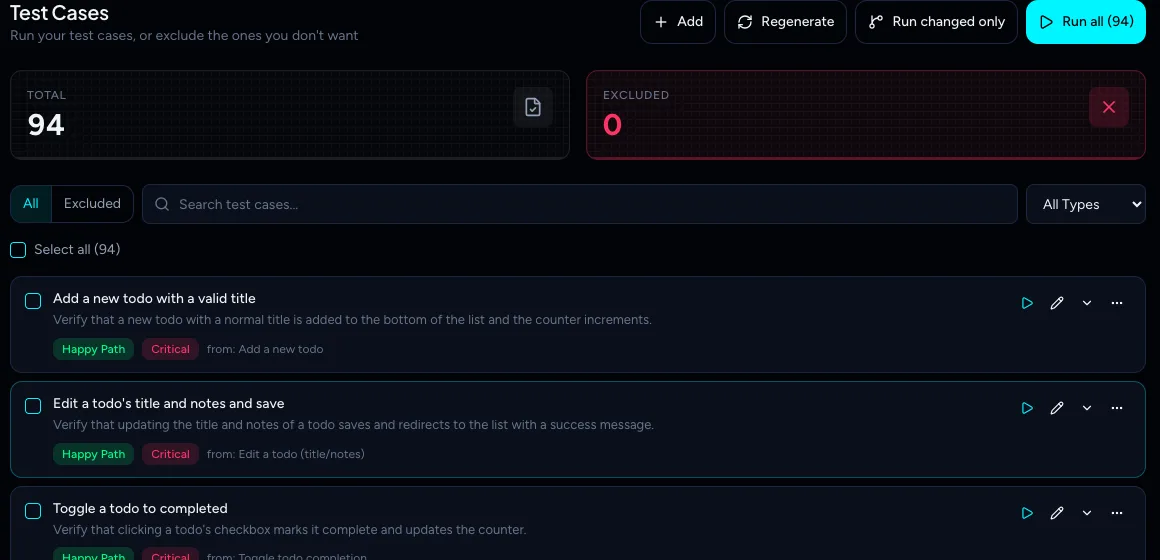
- Cases are ready to run immediately. There is no draft or approval step. Every generated case is included in runs until you exclude it.
- The most valuable cases come first. The best case for each page or flow is listed first, then the rest by priority from Critical to Low. If your monthly executions run short, Run all uses this order. Exact duplicates are dropped.
- Each case shows where it came from. The from: label names the page or flow in your knowledge base that it was generated from.
- No plan currently limits how many cases you can generate. Only test runs count against your plan. See Track your usage and buy top-up packs.
Generate again with Regenerate
After the first generation, the Generate Test Cases button becomes Regenerate in the page header. Use it after you have updated the knowledge base or re-explored your app. A Regenerate Test Cases dialog asks you to confirm, with Cancel and Regenerate buttons.
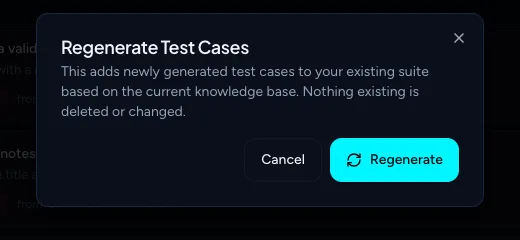
Regenerate only adds cases based on the current knowledge base. Nothing existing is deleted or changed, so your edits, exclusions and manual cases are safe. Because new cases are generated fresh, a few may look similar to ones you already have. You can exclude or delete extras (see Review, edit, exclude or delete test cases).
Frequently asked questions
How long does generation take?
Usually a few minutes for a small app. It grows with the number of pages and flows in your knowledge base. You can leave the page and you will be notified when it finishes.
Does regenerating overwrite my edits?
No. Regenerate only adds cases. Your edits, exclusions and manual cases stay as they are.
Does generating use my executions?
No. Only test runs use executions, one per test case run.
What happens next
- Review the suite, then run your tests.
- Cover something the AI missed with Add a test case manually.
Related
Keep reading
- Exploration & knowledgeExplore your app to build the knowledge baseStart an AI exploration of your web app in TestOptim, follow its progress live and stop it if needed. The result is your knowledge base.
- Exploration & knowledgeReview what exploration found: pages, flows and entitiesWhat the Pages, Flows and Entities tabs on the Knowledge page mean, and how to tell if your knowledge base is good enough to generate test cases from.
- Test casesReview, edit, exclude or delete test casesEdit generated test cases, skip a case without losing it (exclude and restore), or delete it for good. Includes field limits and bulk selection.
- Exploration & knowledgeEdit the knowledge base and improve it with AIFix what the agent got wrong or add what it missed. Edit pages, flows and entities by hand, or describe the change and let AI refine one item for you.