Review, edit, exclude or delete test cases
Edit generated test cases, skip a case without losing it (exclude and restore), or delete it for good. Includes field limits and bulk selection.
In this article
Generated test cases run as they are, but you stay in control. Read them, correct anything the AI got wrong, and take cases out of your runs when they are not useful. To skip or disable a test case without deleting it, exclude it: it stays in the list and you can restore it later.
Before you start
- Editing, excluding and restoring needs the QA Engineer role or higher.
- Deleting needs the QA Lead role or higher.
Read a test case
- Open your project and select Test cases.
- Use the tabs, search box and All Types filter to narrow the list. The two counters at the top show Total and Excluded.
- Click the arrow at the right of a row (Expand) to see its Steps and Expected result.
Each row shows the case type (Happy Path, Positive, Negative or Edge Case), its priority and, for generated cases, the page or flow it came from.
Edit a test case
- Click the pencil icon (Edit test case) on the row.
- Change what you need and click Save Changes.
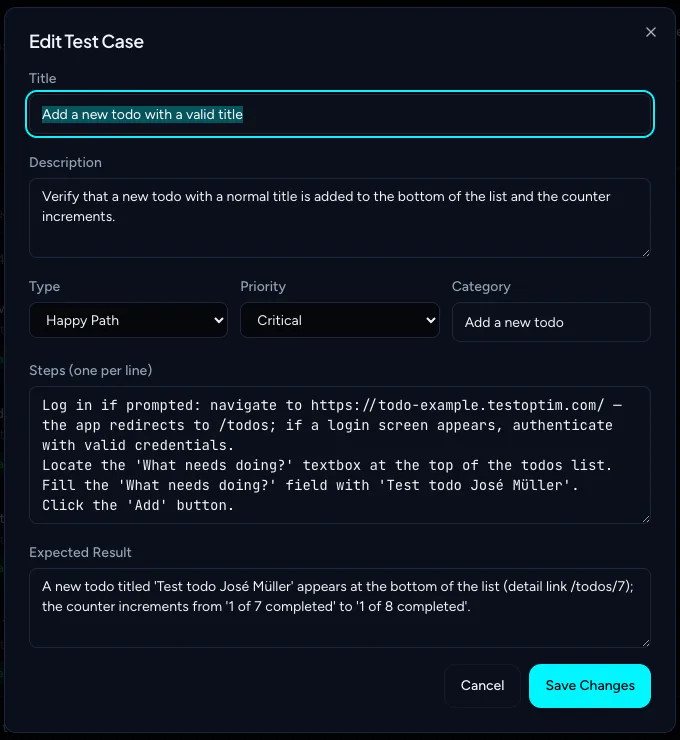
Write steps in plain language, one per line. TestOptim's testing agent reads them at run time, so you do not need selectors or exact element names.
| Field | Limit |
|---|---|
| Title | 200 characters |
| Description | 2000 characters |
| Category | 100 characters |
| Each step | 500 characters |
| Expected result | 1000 characters |
| Type | Happy Path, Positive, Negative or Edge Case |
| Priority | Low, Medium, High or Critical |
Regenerating test cases never overwrites your edits (see Generate test cases).
Exclude a test case
Exclude a case when it is out of date, flaky because of your test data, or not worth a run. Nothing is deleted, and you can bring it back at any time.
Click More actions (the three dots) on the row and choose Exclude.
Confirm in the Exclude Test Case dialog. It reads: "You can restore it later — nothing is deleted."
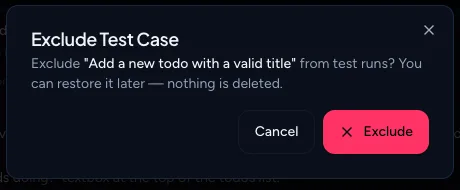
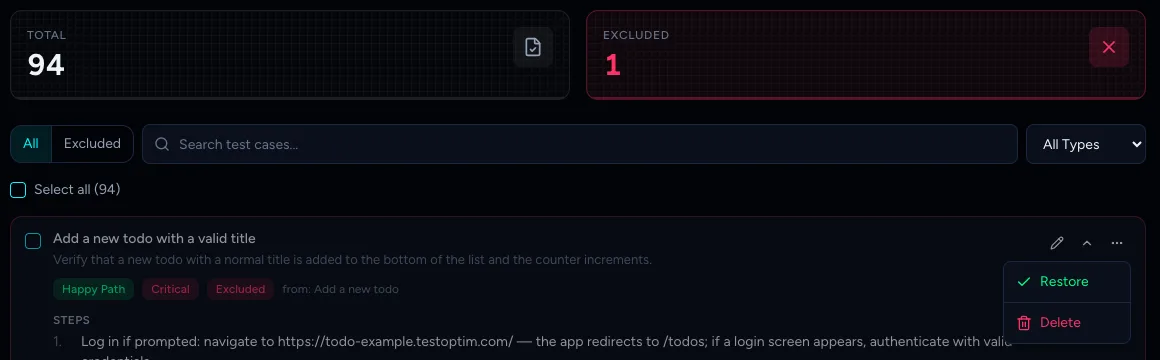
The row gets an Excluded badge, the Excluded counter goes up, and the number on Run all goes down. Excluded cases never run, not even when you start a full run, and their Run this test case button is hidden.
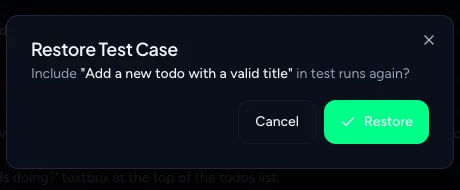
To see them, open the Excluded tab. To bring one back, open More actions and choose Restore, then confirm.
Work on many cases at once
- Tick the checkbox on each row you want. To pick every test case in the project, click Select all (N) above the list. It covers all cases, not only the rows you can see, and ignores your search and filter. Click Deselect all to undo it.
- Use the bar that appears at the bottom of the page.

- Exclude takes the selected cases out of future runs. With Select all, it excludes every case that is not already excluded.
- Restore puts excluded cases back. With Select all, it restores every excluded case.
- Run starts a run of just the selected cases (see Run your tests).
- Clear empties the selection.
Delete a test case
- Click More actions on the row and choose Delete.
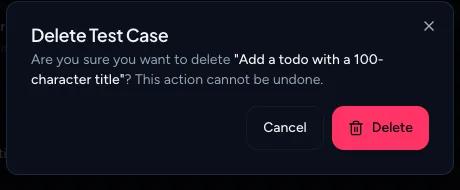
- Confirm in the Delete Test Case dialog.
Warning
Deleting is permanent and cannot be undone. If you only want a case to stop running, exclude it instead. Regenerating later may produce a similar case, but it will not be the same one.
Note
Rebuilding the knowledge base (Knowledge > Clear knowledge > Rebuild everything on next run) deletes every test case in the project, including ones you edited.
Note
There is no export for test cases. Developers and Viewers can see the list but cannot edit, exclude or delete.
Related
Keep reading
- Test casesGenerate AI test cases for your web appGenerate a ready-to-run suite of AI test cases from your explored app with one click, and add more later with Regenerate without losing your edits.
- ProjectsCreate your first projectA project is one web app, identified by its URL. Add a name and URL, choose whether to record test runs, and TestOptim takes you to the Knowledge page.
- Exploration & knowledgeExplore your app to build the knowledge baseStart an AI exploration of your web app in TestOptim, follow its progress live and stop it if needed. The result is your knowledge base.
- Getting startedHow TestOptim works: explore, generate, run, fixTestOptim tests your web app in five steps you start yourself. It explores your app, writes test cases, runs them, reports bugs and re-checks fixes.