Add a manual test case in plain language
Write your own test case for a scenario the AI missed. Describe the steps in plain language and TestOptim's agent runs it like any generated case.
In this article
To add a test case manually in TestOptim, open Test cases, click Add, fill in Title and Expected Result, and click Create Test Case. Use it for a scenario the AI did not think of, such as a business rule or an edge case.
Before you start
- You need the QA Engineer role or higher.
- Your project needs a login or credential profile only if the scenario requires one. See Add login credentials so TestOptim can sign in.
Add a test case
Open your project and select Test cases.
Click Add in the page header. On an empty list you can click Add manually instead.
Fill in the New Test Case dialog:
- Title (required): a short name, for example "Add a todo with a 100-character title".
- Description: what the case checks.
- Type: Happy Path, Positive (the default), Negative or Edge Case.
- Priority: Critical, High, Medium (the default) or Low.
- Category: a free-text label, such as "todos".
- Steps (one per line): what a user would do, in plain language.
- Expected Result (required): what should be true when the steps are done.
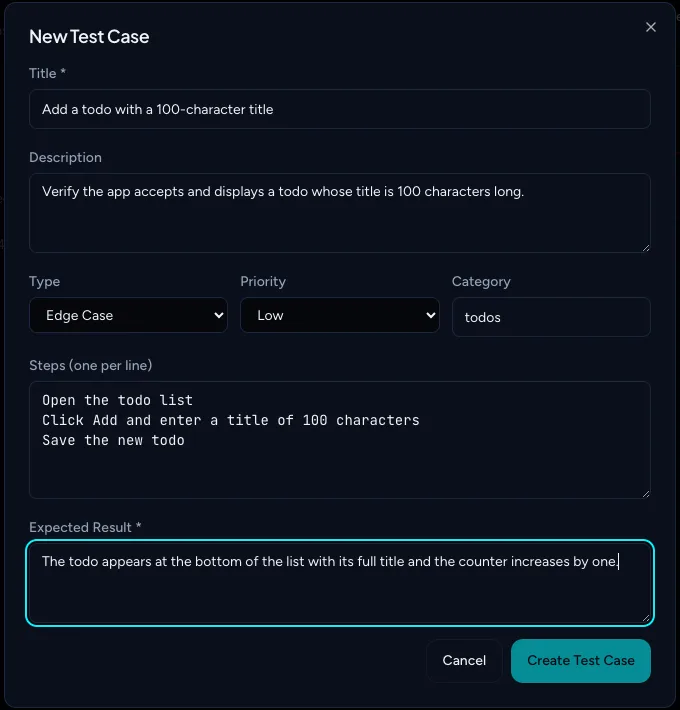
Click Create Test Case. The button stays dimmed until the required fields are filled in.
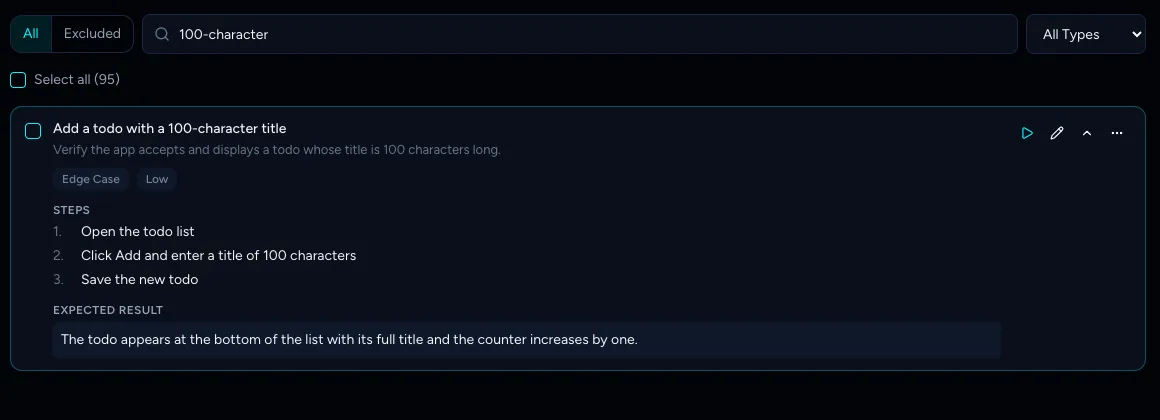
The new case is added to the list straight away and is included in your runs. It has no from: label, because it is not tied to a page or flow in your knowledge base.
Write steps the agent can follow
- Describe actions the way you would to a new colleague: "Open the todo list", "Click Add and enter a title of 100 characters".
- Do not write selectors or element IDs. TestOptim's testing agent reads your steps when the test runs and finds the right elements itself, so there is nothing to maintain when your page layout changes.
- Be specific in Expected Result. A clear, checkable outcome ("the todo appears at the bottom of the list and the counter increases by one") gives the agent something to judge.
The same limits apply as when you edit a case. See Review, edit, exclude or delete test cases.
Run it
Click the play icon (Run this test case) on the row to run just this case. It uses one execution from your monthly allowance. See Run your tests.
Note
Manual cases are never picked up by Run changed only, because that option selects cases by the pages and flows they were generated from. Run them individually, as part of a selection, or with Run all.
Tip
Regenerating test cases and an ordinary re-exploration keep your manual cases.
Warning
If you choose Rebuild everything on next run (Knowledge > Clear knowledge) and then explore, TestOptim deletes every test case in the project, including manual ones, and retires the project's issues before it starts. Copy any manual case you want to keep somewhere safe first. See Explore your app to build the knowledge base.
Related
Keep reading
- Test runs & resultsRun your tests (all, selected or one) and stop a runStart a TestOptim test run for your whole suite, a selection or one test case, see how many executions it uses, and stop a run under way.
- Test runs & resultsRun only the tests for areas that changedAfter a release, pick the pages and flows you changed and TestOptim runs only the test cases that cover them, saving time and executions.
- Troubleshooting"Already in progress for this project" errorTestOptim runs one job per project at a time. See what "already in progress for this project" means, which jobs block each other, and how to proceed.
- Test casesGenerate AI test cases for your web appGenerate a ready-to-run suite of AI test cases from your explored app with one click, and add more later with Regenerate without losing your edits.