Run only the tests for areas that changed
After a release, pick the pages and flows you changed and TestOptim runs only the test cases that cover them, saving time and executions.
In this article
To run a regression check after a release in TestOptim, click Run changed only on the Test cases page, tick the pages and flows you changed, and run just the test cases that cover them. You do not need to run your whole suite after every small change.
Before you start
- You need the QA Engineer role or higher.
- The project needs generated test cases (see Generate test cases).
- No other run or exploration can be in progress for the project.
Run the tests for what changed
Open your project and select Test cases.
Click Run changed only in the page header.
In the What changed? dialog, tick the pages and flows you changed. Each line shows how many test cases cover it, and the list scrolls if you have many.
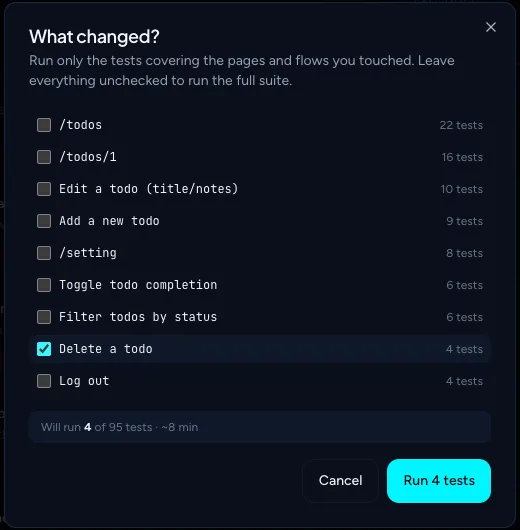
The summary line shows how many tests will run and a rough duration. Check the summary under the list: Will run N of M tests with an estimated time.
Click Run N tests.
TestOptim shows Test run started for N changed area(s) (N is the number of areas you ticked, not tests) and takes you to the Test runs page, where it appears as a Targeted run. Follow it as described in Run your tests.
Warning
If you tick nothing, the button changes to Run full suite and the summary shows the size and estimated time of the whole suite. The full suite is also trimmed to your remaining executions, unlike a targeted run. Check the button label before you click.
What gets included
- Generated cases only. The list is built from the pages and flows your test cases were generated from. A case is included when it was generated from something you ticked.
- Manual cases are never included. Cases you added manually are not tied to a page or flow. They show up in the list as (unattributed), but ticking only that entry finds nothing to run (see below).
- Excluded cases are skipped, as in every run.
- Quota is not trimmed when you tick areas. Each test uses one execution. If you have fewer executions left than the number of tests, the run does not start and you see a message that you have reached your limit, rather than a smaller run. See Run your tests.
If nothing matches
If the pages or flows you ticked do not match any included test case, TestOptim does not start a run and no executions are used. You see an error like this:
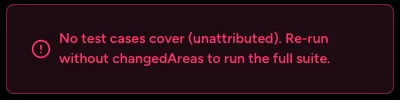
Pick other entries, select cases yourself and click Run (see Run your tests), or run the full suite.
Related
Keep reading
- Test runs & resultsRun your tests (all, selected or one) and stop a runStart a TestOptim test run for your whole suite, a selection or one test case, see how many executions it uses, and stop a run under way.
- Test casesAdd a manual test case in plain languageWrite your own test case for a scenario the AI missed. Describe the steps in plain language and TestOptim's agent runs it like any generated case.
- Troubleshooting"Already in progress for this project" errorTestOptim runs one job per project at a time. See what "already in progress for this project" means, which jobs block each other, and how to proceed.
- Plans & billingCompare plans and what each limit meansSee what Solo, Startup and Growth include, how prices change by billing period, and exactly what counts toward projects, seats, pages explored and test executions.