Read test run results and watch recordings
Read a finished TestOptim run: which test cases passed or failed, the issues it filed, the video recording with a chapter per test, and the trace.
In this article
Every run has its own page with a live log, severity counters, a video recording and the issues it found. This article shows you where to look and what each part means.
Open a run
- Open your project and select Test runs.
- Click a run in Run history.
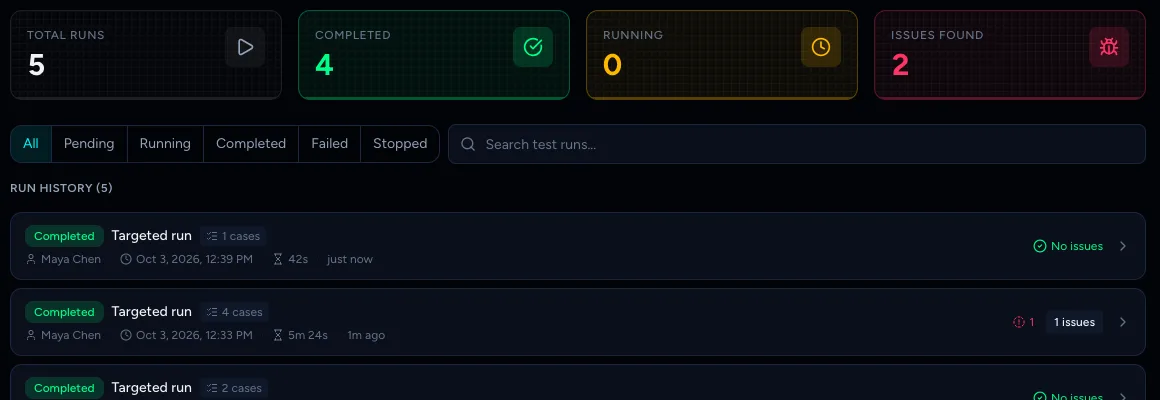
The list shows how many issues a run found, not a pass or fail count per test. Open the run to see the result for each test case.
Note
Completed means the run finished, not that everything passed. A completed run can still have found issues. A completed run with No issues found nothing wrong.
Check the headline numbers
At the top of the run page you see the run's status (Pending, Running, Completed, Stopped or Failed), when it started and finished, and counters for Issues Found by severity: Critical, High, Medium and Low.

A run that finds nothing shows zero in every counter:

There is no overall pass rate, trend or flakiness chart. Each run stands on its own.
Note
Failed means the run itself couldn't finish, for example because the browser couldn't start. The reason is the last line in Live Activity. It isn't the same as a test case that found a bug. Start a new run once the cause is fixed, and contact support at hi@testoptim.com if it keeps happening.
See which test cases passed and failed
TestOptim gives each test case a result in two places.
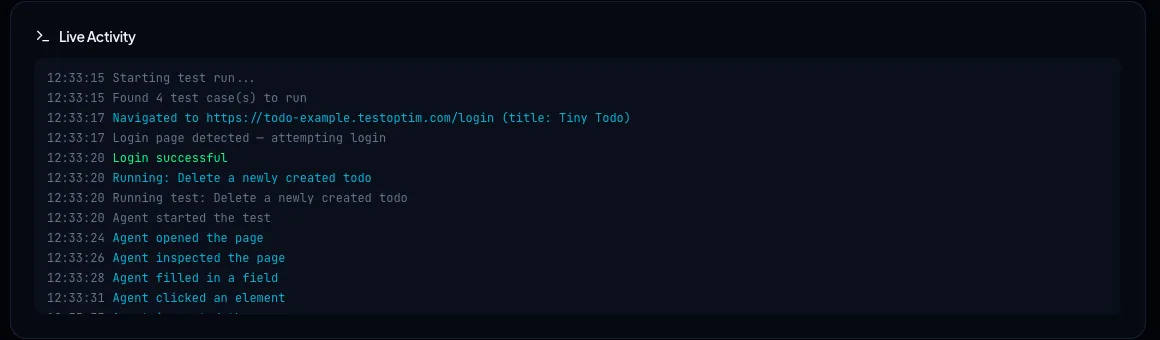
Live Activity is a running log of what the agent did. For every test case it prints a line starting Running:, then the steps the agent took, then the outcome:
- Passed: <test case title>
- Failed: <test case title> (1 issue found)
The last line is Test run complete — N issues found. The log scrolls, so move to the bottom to see the latest lines.
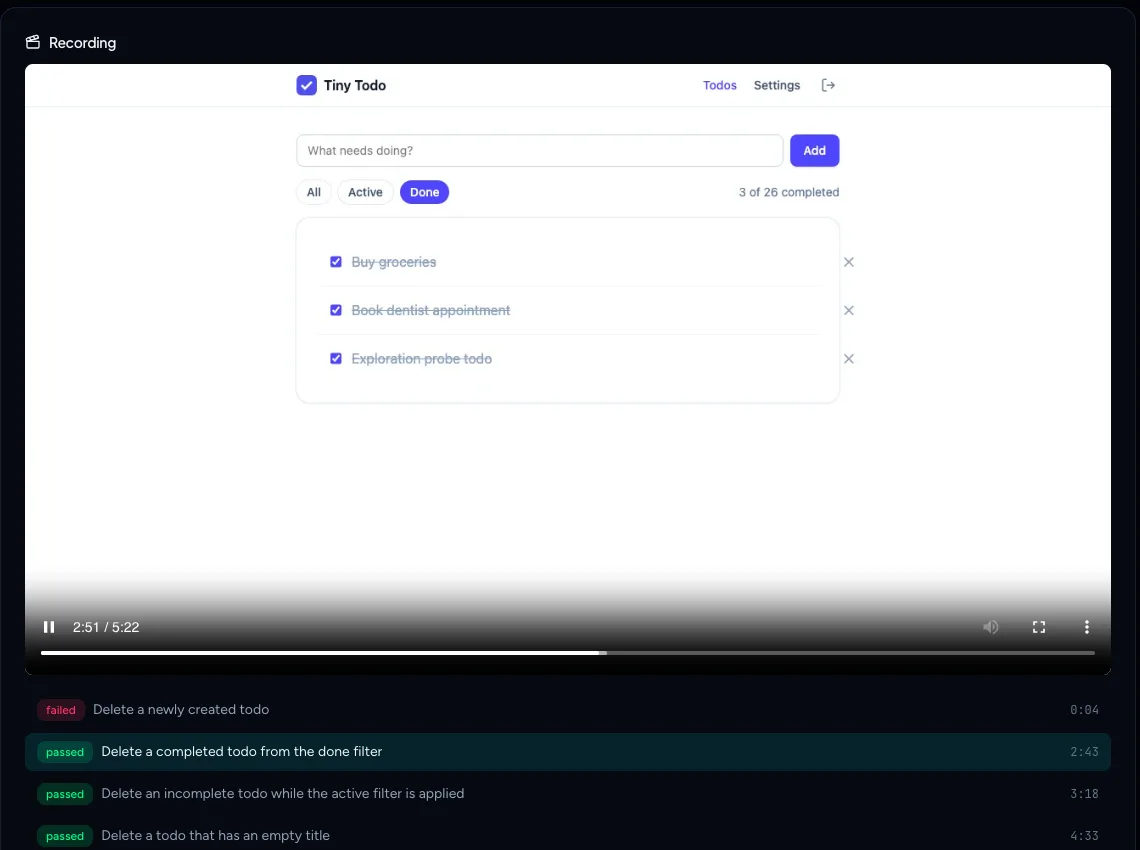
The Recording section lists the same results as chapters (see below), with a green passed or red failed label for each test case. Cases cut short by a stopped run or an error can show stopped or error.
In practice, a test case is failed when the agent reported an issue while running it, and passed when it completed without finding one.
Watch the recording
When recording is on for the project, the Recording section holds a video of the whole run.
- Press play to watch from the start, or click a test case in the chapter list below the video to jump to the moment it began.
- The chapter that is playing is highlighted. Each chapter shows its start time on the right.
The section can show these messages instead of a video:
| Message | Meaning |
|---|---|
| Recording will be available when the run finishes. | The run is still going. |
| Processing recording… | The run finished and the video is being prepared. Wait a moment and reload the page. |
| Recording could not be captured. | Something went wrong while recording. The log and issues are still available. |
| Recording expired (kept for 30 days). | Recordings are deleted after 30 days. |
Tip
If the video does not show up as soon as a run finishes, reload the page. The recording is attached a short time after the run completes.
Recording is on by default. You can turn it off or on with the Record test runs switch in the project's Settings.
Download the trace
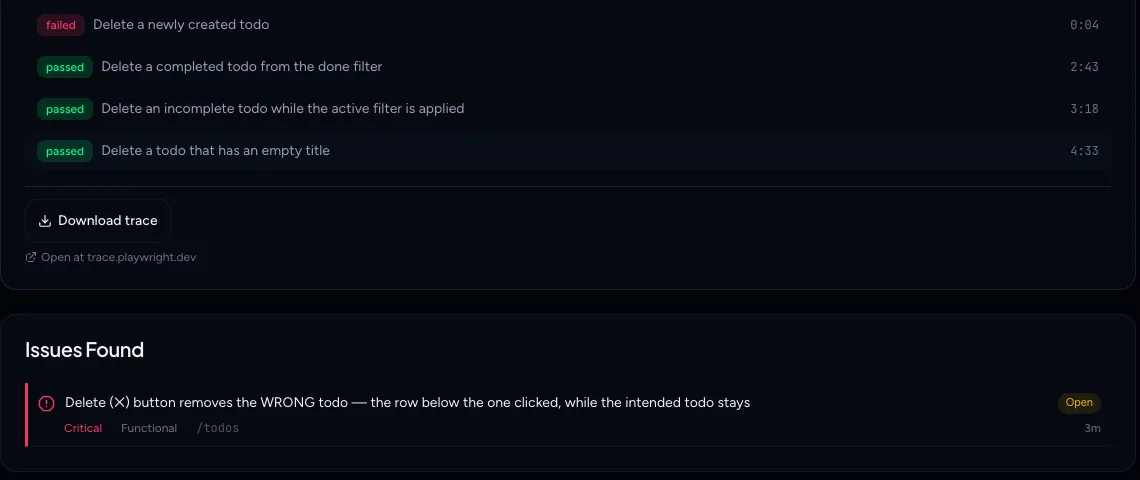
Below the chapters, Download trace saves a Playwright trace of the run. It records the page state and actions in detail, which helps developers debug a failure. If the run has several trace files, they appear as Download trace 1, Download trace 2 and so on. To explore one without installing anything, go to trace.playwright.dev and load the downloaded file there.
Review the issues a run found
The Issues Found list at the bottom of the page shows each issue's title, severity, category, page and status. During a run it updates live.
Click an issue to open its details in a side panel: a description, the steps to reproduce, expected versus actual behaviour, and a screenshot when one was captured. You can also change its status or start a re-test from there.
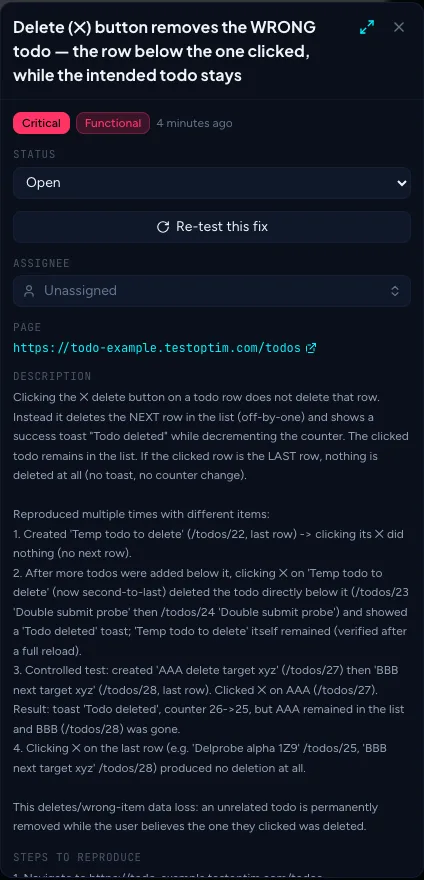
For what to do with an issue, see Review issues found by TestOptim.
Note
Issues are not de-duplicated across runs. If a bug is still there the next time you run, TestOptim may file it again. You can merge duplicates later (see Update, export and de-duplicate issues in bulk).
When a test case "failed to run"
Sometimes the agent cannot finish a test case at all, for example because the page never loaded or the steps do not make sense for your app. These cases have no result, so they are neither passed nor failed. When this happens, the run page shows a red card titled N test cases failed to run with the case title, the reason and diagnostic details for each one. Fix the cause (or edit the test case) and run it again.
Frequently asked questions
What does Completed mean?
The run finished. It does not mean every test passed. Check the issue counters and the per-test results.
How long are recordings kept?
30 days. After that the Recording section reads Recording expired (kept for 30 days). Issues and the log stay.
Stopped runs
If you stop a run, its status is Stopped. Results from test cases that finished before you stopped it are kept.
Related
Keep reading
- IssuesReview issues found by TestOptimSee where TestOptim issues come from, what severity and status mean, and how to filter, search and open an issue to read the steps to reproduce.
- IssuesMark an issue fixed and let TestOptim verify the fixWhen you set an issue to Fixed or Closed, TestOptim checks your live app before it believes you. Learn what Verifying means, what happens on pass or fail, and when the check is skipped.
- Getting startedQuick start: find your first bugsGo from a new account to a list of real bugs in five steps. Create a project, explore your app, generate test cases, run a few tests and review the issues.
- IssuesUpdate, export and clean up issues in bulkSelect several issues to assign them, change their status, export them to CSV or remove them. Includes how to deal with the same bug being filed more than once.