Choose which email and in-app notifications you get
Turn TestOptim email and in-app notifications on or off, choose which events you hear about, and opt in to the Monday weekly digest.
In this article
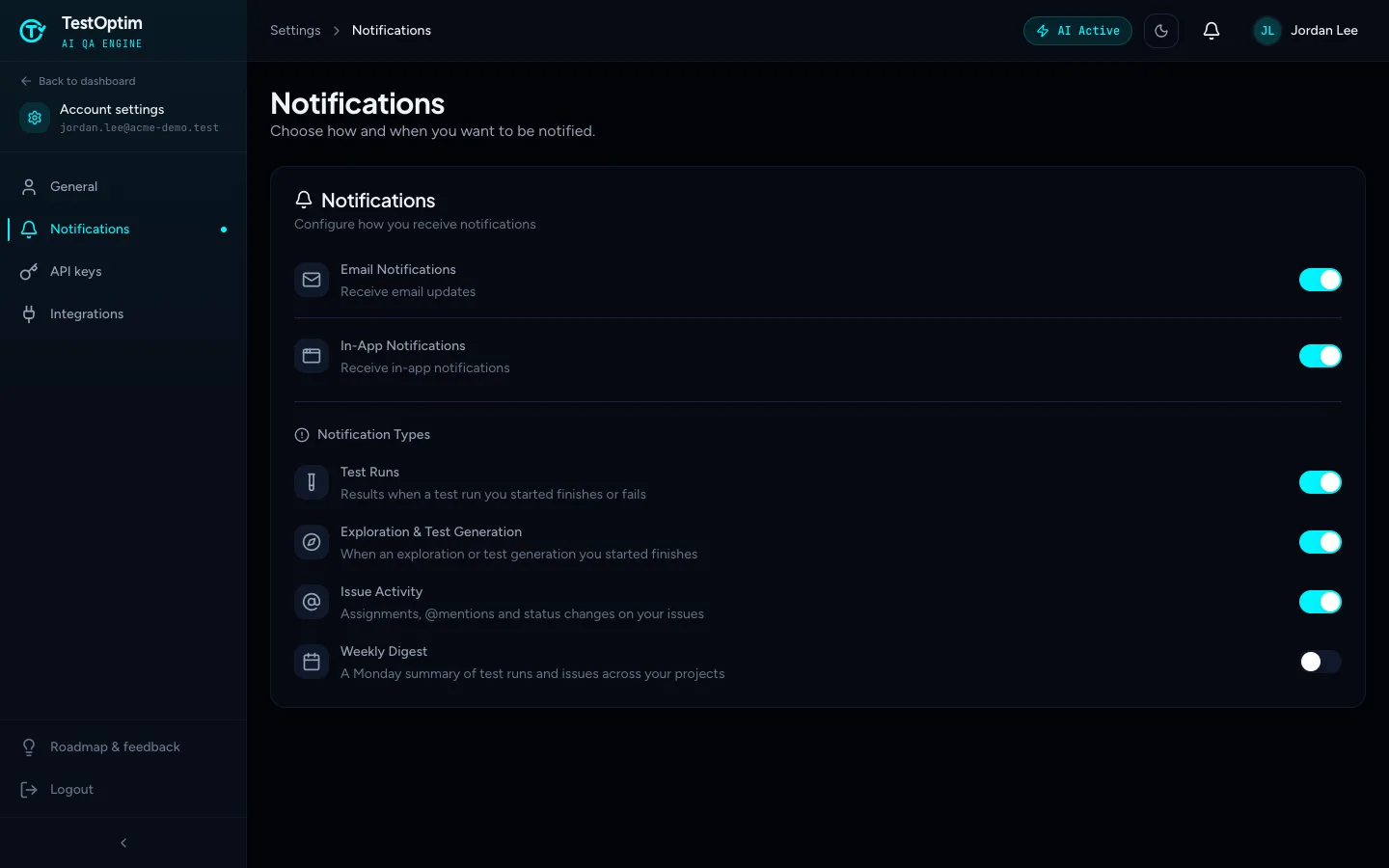
To control which emails and in-app notifications TestOptim sends you, open your name at the top right, then Settings > Notifications, and switch options on or off. TestOptim tells you when something you started finishes, and when someone acts on your issues. These settings are personal and apply to you in every organization.
Change your notification settings
- Select your name at the top right, then Settings, then Notifications in the settings menu.
- Switch the options on or off. Each change saves as soon as you make it, and TestOptim shows Notification settings updated.
Channels
- Email Notifications controls every optional email. Turn it off and you stop getting activity and reminder emails.
- In-App Notifications controls the notifications in the bell menu and on the Notifications page.
Notification types
The type switches apply to both email and in-app notifications.
| Switch | What it covers |
|---|---|
| Test Runs | Results when a test run you started finishes or fails. |
| Exploration & Test Generation | When an exploration or test generation you started finishes. |
| Issue Activity | Assignments, @mentions and status changes on your issues. |
| Weekly Digest | A Monday summary of test runs and issues across your projects. |
How do I turn on the weekly digest?
Weekly Digest is off by default. Switch it on and it's emailed on Mondays at 09:00 UTC, as long as Email Notifications is also on and your email is verified.
How do I see my notifications in the app?
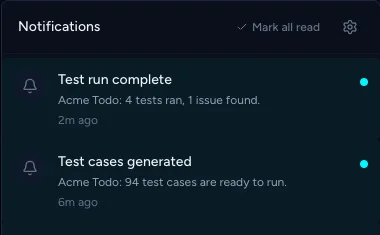
This inbox is separate from the settings above, and lives at Notifications in the app (/notifications). Select the bell icon in the top bar to see your latest notifications. Unread ones have a dot, and a number on the bell shows how many you haven't read.
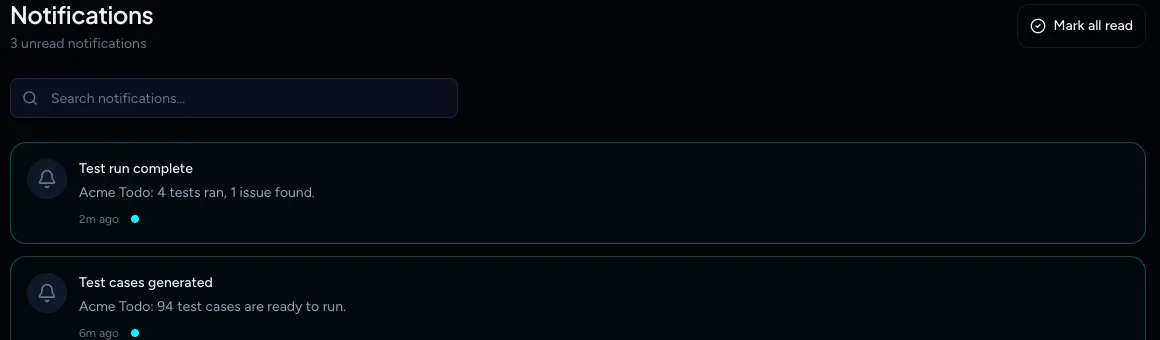
Select View all notifications to open the full Notifications page. There you can search your notifications and select Mark all read. Selecting a notification marks it read and takes you to the project page it's about.
How do I stop TestOptim emails?
Turn off Email Notifications. That stops activity emails, the welcome email and project reminders. You can also use the Unsubscribe option your email app shows next to the sender, which turns off Email Notifications for you.
Account and billing emails are always sent, whatever you choose here. They include:
- the email verification code;
- password reset codes;
- team invitations;
- the notice that an exploration paused and needs a one-time code to sign in;
- payment receipts and failed payments;
- trial and subscription notices, and notices that you reached a quota.
Slack and Jira
Slack channel alerts aren't part of these settings. They're set up per project. See Connect Slack and use /testoptim commands.
Related
Keep reading
- Integrations & APIConnect Slack and use /testoptim commandsPost test results, new issues and run failures to a Slack channel, choose which events to send, and use /testoptim to list issues or start a run from Slack.
- Getting startedCreate your account and verify your emailSign up with an email and password, or with Google or GitHub, and confirm your email with a 6-digit code. Your personal organization is created automatically.
- Account & notificationsManage your profile, password and sessionsSee your account details, reset your password, and understand why signing in on another device signs you out here. TestOptim allows one active session per user.
- IssuesAssign issues and discuss them in commentsHand an issue to a teammate, get them notified, and keep the conversation on the issue with comments. Includes what does and does not work with @mentions.