Create your account and verify your email
Sign up with an email and password, or with Google or GitHub, and confirm your email with a 6-digit code. Your personal organization is created automatically.
In this article
You can create a TestOptim account with an email and password, or with your Google or GitHub account. Email sign-ups need a 6-digit code before you can sign in.
Sign up with email and password
Go to the sign-up page. It's headed Start your trial, or Get Plan if you picked a plan on the pricing page first.
Enter your Name, Email and Password, then select Create account.
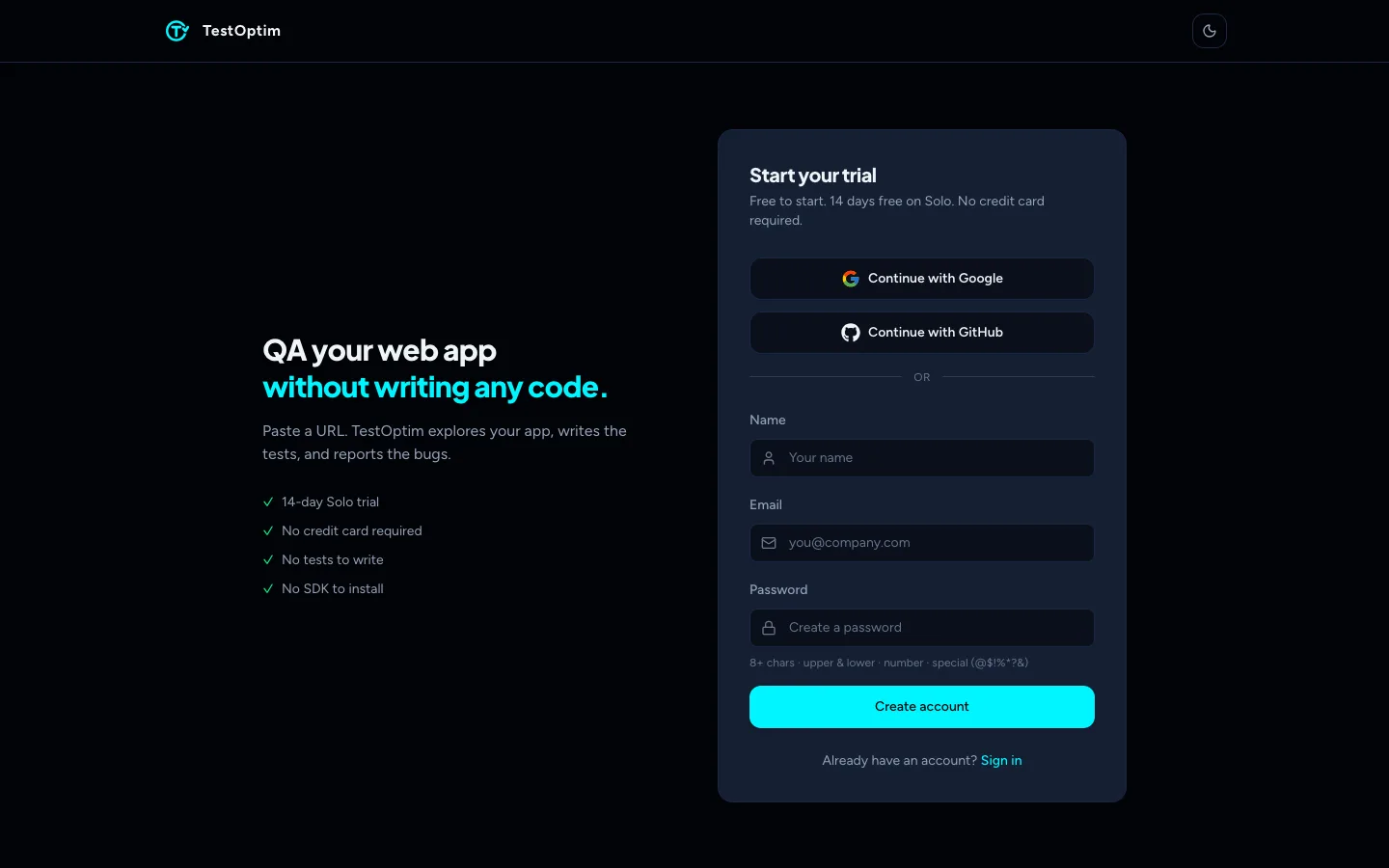
The sign-up form On the Check your email screen, type the 6-digit code from the email we sent you and select Verify Email.
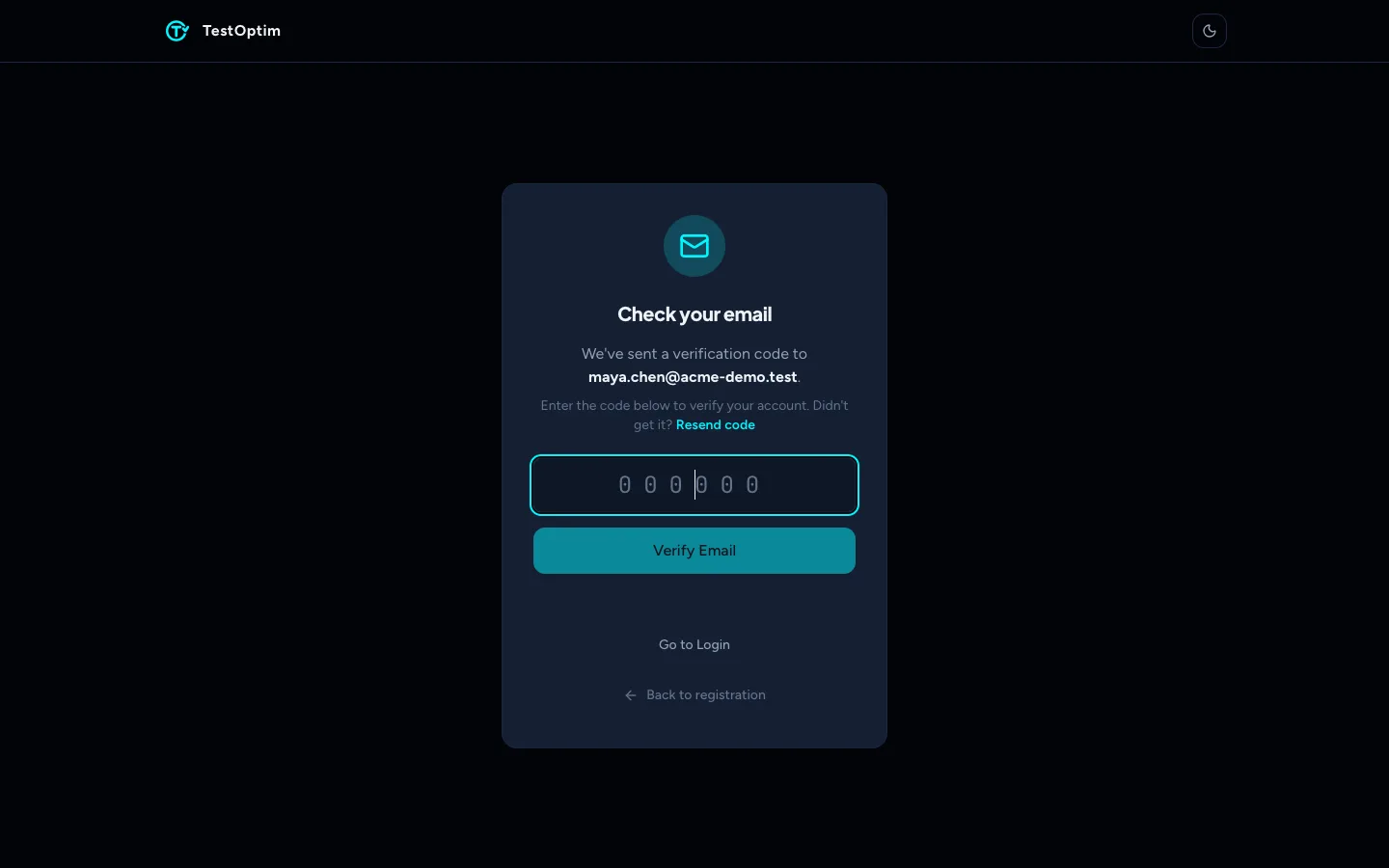
Enter the 6-digit code
When the code is accepted you're signed in, and TestOptim creates your personal organization, named "Your name's Organization", with you as its Owner. Next you choose a plan or start the free trial.
Name and password rules
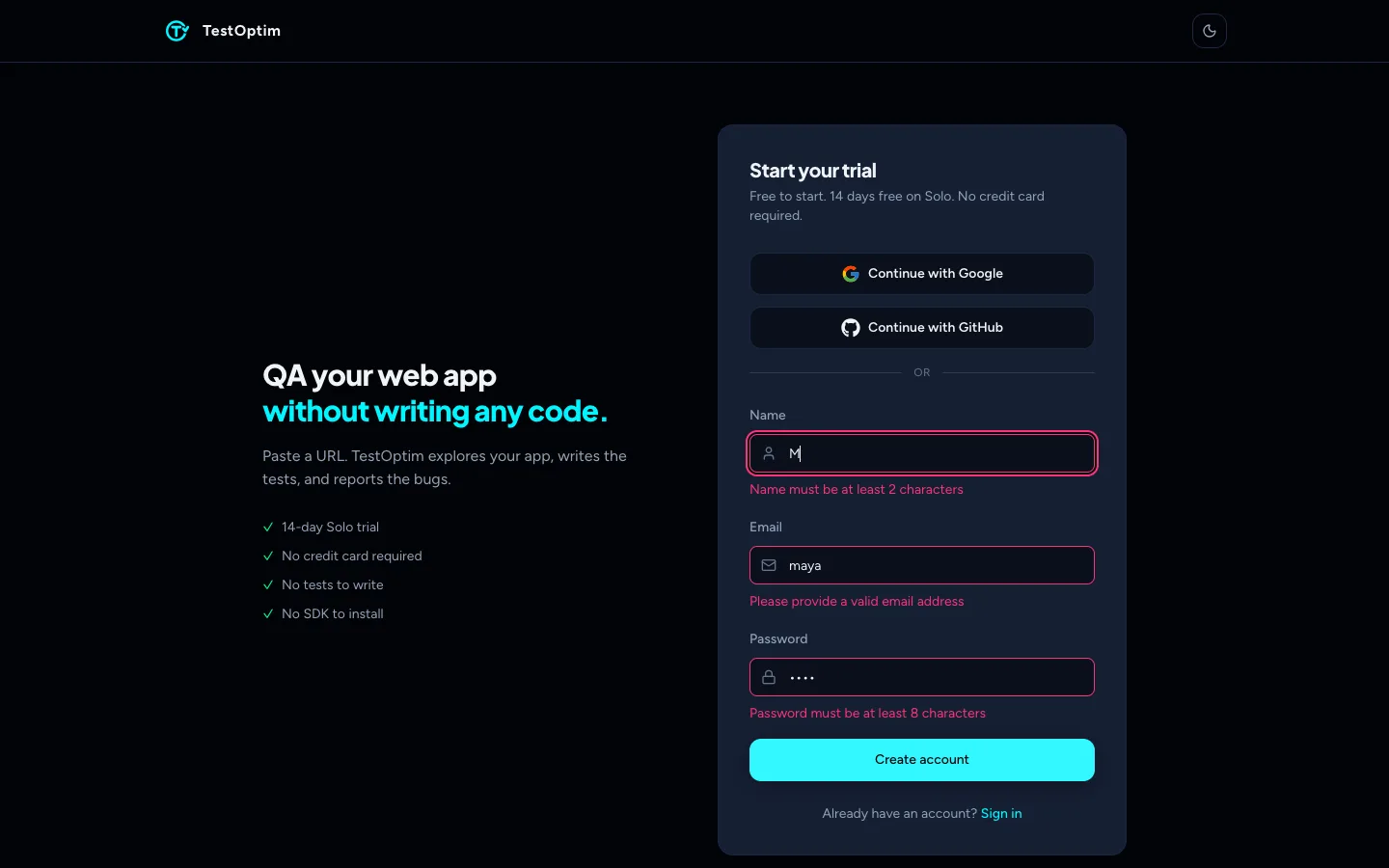
The form checks each field as you type:
- Name: 2 to 100 characters.
- Email: a valid email address.
- Password: 8 to 128 characters, with at least one upper-case letter, one lower-case letter, one number and one special character.
Warning
The only special characters the password accepts are @ $ ! % * ? &. Other symbols, such as #, _, - or spaces, are rejected with the message "Use upper & lowercase, a number, and a special character (@$!%*?&)".
If you see "Email already registered", an account with that email already exists, even if you never finished verifying it. If you already verified it, sign in instead. If you left before entering the code, open /auth/verify-email?email=you@example.com on the TestOptim site (use your own address), select Resend code and enter the code. Still stuck? Email hi@testoptim.com.
Why is my verification code not working?
- Check your spam folder. The email comes from TestOptim and the code is valid for 24 hours.
- Select Resend code. After you resend, the link is disabled for 60 seconds. Wait that long between resends: if you ask for a new code sooner, TestOptim says it sent one but doesn't send another email.
- Check that you typed the email correctly. Select Back to registration to start again.
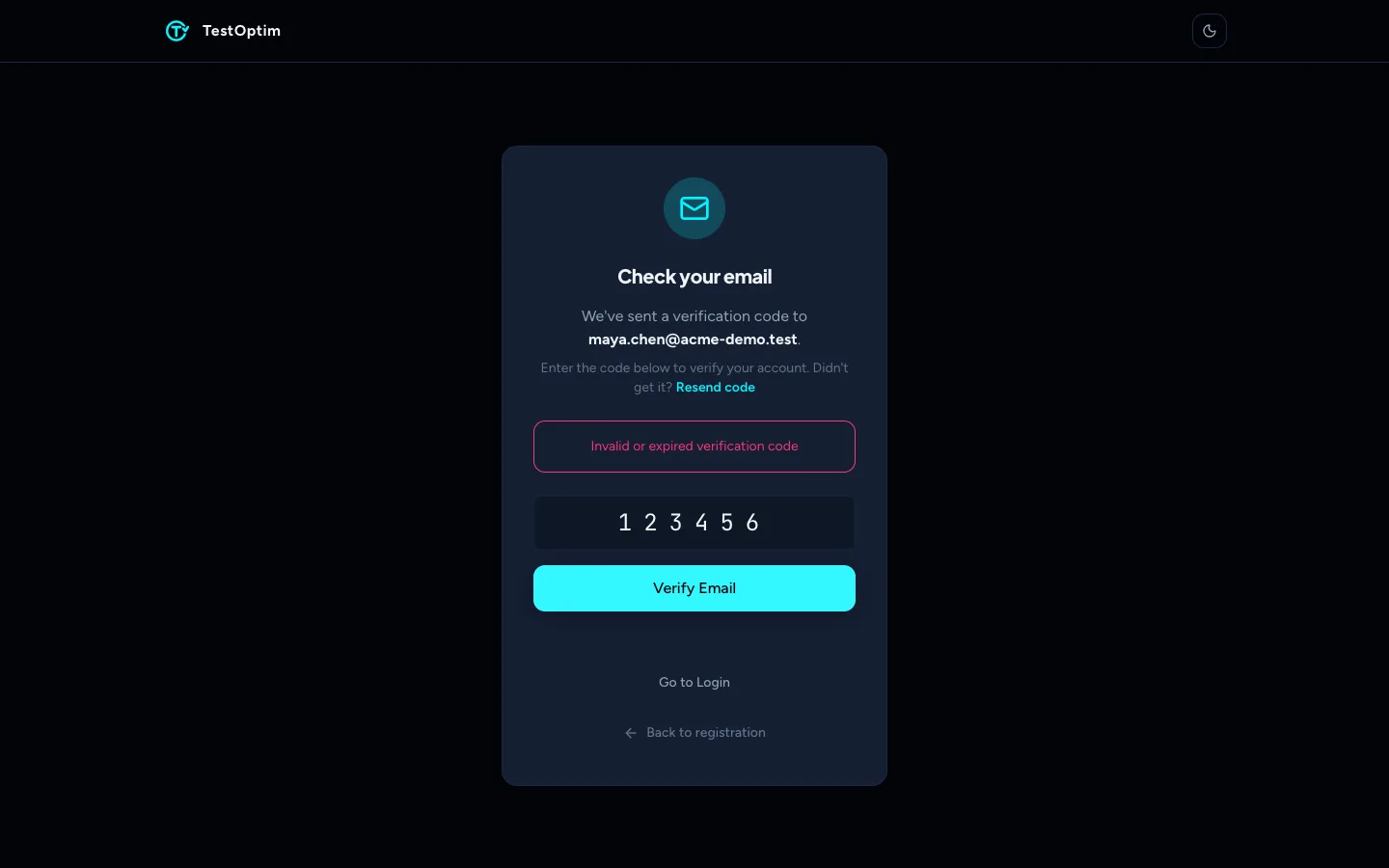
If the code is wrong or has expired, you'll see "Invalid or expired verification code". Request a new code and try again.
Note
You can't sign in with a password until the email is verified. If you try, you'll see "Please verify your email before logging in". The sign-in page doesn't link back to the verification screen, so enter your code before you leave the sign-up flow.
Sign up with Google or GitHub
Select Continue with Google or Continue with GitHub on the sign-up or sign-in page. There's no code to enter, because the provider has already verified your email.
- The email on your Google or GitHub account must be verified by the provider, otherwise sign-in fails.
- If you already have a TestOptim account with the same email, the two are linked, and you sign in to that account.
Related
Keep reading
- TroubleshootingCan't sign in to TestOptim: errors and fixesFix "Invalid credentials", "Please verify your email before logging in", expired codes, Google or GitHub errors, password reset and being signed out.
- Account & notificationsChoose which email and in-app notifications you getTurn TestOptim email and in-app notifications on or off, choose which events you hear about, and opt in to the Monday weekly digest.
- ProjectsCreate your first projectA project is one web app, identified by its URL. Add a name and URL, choose whether to record test runs, and TestOptim takes you to the Knowledge page.
- Exploration & knowledgeExplore your app to build the knowledge baseStart an AI exploration of your web app in TestOptim, follow its progress live and stop it if needed. The result is your knowledge base.