Change a member's role or remove them
Promote, demote or remove a teammate from the TestOptim Team page, including other Admins, and learn which rows you can't change and how to free a seat.
In this article
To change a teammate's role or remove them in TestOptim, open Team in the sidebar, open the member's Manage dialog, then Save role or Remove. Owners and Admins can do this, including for other Admins.
Before you start
- You need the Owner or Admin role.
- You can give any role from Admin to Viewer. Nobody can be made Owner from the Team page.
Change a member's role
In the left sidebar, open Team. The Members tab lists everyone, grouped by role.
Point at the member's row. A menu button appears at the right edge of the row.
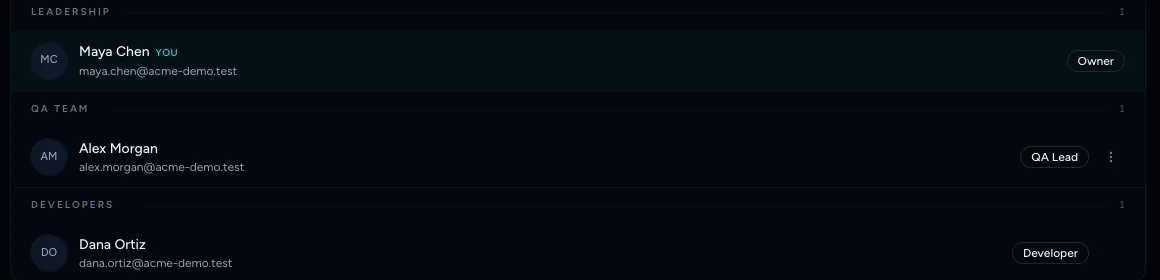
The menu button only appears when you point at the row Open it. The Manage dialog shows the member's Current role and a card for every role with a short description.
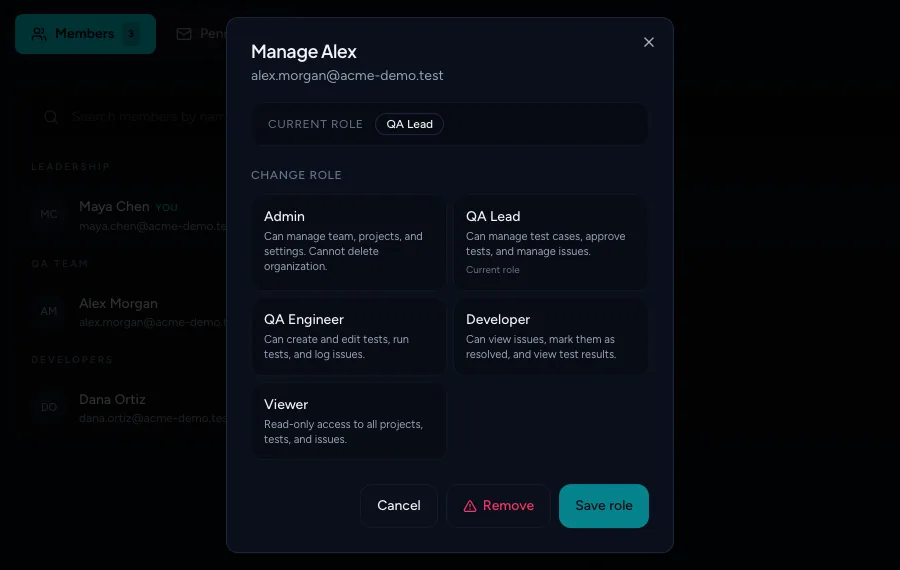
Choose the new role Select the new role. Save role becomes available.
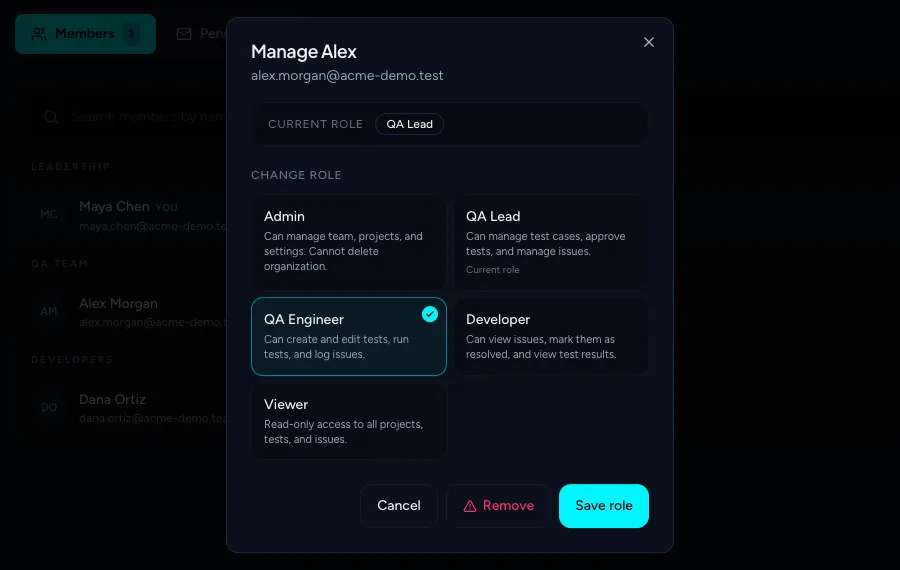
The selected role is highlighted Select Save role.
A Role updated successfully message appears and the member moves to the matching group.
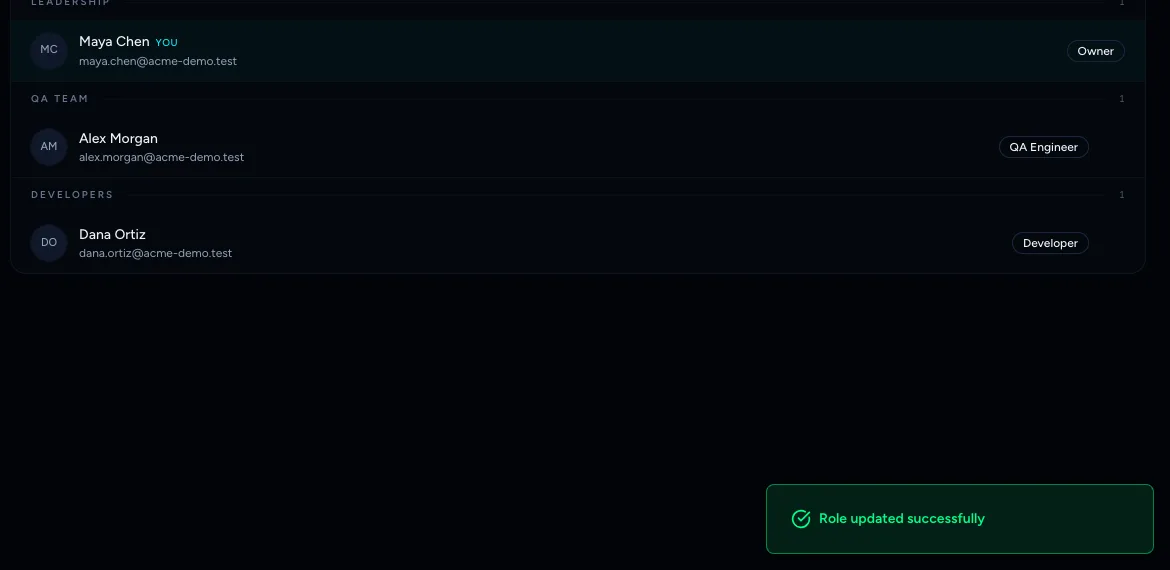
The change takes effect straight away. Ask the person to reload if a screen they already have open still shows the old permissions. For what each role allows, see Roles and permissions.
Remove a member
Open the member's Manage dialog as above.
Select Remove. A Remove member dialog asks "Are you sure you want to remove (name) from the organization? This action cannot be undone."
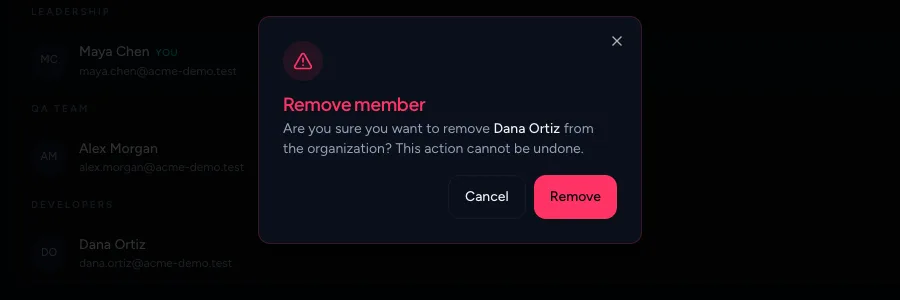
First confirmation Select Remove again. Your browser then asks one more time: "Are you sure you want to remove this member?" Confirm it.
The person loses access to the organization's projects. Their account stays, and you can invite them again later.
Limits and protections
- Admins can change or remove other Admins. Give the Admin role only to people you trust with that.
- You can't change or remove your own row, or the Owner's row. No menu button appears on them.
- Nobody can be made Owner from the Team page. There is no self-serve ownership transfer, so email hi@testoptim.com if you need to hand over ownership.
- If a change fails, the page shows a general Failed to update role or Failed to remove member message. Reload the page and try again, then contact support if it keeps failing.
Note
Removing someone frees a seat straight away, which helps if you hit your plan's seat limit. See Invite teammates.
Frequently asked questions
Can I make someone an Owner? Not from the Team page. Contact support to hand over ownership.
How do I free up a seat? Remove a member. The seat is available straight away. See Invite teammates.
Related
Keep reading
- Team & rolesInvite teammates to your organizationInvite people to your TestOptim organization by email, pick their role, and manage pending invitations. Covers seats, 7-day expiry and common errors.
- Team & rolesRoles and permissions: who can do whatSee what each TestOptim role can do, which screens are Owner-only, and why a button that looks available can still say you don't have permission.
- Team & rolesAccept an invitation to join a teamJoin a teammate's TestOptim organization from your invitation email, whether you are new or already have an account, and fix the common errors.
- Troubleshooting"You don't have permission to perform this action"Which role you need for each action in TestOptim, why a button is missing or an action is refused, and what to do about stale-tab errors.