Enter a one-time code during exploration
If your app's login sends a one-time code, exploration pauses and emails you a link. Request the code and enter it within 5 minutes, or set a fixed test code.
In this article
If your app's login sends a one-time code (OTP) by SMS or email, TestOptim exploration pauses and emails you a link where you request the code and type it in. The agent can't read your phone or inbox. You can avoid the pause altogether by giving TestOptim a fixed test code on the credential profile.
Before you start
- Only Owner, Admin and QA Lead can submit the code. A QA Engineer can start an exploration but can't resume one that is waiting for a code.
- The email goes to the person who started the exploration, or the project owner if that isn't known. If that person isn't allowed to enter the code, forward the link to someone who is.
Easiest option: set a test code on the profile
If you can configure a fixed code in your test or staging environment, enter it on the credential profile and exploration never pauses.
- Open your project and click Settings.
- Scroll to Credential Profiles.
- In the profile, fill Phone Number if your login asks for one, and Test OTP / PIN with the code your app always accepts, for example
123456. - Click Save changes.
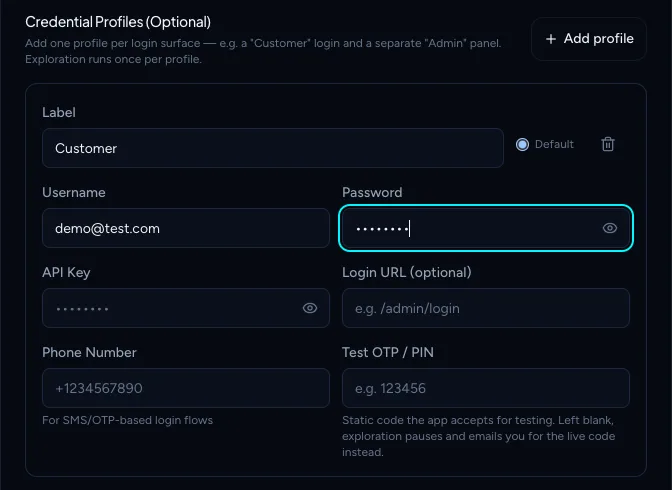
The hint under the field says it all: "Static code the app accepts for testing. Left blank, exploration pauses and emails you for the live code instead."
For the other profile fields, see Add login credentials.
Why is exploration waiting for a verification code?
If the agent reaches an OTP step and the profile has no Test OTP / PIN, this is what happens.
- Exploration pauses. The live log shows "Waiting for you to request a verification code". Nothing has been sent to your phone or inbox yet. TestOptim waits so the code doesn't expire before you are ready.
- You get an email with the subject "Action needed: project name needs a verification code" and a button Open OTP Page. There is also a notification in the app.
- Click Open OTP Page. You land on the Verification code page for your project. Sign in to TestOptim if asked.
- Click Send my code. TestOptim now asks your app to send the code. The page says "Requesting your code — this takes a few seconds…".
- Enter the code. When the code has gone out the page changes to Enter the code with an Expires in countdown. Type the code you received in One-time code and click Submit code.
- You see Code submitted and "Exploration is resuming." Click Go back to Knowledge to watch the log continue.
Time limits
| Step | How long you have |
|---|---|
| Open the page and click Send my code | Up to 30 minutes after the pause |
| Type the code after it is sent | 5 minutes (shown as a countdown) |
If you run out of time, the agent carries on with whatever it can reach without logging in. Nothing it already found is lost. A whole exploration also stops after 30 minutes, so a long pause can leave less time to explore.
The page when nothing is waiting
If you open the page when no run is waiting for a code, for example from an old email, Send my code is disabled and you see "This exploration run isn't currently waiting for a verification code — it may have already been resolved or timed out."
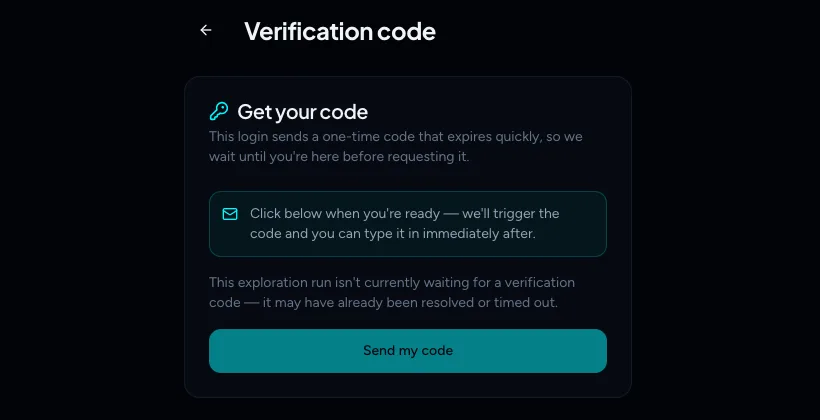
If you open the page without the link from the email, you also see "No job specified — open this page from the link in your email instead." Use the email link, not a bookmark.
If a run has already ended, start a new one. See Explore your app.
Tip
Do not click Send my code until you have your phone or inbox in front of you. The code expires within minutes.
Related
- Explore your app
- Add login credentials so TestOptim can sign in
- Exploration stopped, timed out or found too little
Still stuck? Email hi@testoptim.com.
Keep reading
- ProjectsAdd login credentials so TestOptim can sign inGive TestOptim a test account so it can explore and test pages behind your login. Add one credential profile per role and see which one each run uses.
- Troubleshooting"Already in progress for this project" errorTestOptim runs one job per project at a time. See what "already in progress for this project" means, which jobs block each other, and how to proceed.
- Exploration & knowledgeExplore your app to build the knowledge baseStart an AI exploration of your web app in TestOptim, follow its progress live and stop it if needed. The result is your knowledge base.
- Getting startedHow TestOptim works: explore, generate, run, fixTestOptim tests your web app in five steps you start yourself. It explores your app, writes test cases, runs them, reports bugs and re-checks fixes.